Managing restaurants
Menu Author is not limited to a single restaurant. One account can hold multiple restaurants, each with its own menus and assets, so whether you run several locations or manage more than one brand, everything stays organized in one place.
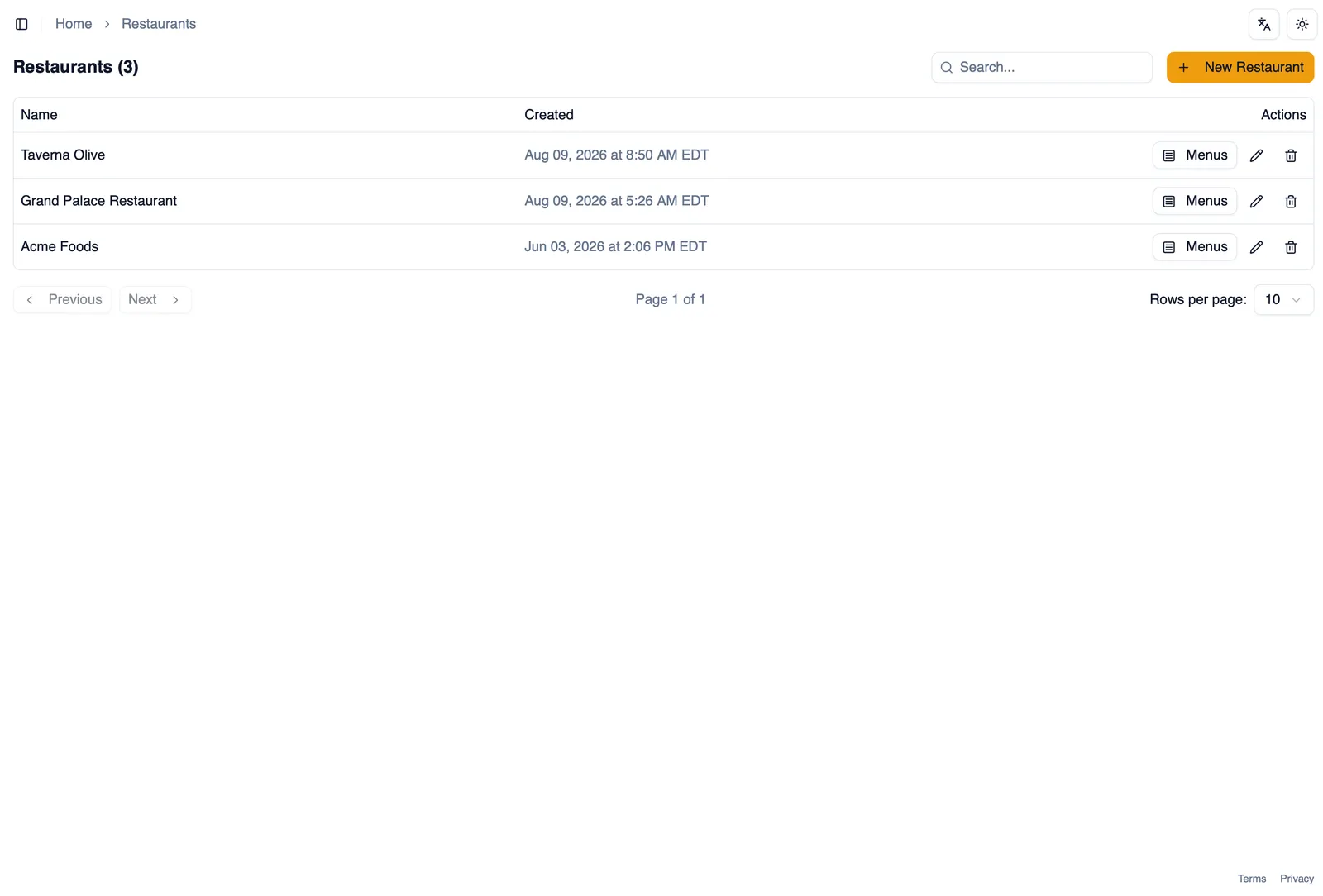
Multiple restaurants on one account
Section titled “Multiple restaurants on one account”Add as many restaurants as you need to your account. Each one keeps its own name, menus, and assets, completely separate from the others, even though they all live under the same account and the same team.
Switching restaurants
Section titled “Switching restaurants”Open Restaurants in the sidebar to see every restaurant on your account, and pick the one you want to work in. The rest of the app, Menus, Assets, everything, updates to show that restaurant’s own data.
Menus and assets stay per restaurant
Section titled “Menus and assets stay per restaurant”Menus and assets belong to a single restaurant. Switching restaurants from Restaurants shows only that restaurant’s menus and its own asset library, so content for one location never mixes into another.
Duplicating a menu into another restaurant
Section titled “Duplicating a menu into another restaurant”You do not have to rebuild a menu from scratch for a second location. Duplicate a menu and choose a different restaurant as the destination, and Menu Author copies it across, ready for you to adjust for that location.
How to duplicate a menu into another restaurant
Section titled “How to duplicate a menu into another restaurant”- Open the Menus list for the restaurant that has the menu you want to copy.
- Duplicate the menu.
- Choose the restaurant you want the copy to land in, which can be a different restaurant on your account.
- Open the duplicated menu in its new restaurant and adjust anything specific to that location.
With more than one restaurant on your account, see Team and roles next to bring in the people who help you run them.