Typography
Typography is what turns text into a menu with a voice of its own: which font, how heavy, how spaced out, and what color, all set per element so a heading can look nothing like the body text below it.
The font library
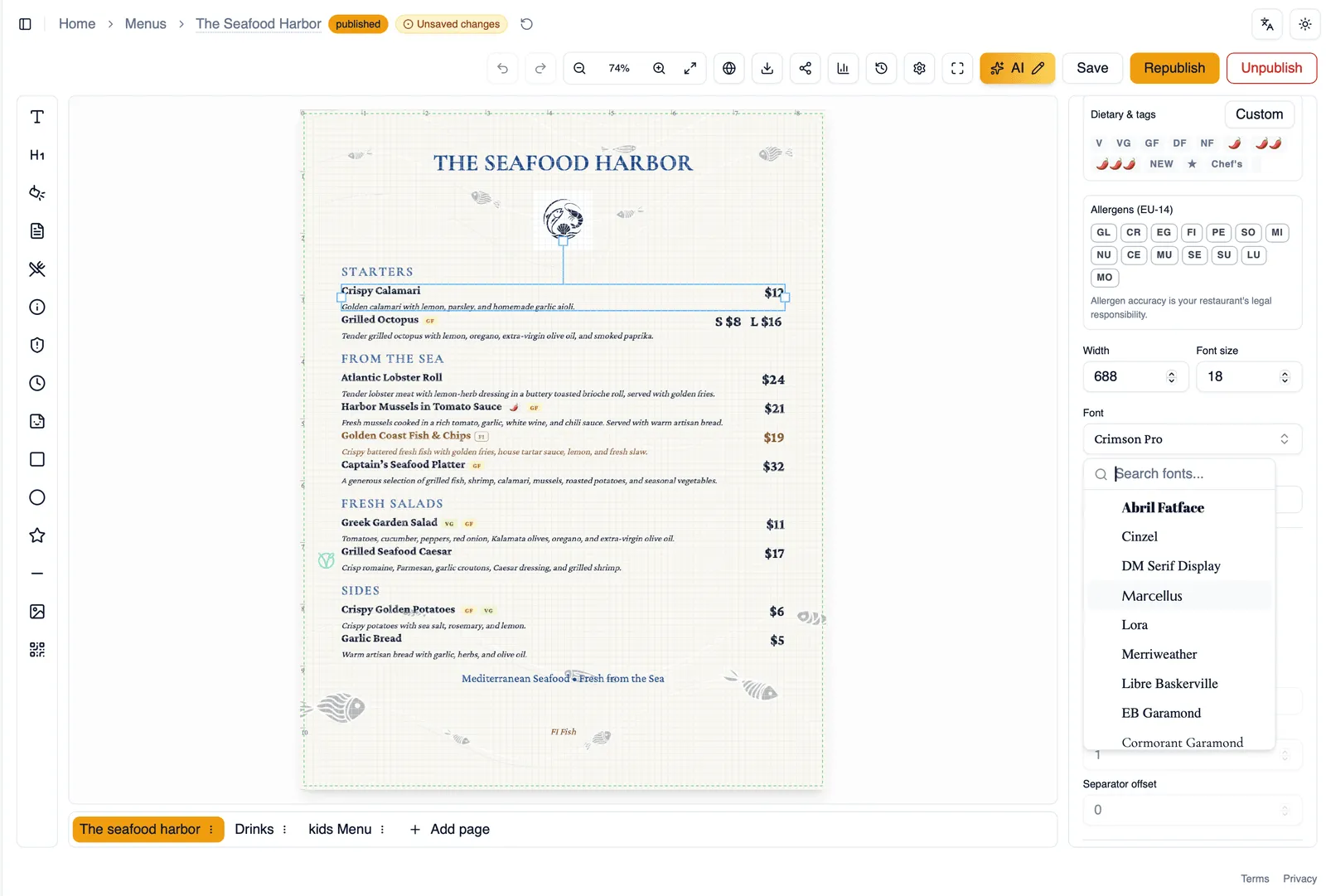
Section titled “The font library”Choose from a library of 40 fonts organized by category, picked with an autocomplete picker so you can jump straight to a font by typing its name instead of scrolling a long list.
Weights and styles
Section titled “Weights and styles”Once a font is chosen, set its weight, and toggle italic, bold, underline, or strikethrough as needed.
Spacing
Section titled “Spacing”Fine-tune letter spacing and line height to control how tight or airy a block of text feels.
Set a color per element, with support for transparency, so text can sit subtly over a background image or pattern rather than fighting with it.
Alignment
Section titled “Alignment”Set the alignment of any text element independently of everything else on the page.
Theme defaults and on-demand loading
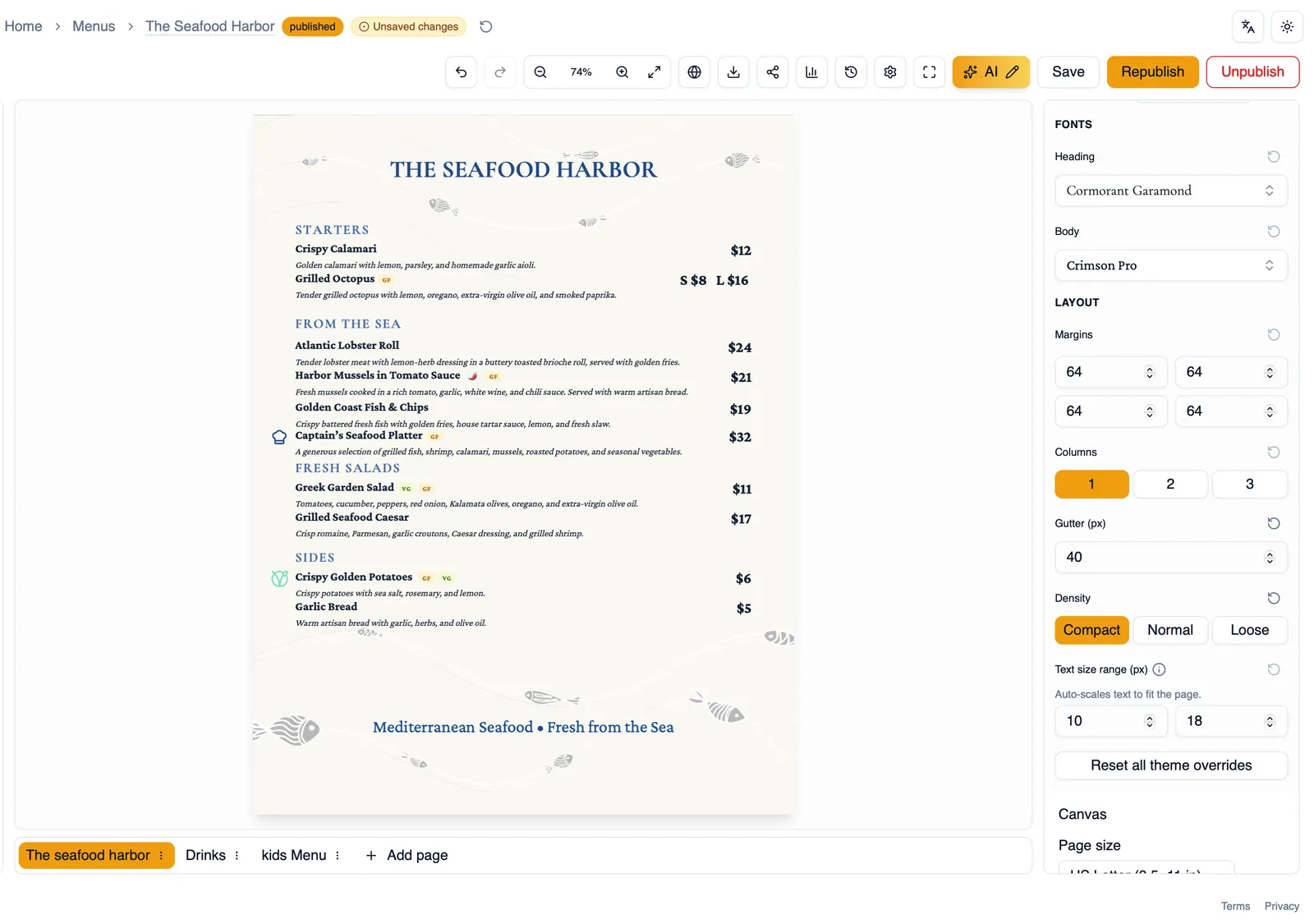
Section titled “Theme defaults and on-demand loading”Every theme comes with its own default heading and body fonts, so a new menu already looks coherent before you touch a single setting. Fonts load on demand, only the ones your menu actually uses are loaded, keeping things fast.
How to change an element’s font
Section titled “How to change an element’s font”- Select the text element you want to change, an item name, a section title, or any other text.
- In the property panel, open the font picker and type to search the 40-font library.
- Choose a font, then set its weight and toggle italic, bold, underline, or strikethrough as needed.
- Adjust letter spacing and line height if you want the text tighter or looser.
- Set a color, including transparency if the element sits over a background, and choose its alignment.
Continue to Refine with AI to adjust your whole theme with a plain-language description instead of setting each piece by hand.