Working with elements
Every item, section, shape, and block you place on a page is an element, and every element shares the same set of tools for selecting it, positioning it, and fine-tuning how it looks. This page covers those shared tools, the ones that work the same way no matter what kind of element you have selected.
Selecting
Section titled “Selecting”You can select elements a few different ways, depending on how many you need at once:
- Click an element to select just that one.
- Shift-click additional elements to add them to the current selection.
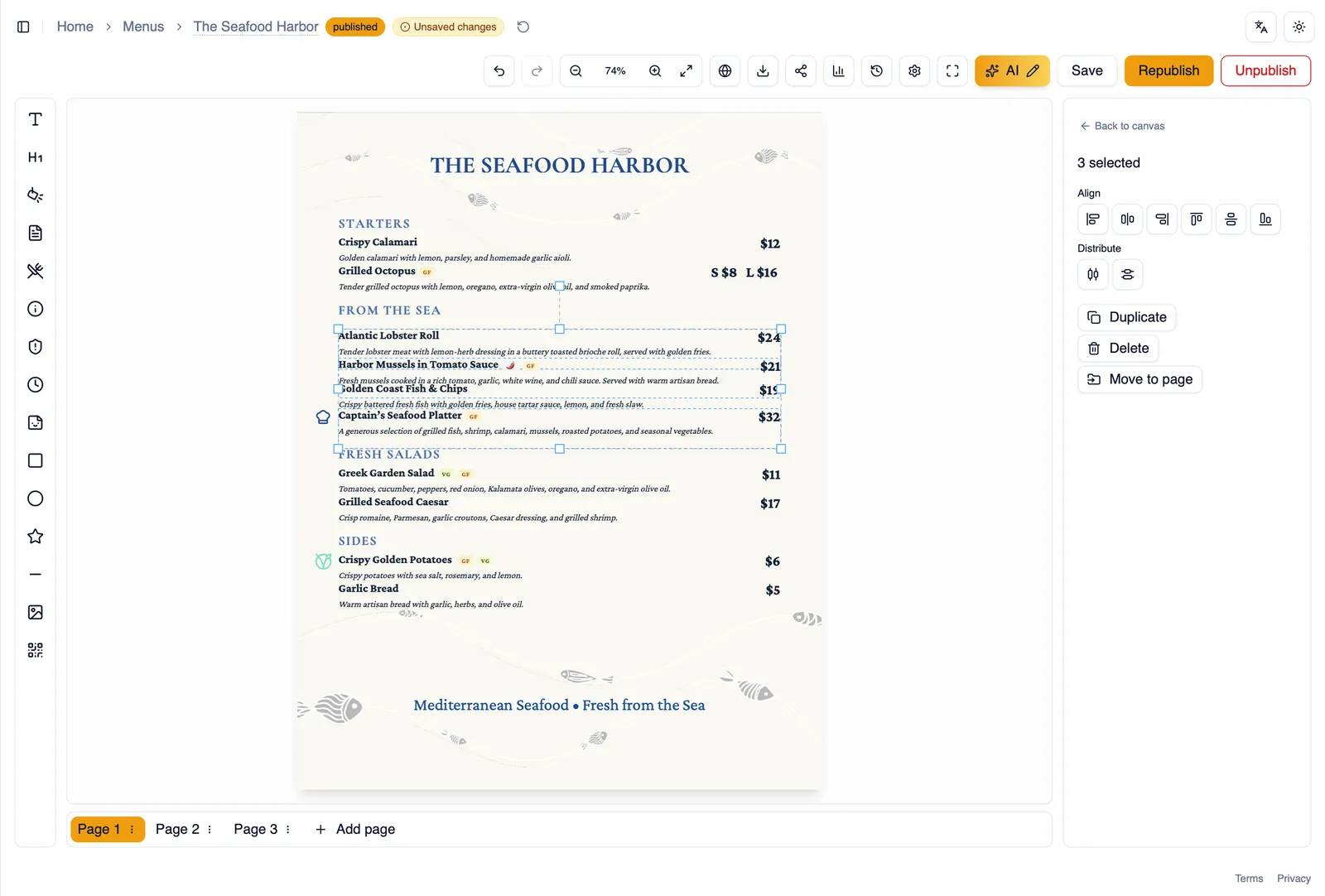
- Drag a marquee, a selection box, across an empty part of the canvas to select everything it touches.
- Drag from inside a section, rather than an empty part of the canvas, to pick up the whole section, header, card, and every item inside it, as a single unit.
Align and distribute
Section titled “Align and distribute”Once you have more than one element selected, align them to line up their edges or centers, and distribute them to space them evenly between the outermost two. This is the fastest way to straighten a row of items or a cluster of icons that you placed by eye.
Arrange
Section titled “Arrange”When elements overlap, arrange controls which one sits on top. Bring an element to the front so nothing covers it, or send it to the back so it sits behind everything else.
Lock and hide
Section titled “Lock and hide”Lock an element to stop it from being selected or moved by accident while you work around it. Hide an element to remove it from view on the canvas without deleting it, useful for temporarily getting something out of your way.
Pin to position
Section titled “Pin to position”Pin an element to a fixed position on the page so it stays exactly where you put it, rather than flowing with the surrounding content as other elements move or reflow around it.
Print only elements
Section titled “Print only elements”Mark an element as print only and it appears in your exported and printed menus but never on your published web menu, useful for things like crop marks or notes meant only for print that diners browsing online do not need to see.
Move to page
Section titled “Move to page”On a menu with more than one page, move an element from the page it is on to a different page directly, without needing to cut it and paste it manually.
Rotation, opacity, and shadows
Section titled “Rotation, opacity, and shadows”Rotate any element to any angle, adjust its opacity to make it more or less transparent, and add a drop shadow to lift it off the page.
The right click menu
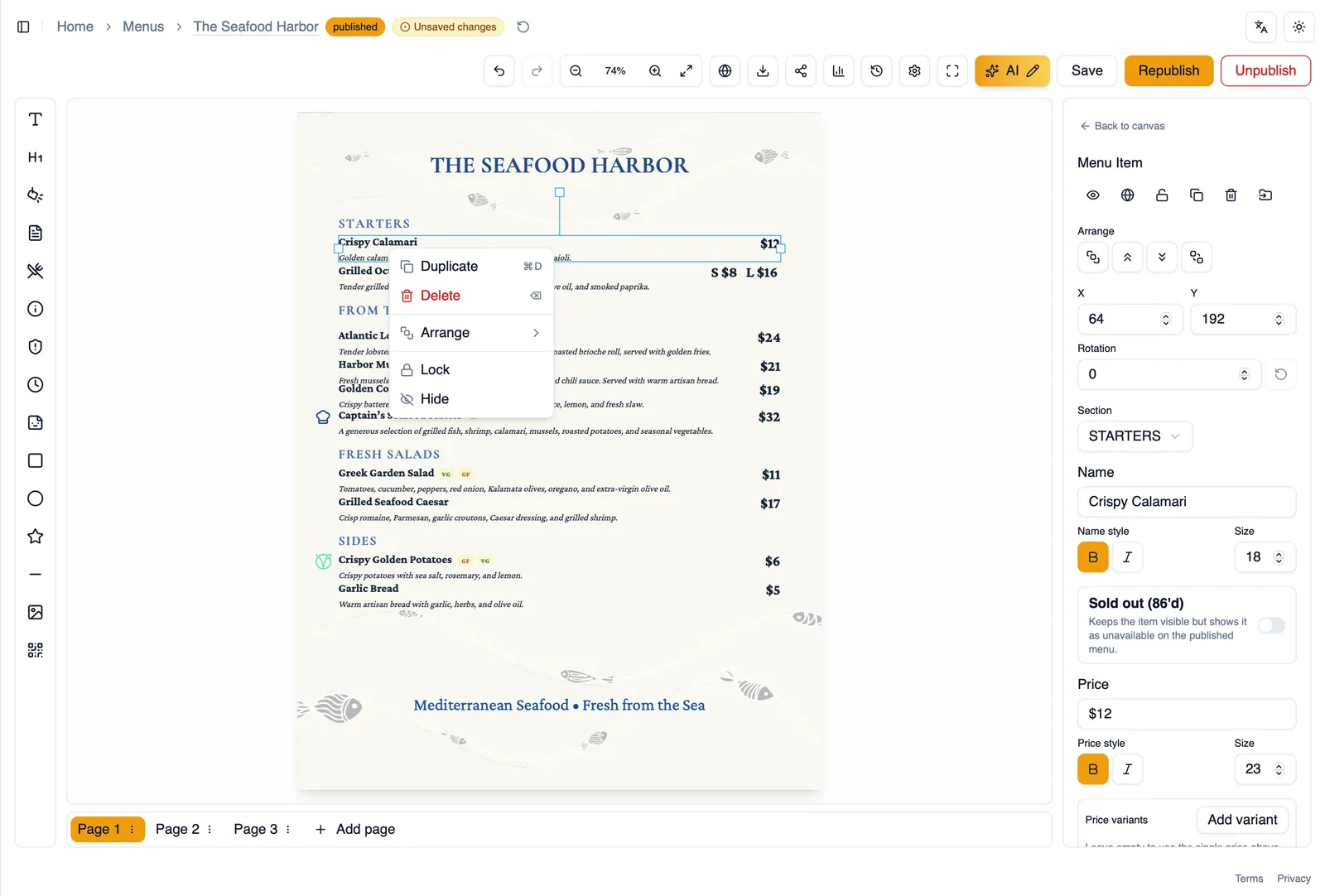
Section titled “The right click menu”Right-click any element to open a context menu with quick actions for it, including duplicating it, so you can create a copy without rebuilding it from scratch.
Staying on the page (clamping)
Section titled “Staying on the page (clamping)”The canvas clamps every element to the page, so nothing you drag can end up lost off the edge. If you drag an element too far, it stops at the page boundary instead of disappearing outside your view.
How to duplicate and reposition an element
Section titled “How to duplicate and reposition an element”- Right-click the element you want to copy.
- Choose Duplicate from the context menu.
- Drag the new copy to where you want it on the canvas.
- Use align and distribute if you are placing several copies in a row, so they line up evenly.
Next, see Precision layout for the guides and tools that help you place elements exactly where you want them.