What is Menu Author
Menu Author is a web app for designing, publishing, and sharing your menu online, whether you run a restaurant, a coffee shop, a spa, a hair salon, or any other business with a menu of products or services. This page gives you the lay of the land: what the app does, how the navigation is organized, and how to switch accounts or appearance.
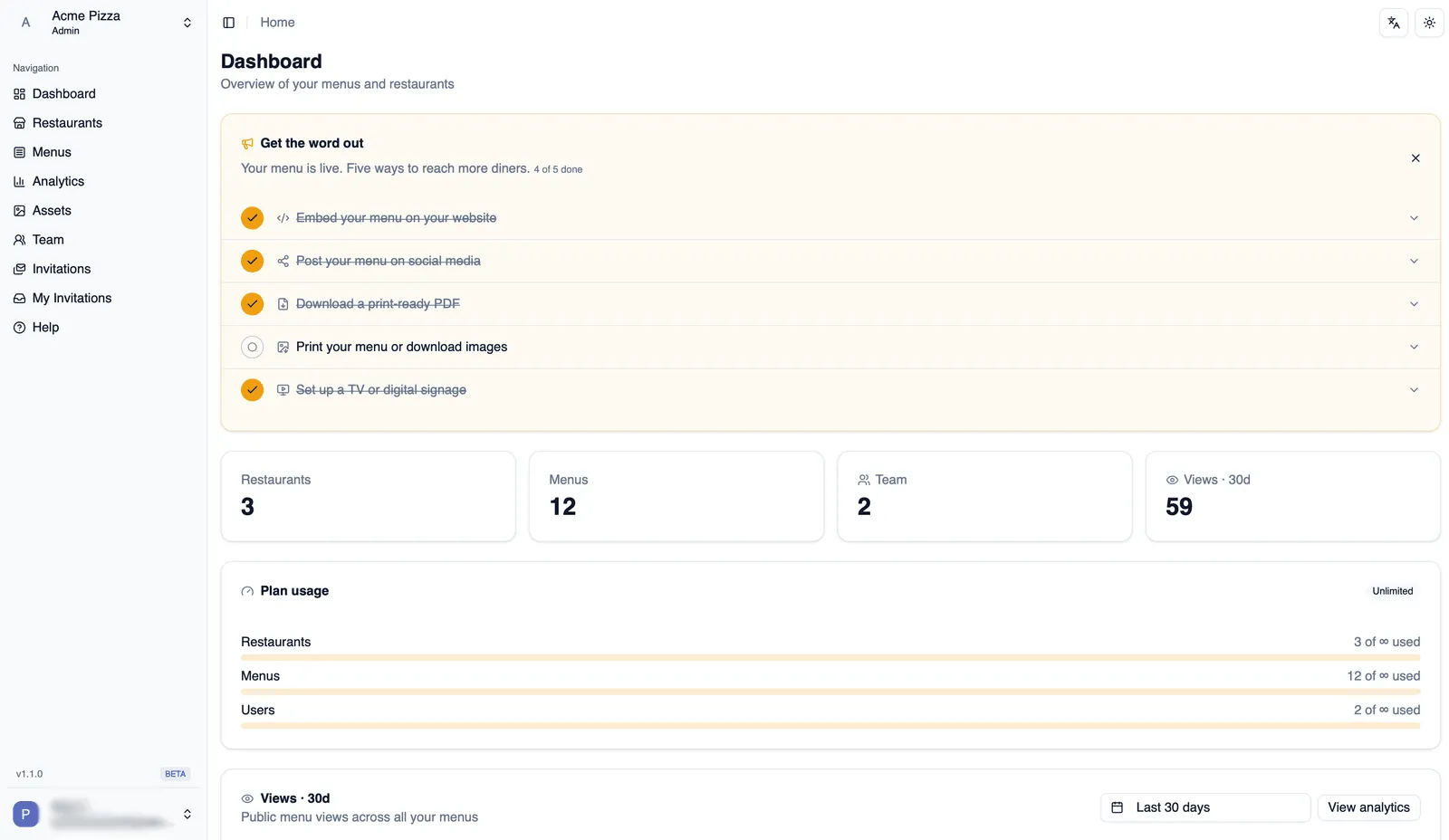
What you can do
Section titled “What you can do”At its core, Menu Author takes a menu, however you already have it, and turns it into a polished web page you can share anywhere. You design it in the editor, publish it with one click, and hand it to customers as a link or a QR code they can scan at the table.
A tour of the app
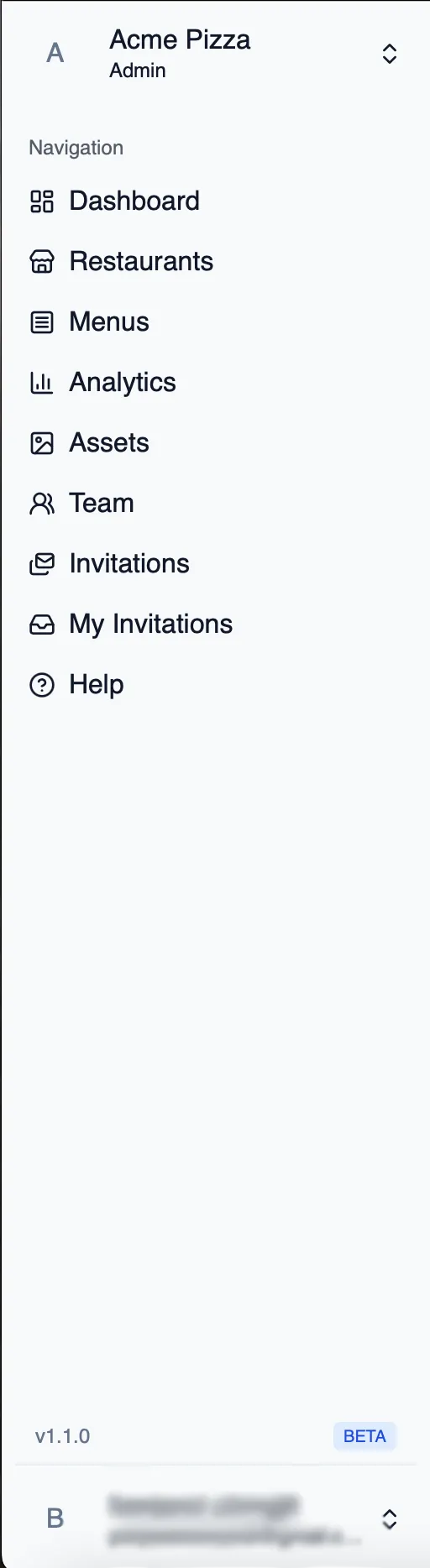
Section titled “A tour of the app”Everything you do in Menu Author starts from the sidebar. Here is what each item opens:
- Dashboard: your home screen after signing in, with an overview of your account and quick links to keep moving.
- Restaurants: every restaurant on your account, and the place to add another one.
- Menus: all the menus that belong to the restaurant you currently have selected.
- Analytics: how many people are viewing your menus.
- Assets: your logo, photos, and other images, ready to use in any menu.
- Team: the people who help run your account.
- Invitations: invitations you have sent to people to join your team.
- My Invitations: invitations other accounts have sent to you.
- Help: guidance whenever you need it.
The account switcher
Section titled “The account switcher”If you are involved with more than one account, maybe your own restaurant and a client’s, the account switcher lets you move between them without signing out and back in. You will find it in the user menu, opened from your name or avatar at the top of the sidebar. The same user menu is also where you adjust appearance and sign out.
Light and dark mode
Section titled “Light and dark mode”Menu Author can match whichever look you prefer while you work. Open the user menu and choose Light, Dark, or System to follow your device’s own setting automatically. The change applies across the whole app right away. It only changes how the app looks to you, not how your published menus look to diners.
How to switch appearance
Section titled “How to switch appearance”- Open the user menu from your name or avatar in the sidebar.
- Choose Light, Dark, or System.
- The app updates immediately. Pick System if you would rather it follow your device automatically.
Ready to set up your account? Continue to Create your account.