Saving, autosave, and version history
You should never have to think about losing work in the editor. This page covers how saving works behind the scenes, what to do if two drafts ever collide, and how to look back at, or restore, an earlier version of your menu.
Autosave and save states (Cmd/Ctrl+S)
Section titled “Autosave and save states (Cmd/Ctrl+S)”The editor autosaves your changes as you work, so you do not need to remember to save. The save state indicator in the top bar shows you where things stand at any moment, cycling through Save, Saving, and Saved as you make changes and the editor stores them. If you want to trigger a save yourself, press Cmd+S on a Mac or Ctrl+S on Windows.
The unsaved changes guard
Section titled “The unsaved changes guard”If you try to leave the editor while you have changes that have not finished saving, an unsaved changes indicator and a navigation guard step in to warn you before you go, so you get the chance to wait for the save to finish rather than risk losing anything.
Recovering drafts (Keep my changes vs Use latest version)
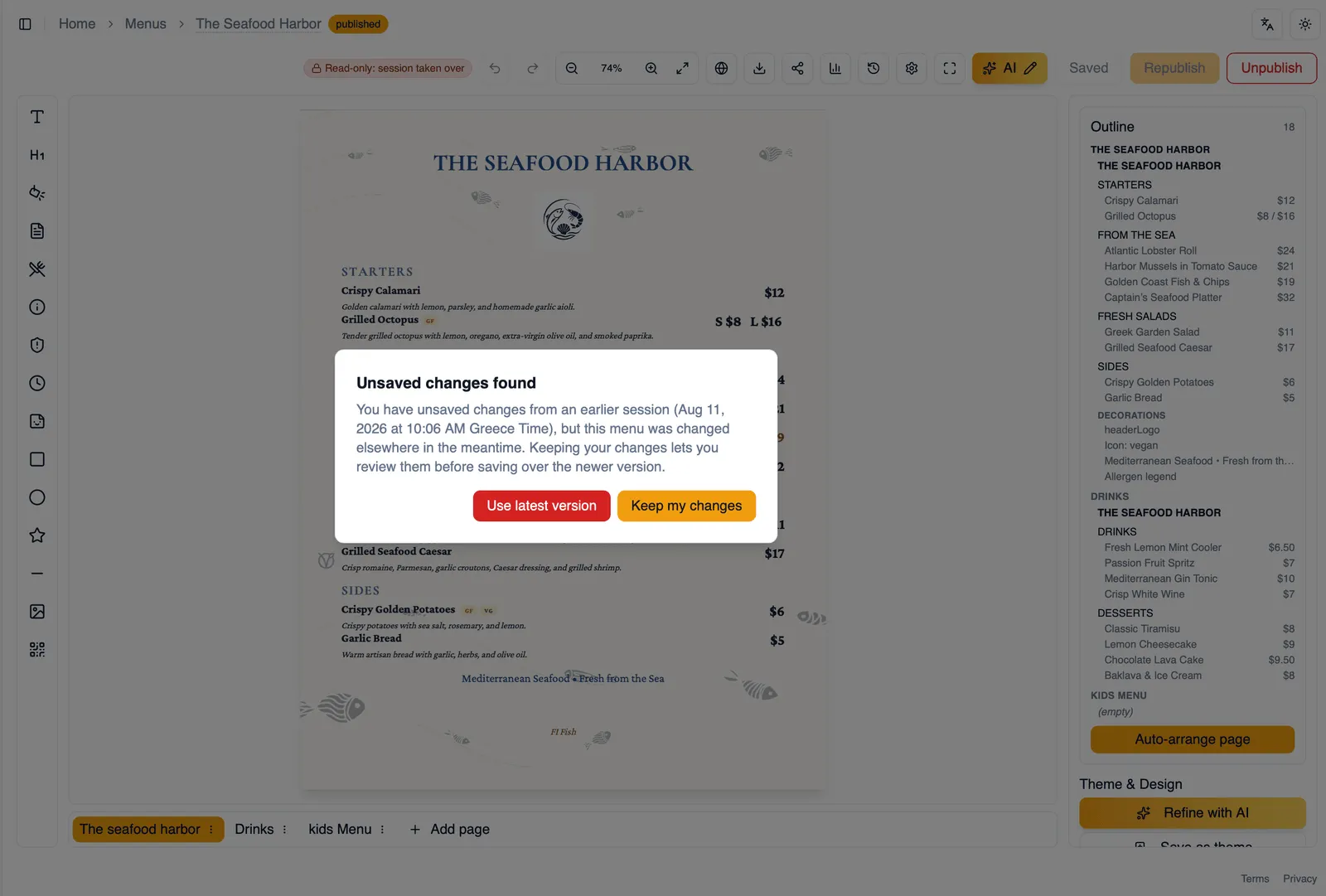
Section titled “Recovering drafts (Keep my changes vs Use latest version)”Occasionally the editor detects that your local draft and the saved version of a menu have diverged, for example if you had the same menu open in two places. When that happens, an “Unsaved changes found” dialog gives you a choice: Keep my changes to keep working from your local draft, or Use latest version to discard your local draft and load the version that was already saved.
Version history and restore (Professional keeps 10, Ultimate 30)
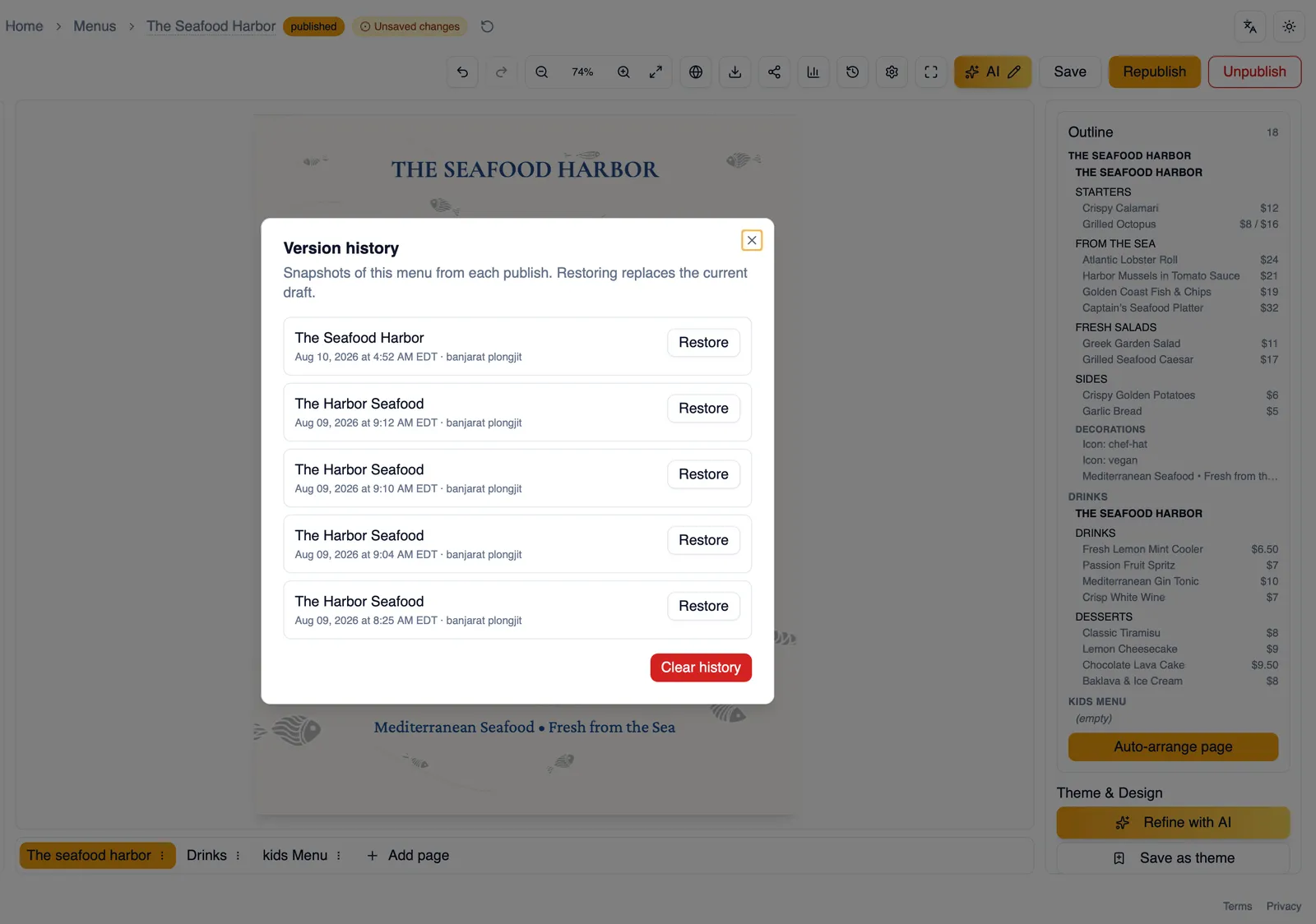
Section titled “Version history and restore (Professional keeps 10, Ultimate 30)”Version history lets you browse earlier saved versions of your menu and restore any of them with one click, useful if a change turns out to be a mistake or you simply want an earlier layout back. Restoring a version also restores the theme that version was using, so old content never comes back dressed in newer styling. How far back you can go depends on your plan: the Professional plan keeps your most recent 10 versions, and the Ultimate plan keeps your most recent 30.
Edit locks and take over
Section titled “Edit locks and take over”Only one person can actively edit a given menu at a time. If someone else already has it open, you land in a read-only “session taken over” state until you choose to take over the edit lock yourself, at which point their session becomes read-only instead. This keeps two people from overwriting each other’s changes on the same menu at the same time. While a menu is read-only, undo and redo are disabled too, so nothing can be changed by accident.
How to recover your draft after a conflict
Section titled “How to recover your draft after a conflict”- Watch for the “Unsaved changes found” dialog when the editor detects a conflicting draft.
- Choose Keep my changes if the work in front of you is what you want to keep.
- Choose Use latest version instead if you would rather discard your local draft and continue from what was already saved.
How to restore an earlier version
Section titled “How to restore an earlier version”- Open Version history from the top bar.
- Browse the list of saved versions by their timestamps.
- Find the version you want and restore it.
- Confirm you want to make that version current.
Next, see Keyboard shortcuts and touch for working faster with the keyboard, and editing on a tablet.