Translate your menu
Menu Author can show your menu in more than one language, so guests can read it in whichever language suits them. Translations are available on the Professional, Ultimate, and Enterprise plans. The Free plan does not include them.
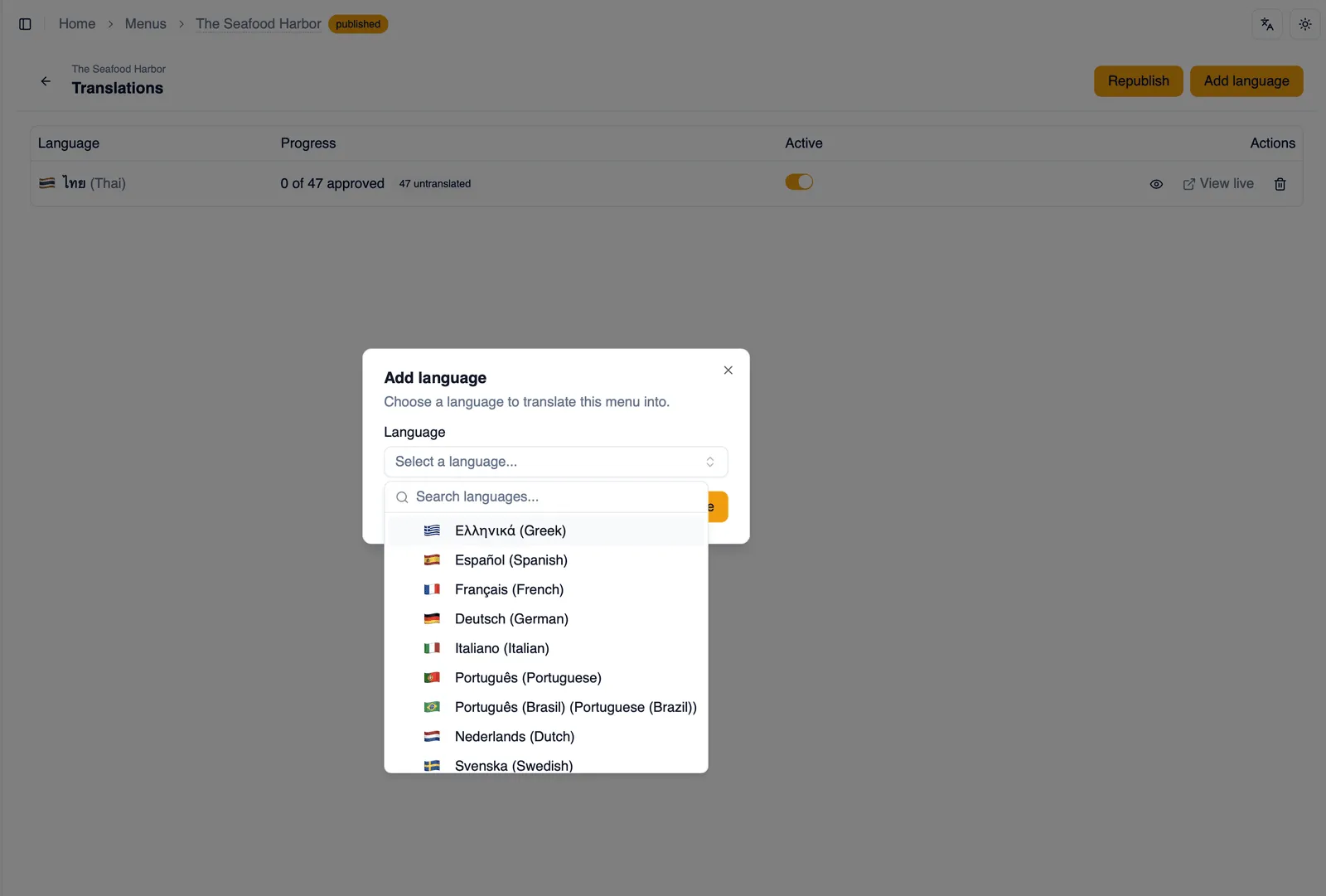
Add a language
Section titled “Add a language”Open the language picker to add a language to your menu. It lists every supported language, 27 in total, so pick whichever ones your guests need. The first time you add a language, Menu Author also sets it as your menu’s current language.
The base language
Section titled “The base language”Translations are made from your menu’s base language, the language your original text is written in. A menu generated with AI has its base language detected from your source automatically; other menus ask for it the first time you add a language. If the detection was off, or you want a different base, you can change it in the Add language dialog right up until the first translation is added; after that it is fixed, since existing translations were made from it.
Translate with AI
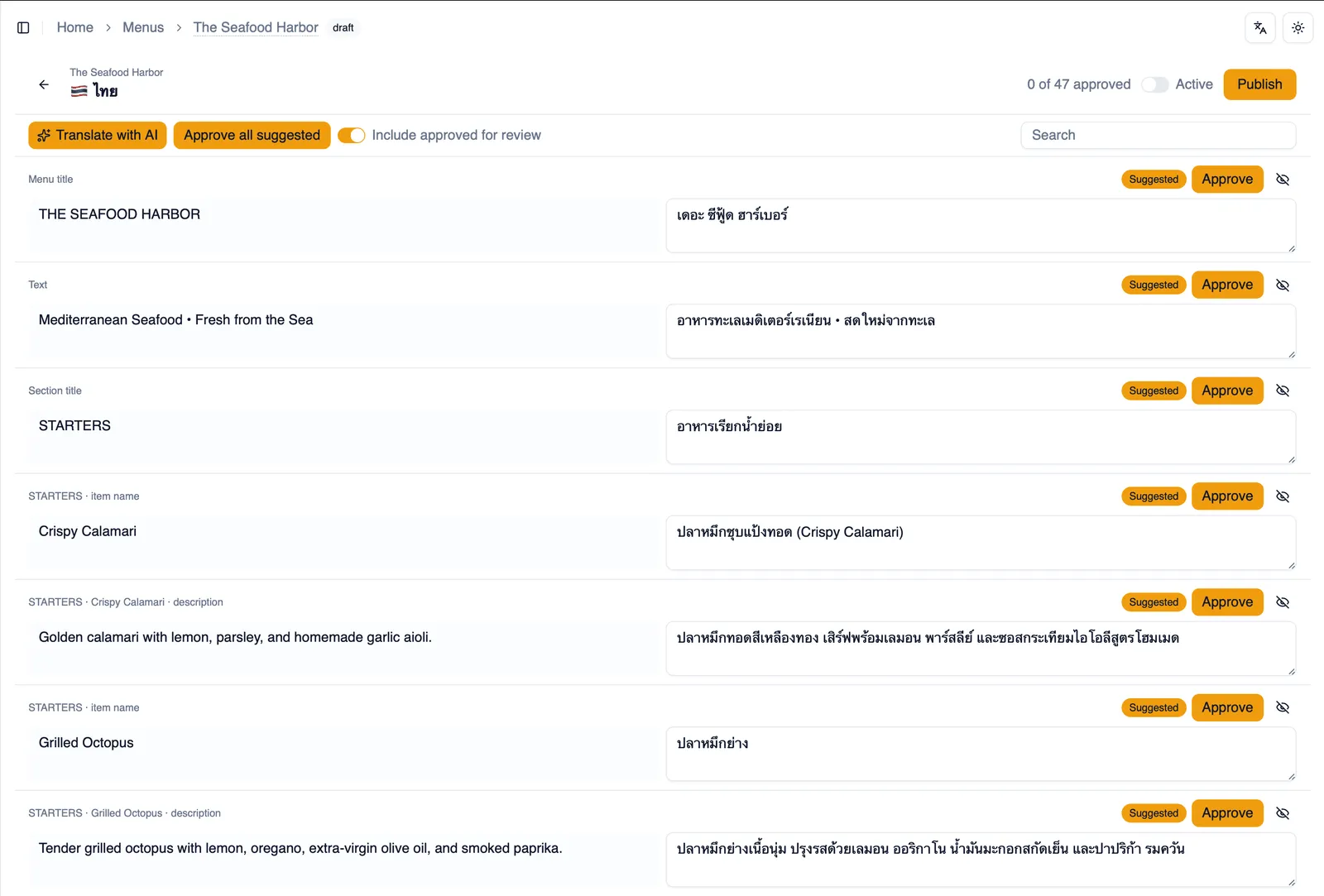
Section titled “Translate with AI”Use Translate with AI to generate translations automatically. It works through your menu row by row, streaming each translated row in as it finishes rather than making you wait for the whole menu at once. Every row it produces lands in the Suggested state, ready for you to review before anything goes live.
Review and approve
Section titled “Review and approve”Every piece of text in a language you have added, item names, descriptions, section titles, and more, sits in one of five states:
- Untranslated: no translation exists yet for this row in this language.
- Suggested: Translate with AI has produced a translation for this row, waiting for your review.
- Approved: you have reviewed and approved this row. Approved text is what guests actually see.
- Stale: this row was approved, but the original wording changed since, so it needs another look.
- Excluded: you have chosen to leave this row out of translation for this language.
Approve rows one at a time, or use Approve all suggested to accept every AI suggested row in one step.
Going live
Section titled “Going live”Each language has its own Active switch, and the switch is what makes a language live. On a published menu it asks you to confirm, then the language appears on your live menu right away; turn it off and the language disappears from your live menu just as quickly, with your translations kept so you can activate it again anytime. There is no separate publish step for translations. Once a language is active, rows you approve reach guests as you approve them.
If the menu itself is not published yet, the translations pages say so and offer Publish in place. Languages you have switched on go live together with the menu.
You do not need every row approved before switching a language on. Only approved rows go live to guests. Untranslated, suggested, and excluded rows fall back to the original wording, while stale rows keep showing their previously approved translation until you re-approve them. Either way, a language can go live only partly finished and keep filling in as you approve more.
Staying current
Section titled “Staying current”If you edit the original text after a row has already been approved, that row flips to Stale so you know it needs another pass. Guests keep seeing the previously approved translation until you review and approve the update, so nothing reverts to the original wording in the meantime.
What guests see
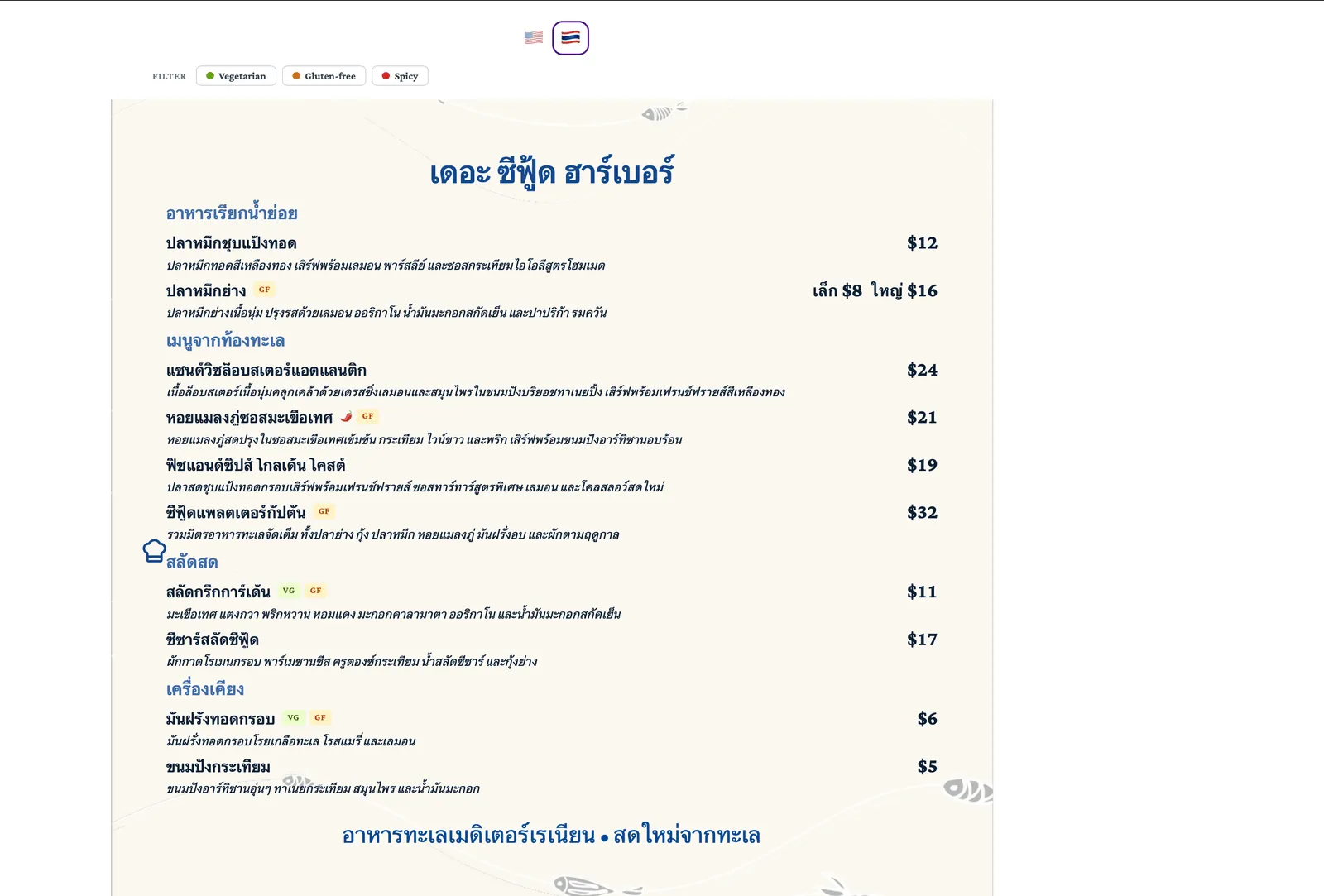
Section titled “What guests see”Once a menu has at least one active language, guests get a flag language bar on your published menu, letting them switch between whichever languages you have made active. Each active language also gets its own public URL, so you can point guests straight at the language they need.
Guests also land in the right language on their own. When someone opens the base menu link and their browser prefers one of your active languages, the page switches to that language before it is counted as a view. A guest who picks a flag keeps that choice on their device, and a link to a specific language always opens that language, whatever the browser prefers. Search engines still see every language through the alternate links in the page head.
Translations everywhere
Section titled “Translations everywhere”Once a menu has translations, the language a guest is viewing carries through everywhere you share that menu: share links, QR codes, social sharing, embeds on other sites, TV display, and PDF or image exports all respect language selection. Duplicate a menu and its translations come with the copy, so you never have to redo that work.
Removing a language
Section titled “Removing a language”Deleting a language removes its translations along with it. Your original menu text is never touched, so removing a language only affects guests viewing in that language, not your source content.
How to translate a menu into French
Section titled “How to translate a menu into French”- Open the language picker and add French. If it is the first language you add, it also becomes your menu’s current language.
- Choose Translate with AI and watch translations stream in row by row as Suggested.
- Review the suggested rows and approve the ones that read well.
- Use Approve all suggested to accept the rest in one step once you are happy with them.
- Turn on the Active switch for French and confirm. On a published menu, French is live for guests right away.
- If your menu is not published yet, choose Publish on the translations page to take the menu and its languages live.
That covers turning one menu into several languages. To make sure every dish is labeled accurately for guests with allergies, see Allergen declarations, the legend there translates automatically along with everything else on the page.