Export PDFs and images
Menu Author can turn any menu into a file you can download, print yourself, or send to a print shop. The Export dialog covers everything you need: which file format to use, how much of the menu to include, which print profile to apply, and which language to export in.
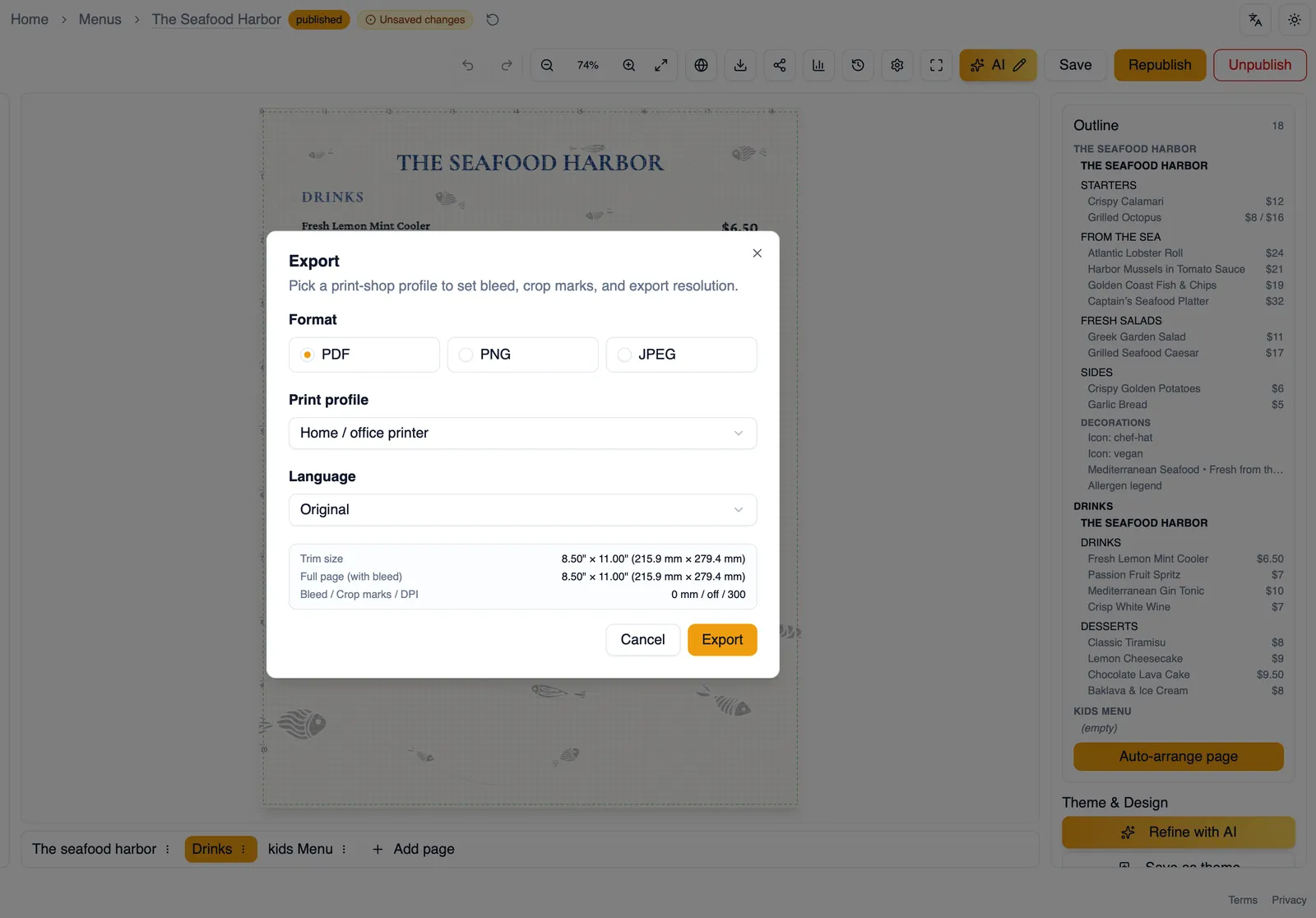
Choose a format
Section titled “Choose a format”Under Format, pick one of three file types:
- PDF: the format most print shops ask for. A PDF export always includes every page of your menu in a single file.
- PNG: an image export, useful for social posts or anywhere a PDF is not accepted.
- JPEG: a smaller image export, useful when file size matters more than a little extra image quality.
Choose how much to export
Section titled “Choose how much to export”If your menu has more than one page, image exports (PNG and JPEG) let you set a Scope: Current page exports only the page you are viewing, while All pages exports every page. When you export All pages as an image, Menu Author packages every page into a single ZIP file so you get one image per page inside it. PDF exports always include the whole menu, so there is no separate scope choice for PDF.
Pick a print profile
Section titled “Pick a print profile”Every export applies a print profile, which sets the bleed, crop marks, and DPI baked into the file. Menu Author remembers the print profile you used last time, so you rarely need to reselect it. See Choosing a print profile for what each of the 7 profiles is for and when to use it.
Export in another language
Section titled “Export in another language”If your menu has translations, a Language option appears in the Export dialog. Choose Original to export in your menu’s source language, or choose one of your added languages to bake that translation into the file instead. See Translate your menu for how to add and approve translations.
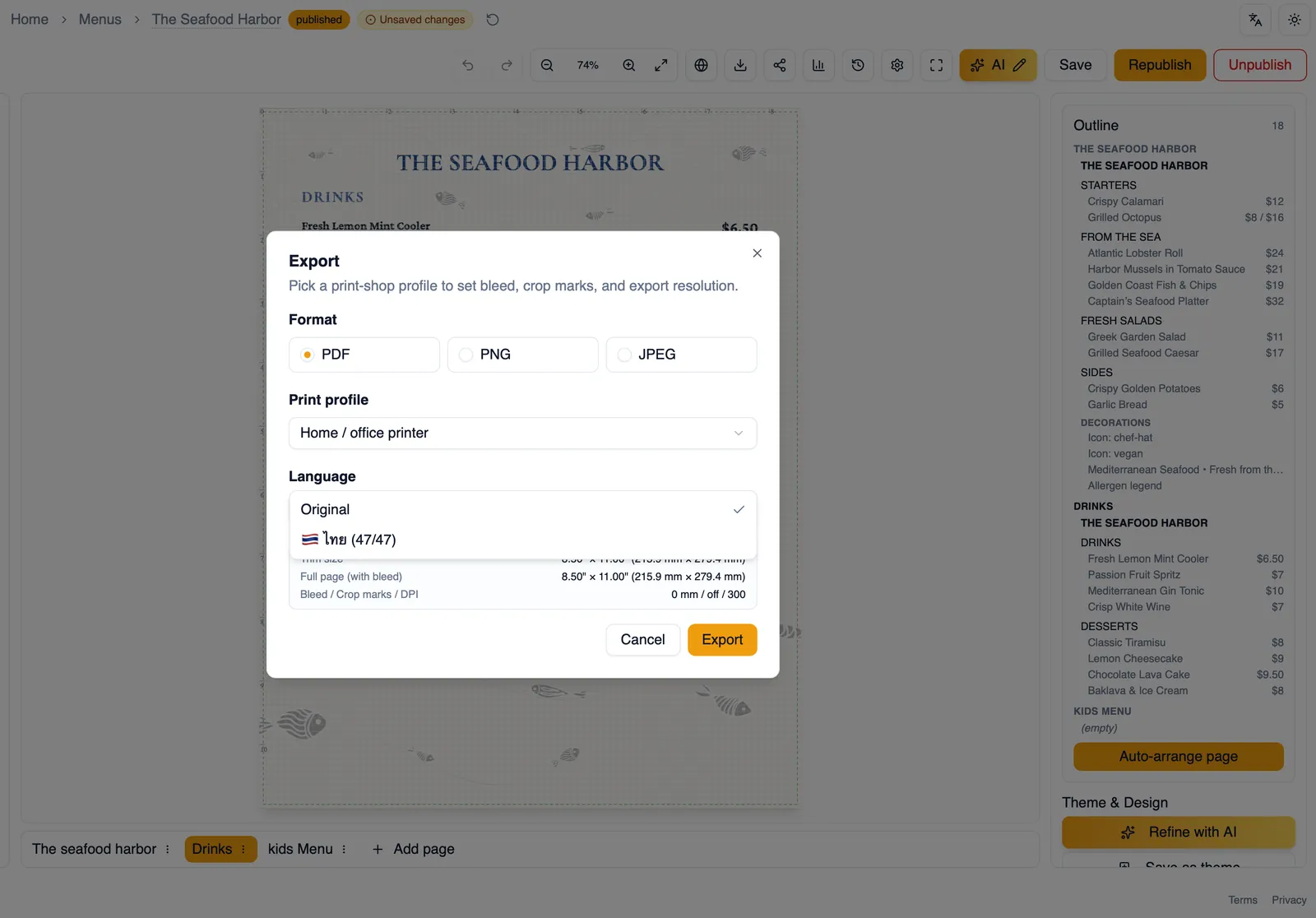
Trim size, bleed, and DPI
Section titled “Trim size, bleed, and DPI”Before you export, the dialog shows a readout of your menu’s trim size, the full page size once bleed is added, and the bleed, crop marks, and DPI set by your chosen print profile. Check this readout against what your print shop asked for before you export.
Rendering and progress
Section titled “Rendering and progress”PDF exports are rendered on Menu Author’s servers rather than in your browser, so even a long, multi page menu with lots of images exports reliably without slowing down your device. A progress indicator shows while your file is generating, and the download starts automatically once it’s ready.
How to export a menu as a PDF
Section titled “How to export a menu as a PDF”- In the editor, click Export in the top bar.
- Under Format, choose PDF.
- Choose a Print profile, or keep the one Menu Author remembered from last time.
- If your menu has translations, choose a Language, or leave it set to Original.
- Click Export to generate and download your file.
To export images instead, follow the same steps but choose PNG or JPEG under Format, then set Scope to Current page or All pages if your menu has more than one page. For help matching a profile to your printer or print shop, continue to Choosing a print profile.