Add pages with AI
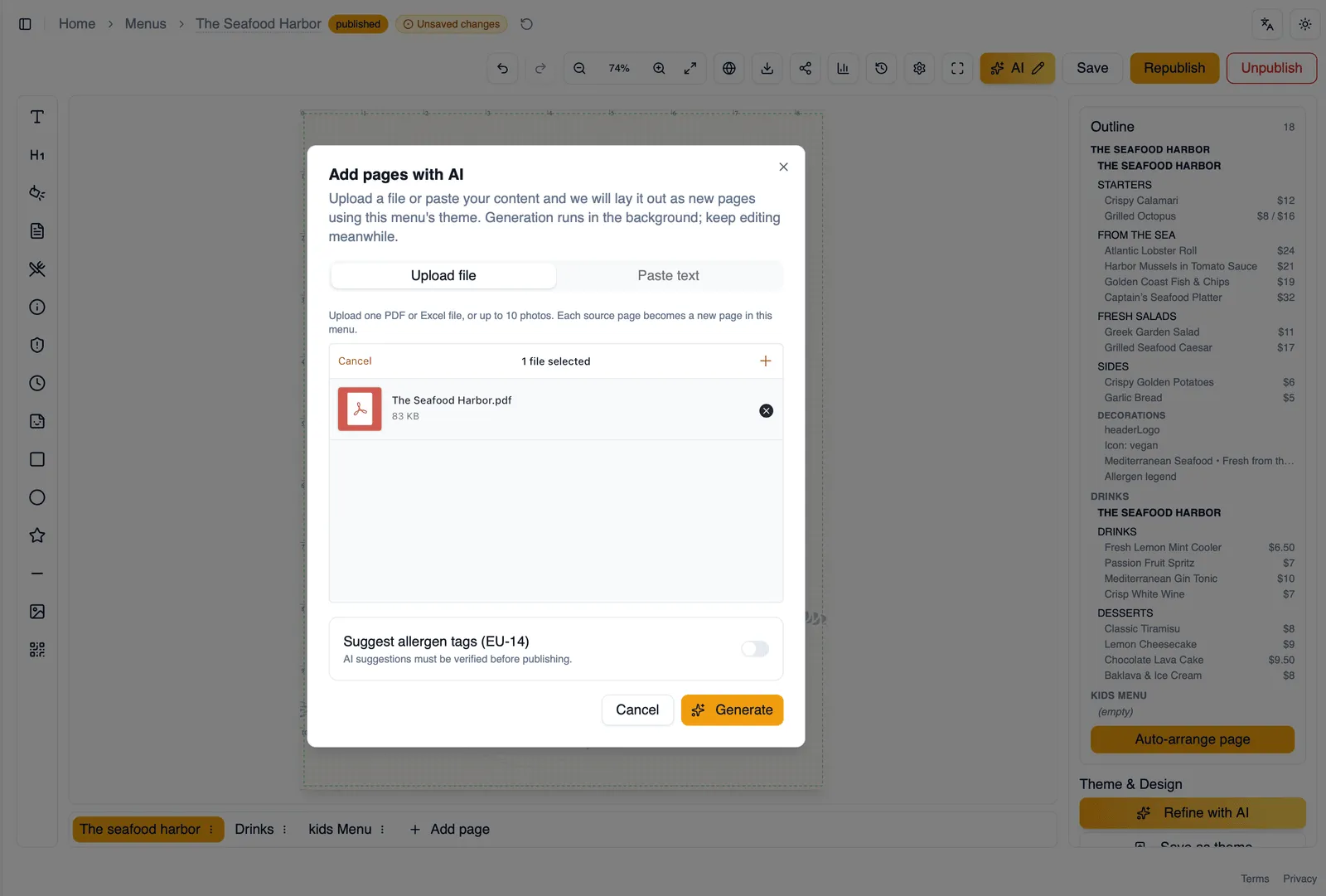
Add pages with AI extends a menu you are already editing. Instead of running the full wizard again, you feed in a file or paste text from inside the editor, and the new content is laid out as extra pages using the theme your menu already has. It is the quickest way to fold a seasonal insert, a drinks list, or a second location’s dishes into an existing menu.
If you are starting a brand new menu instead, use the wizard: see Generate a menu with AI.
Where to find it
Section titled “Where to find it”The entry point lives on the row of page tabs below the canvas. Click Add page and choose Generate with AI (choosing Blank page adds an empty page instead, as covered in Multi-page menus). The option is unavailable while another generation is already running, or when the editor is read-only for you.
What you can feed it
Section titled “What you can feed it”The Add pages with AI dialog takes the same kinds of sources as the wizard’s content step, in two tabs:
- Upload file: one PDF or Excel file, or up to 10 photos of a printed menu. Each page of your source becomes a new page in the menu.
- Paste text: paste your menu items directly, names, descriptions, and prices.
The Suggest allergen tags (EU-14) toggle works the same way as in the wizard: it is off by default, and any suggestions it makes must be verified against your actual ingredients before publishing. See Allergen tags for how allergen tags work. If suggested allergens land on the new items, any allergen legends already placed on your existing pages pick up the new codes automatically.
Generation runs in the background
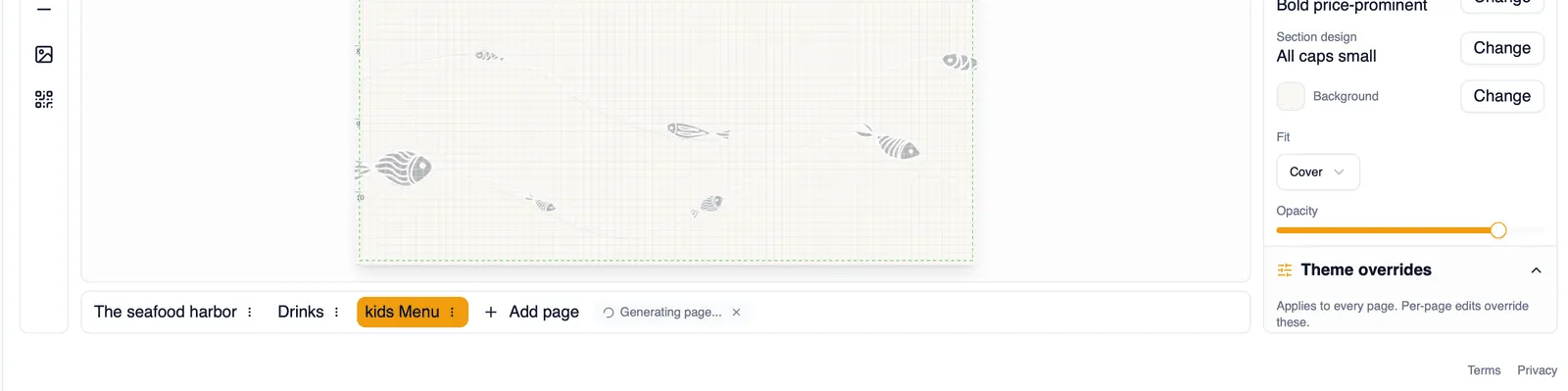
Section titled “Generation runs in the background”When you click Generate, the dialog closes and you keep editing. A small Generating page… indicator appears next to the page tabs while the job runs, with a control to cancel it if you change your mind.
Stay in the editor until it finishes: unlike wizard generation, leaving the editor cancels an add-pages job. If generation fails, you get an error message explaining what went wrong; open the dialog again to retry, and a retry only re-uploads what is missing.
What you get
Section titled “What you get”The finished pages are appended after your last page, and the editor switches to the first new one. Items and sections arrive already styled with your menu’s current theme and item and section designs, so the new pages match the rest of the menu. The whole result lands as a single step in your history, so one undo removes all the added pages at once if the result is not what you wanted. See Saving, autosave, and version history for how history works.
As with all AI generation, review the new pages before publishing: check prices, fix typos, and confirm nothing was misread from your source.
How to add pages from a file
Section titled “How to add pages from a file”- Open your menu in the editor.
- On the row of page tabs below the canvas, click Add page, then Generate with AI.
- In the Upload file tab, add one PDF or Excel file, or up to 10 photos.
- Optionally turn on Suggest allergen tags (EU-14).
- Click Generate. The dialog closes and you can keep editing while the job runs.
- When it finishes, the editor jumps to the first new page. Review every new page and fix anything that needs adjusting.
How to add a page from pasted text
Section titled “How to add a page from pasted text”- Open your menu in the editor.
- On the row of page tabs, click Add page, then Generate with AI.
- Switch to the Paste text tab and paste your items: names, descriptions, and prices.
- Click Generate and keep editing while it runs.
- Review the new pages when they appear.
Once your new pages are in place, tighten the wording with Polish with AI, or adjust the look with Refine with AI.