Backgrounds, patterns, and frames
A background sits behind everything else on the page, adding color, texture, or an image without touching your content.
Three tabs
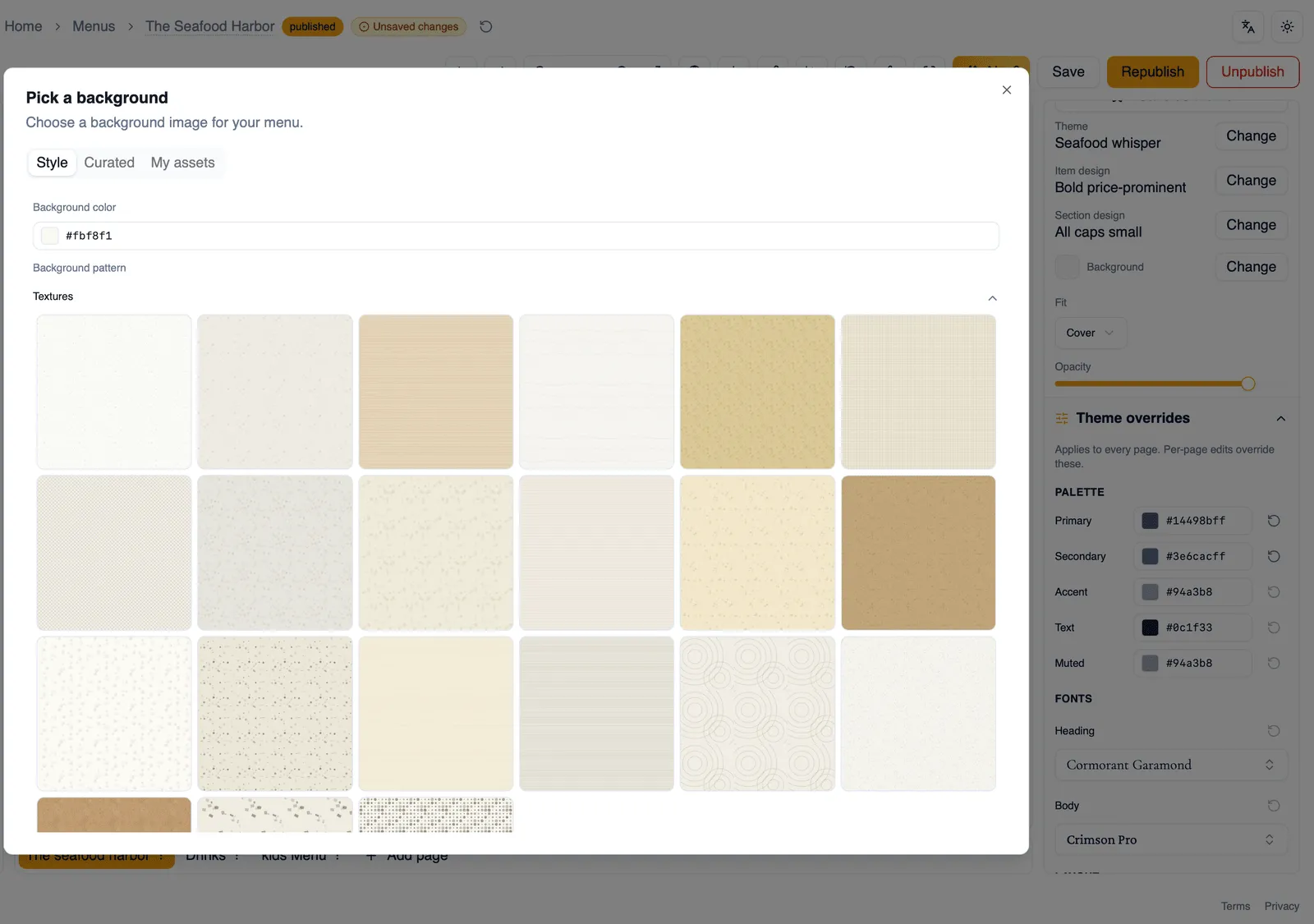
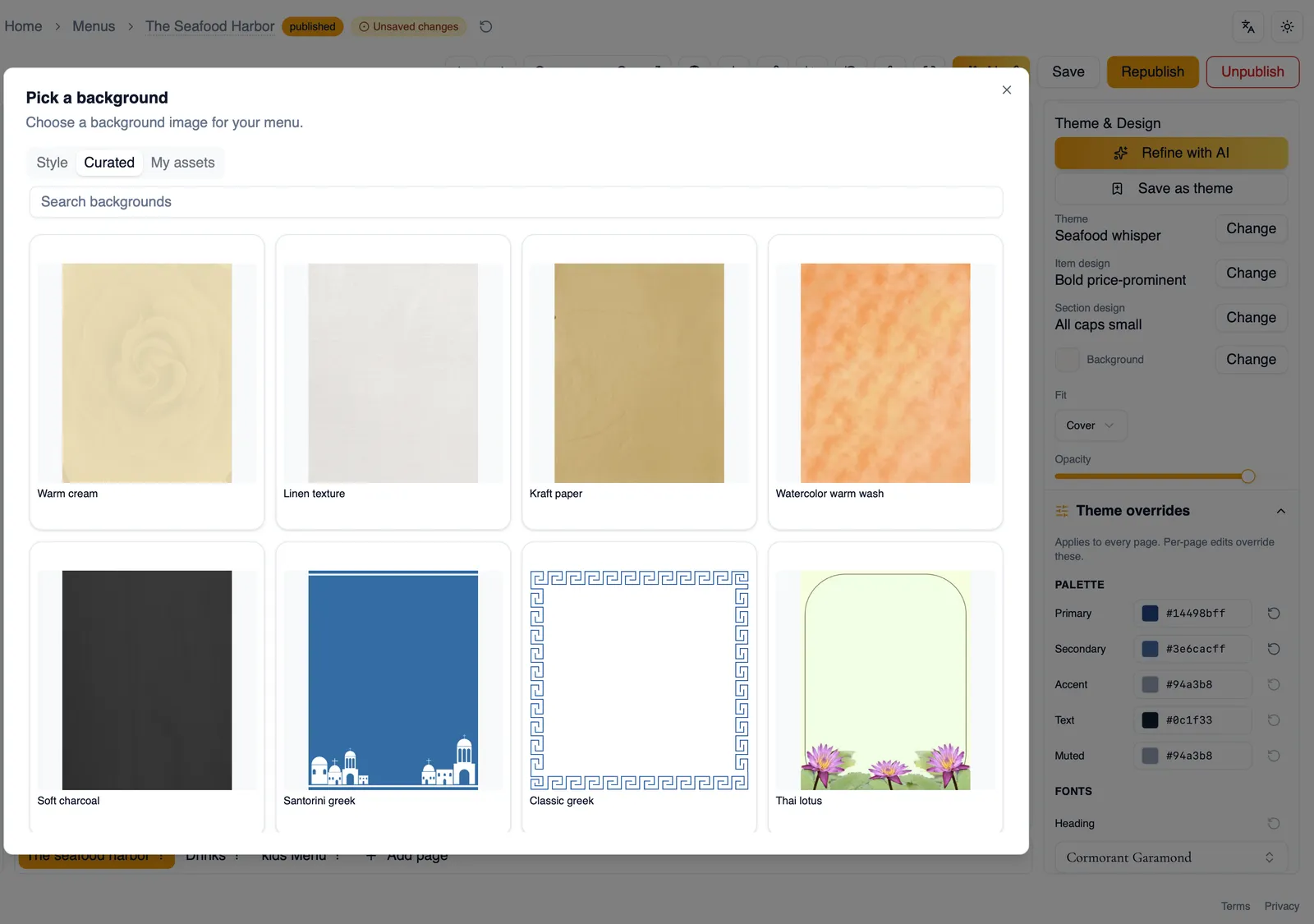
Section titled “Three tabs”Backgrounds are organized into three tabs: Style for solid colors and patterns, Curated for a library of ready-made backgrounds, and My assets for your own images, both the ones you have uploaded yourself and any artwork extracted from an upload during menu generation.
Solid colors
Section titled “Solid colors”The Style tab includes plain solid colors, useful when you want a background to recede rather than draw attention.
Patterns
Section titled “Patterns”Also on the Style tab, choose from 50+ patterns across four categories. Every pattern has editable foreground and background colors, so you can match a pattern to your palette rather than settling for its default colors.
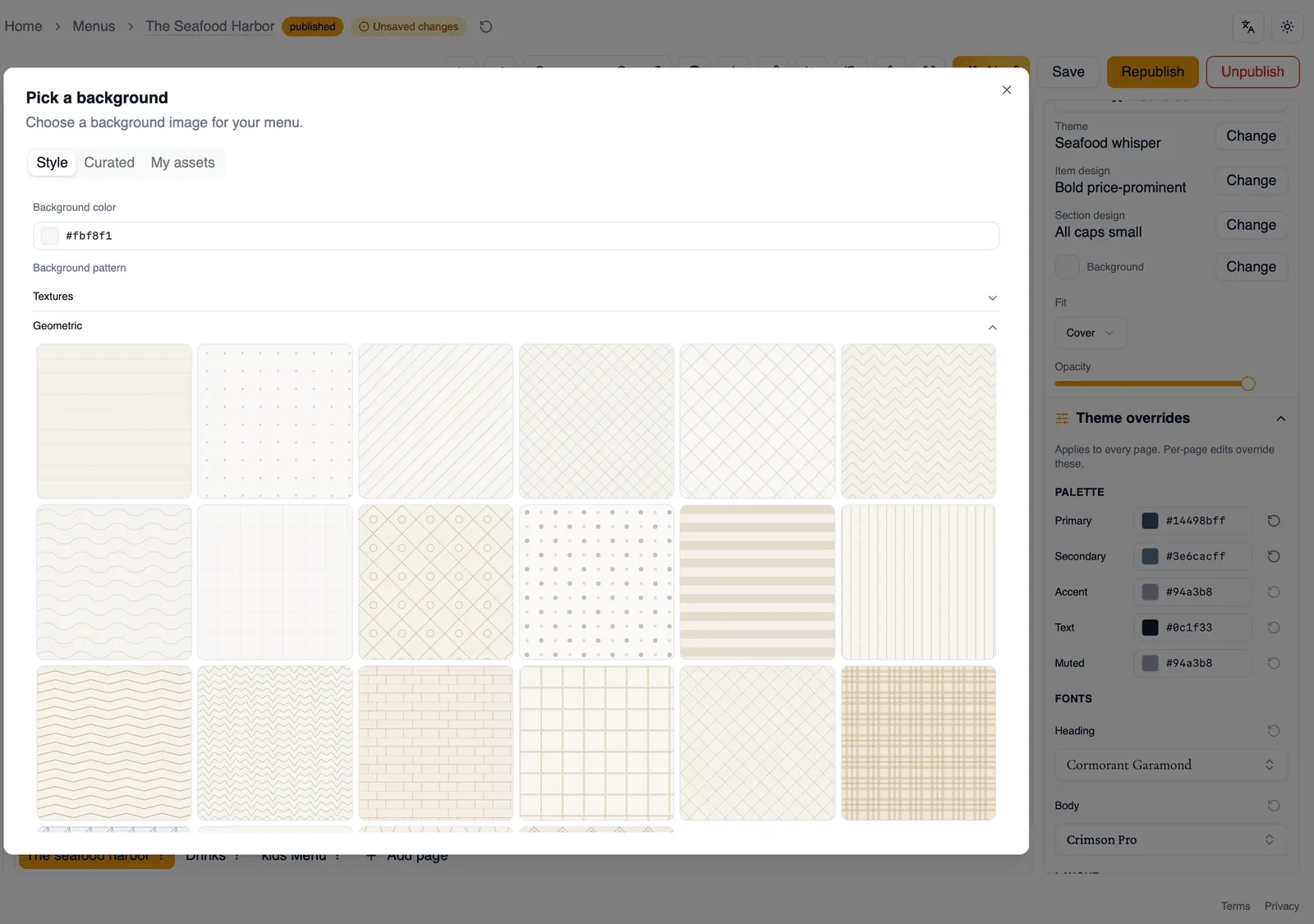
Image fit modes
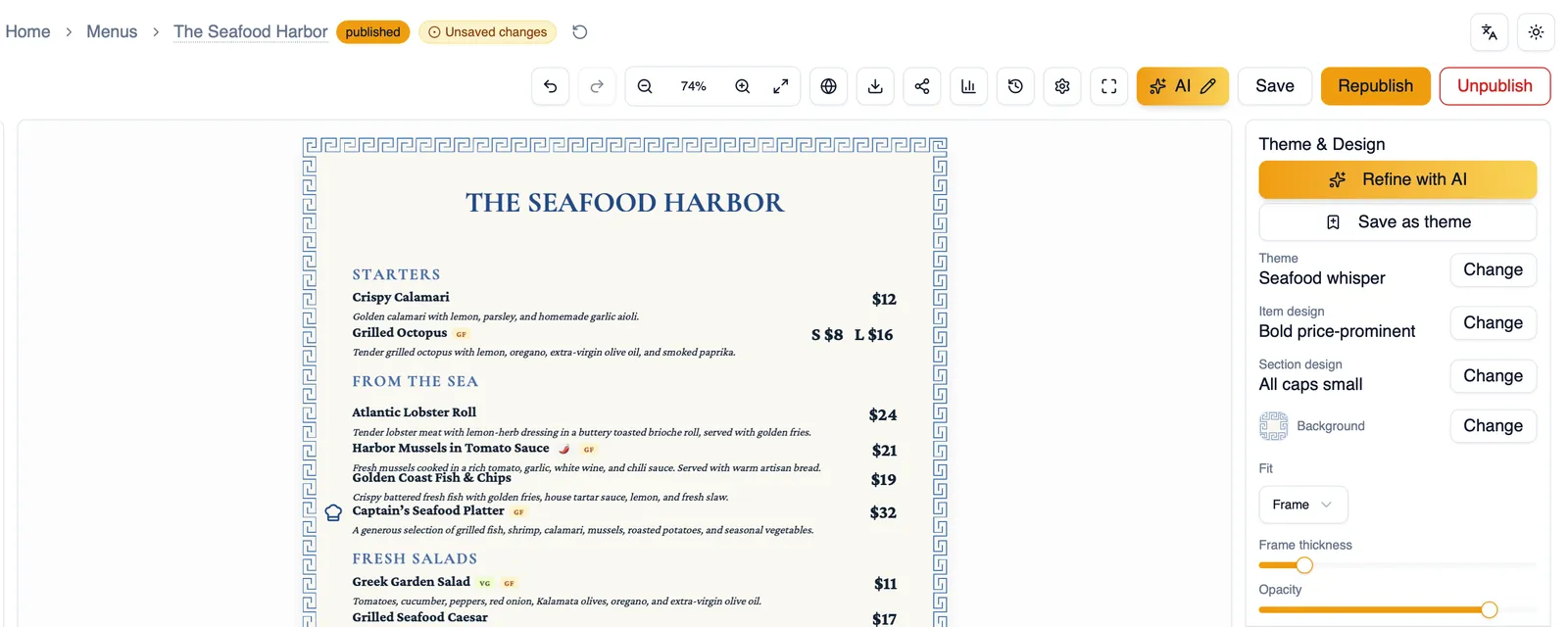
Section titled “Image fit modes”When your background is an image, from Curated or My assets, choose how it fills the page: repeat, cover, contain, or stretch. There is also Frame, which keeps the image at its natural proportions inside a border rather than filling the page, with its own frame thickness setting.
Art made for your page’s shape
Section titled “Art made for your page’s shape”Curated backgrounds come composed for portrait, landscape, square, and tall or wide pages, so decorated edges are not cropped away when your page is not US letter portrait. The right composition is picked for each page from its own size, which means a menu can mix portrait and landscape pages and each one gets art made for its shape. The picker shows the thumbnail for your page’s shape, so what you pick is what you get.
Opacity
Section titled “Opacity”However you set your background, adjust its opacity to make it more or less prominent behind your content.
One menu-wide background, with per page overrides
Section titled “One menu-wide background, with per page overrides”The background you set here applies across the menu. An individual page can also carry a background of its own that overrides the menu-wide one for that page, which is how a menu generated from an upload keeps a cover page whose artwork differs from the inner pages. See Multi-page menus.
Show background on web
Section titled “Show background on web”Show background on web controls whether your background appears on your published web menu. Turn it off if you want the background for print only, or on to have it show up for diners browsing on their phone too.
How to add a framed background image
Section titled “How to add a framed background image”- Open the Theme and Design panel and go to backgrounds.
- Choose the Curated or My assets tab and select an image.
- Set the fit mode to Frame.
- Adjust the frame thickness to taste.
- Adjust opacity if you want the background more subtle.
- Toggle Show background on web depending on whether you want this background to show on your published web menu.
Continue to Typography for fonts and text styling, or back to Theme overrides for palette and layout.