Dietary tags
Dietary tags let diners spot the items that matter to them at a glance, vegan options, spice level, or a chef’s favorite, without reading every description. They are separate from allergen declarations, which use the official EU-14 codes and are covered elsewhere in these docs.
Built-in tags
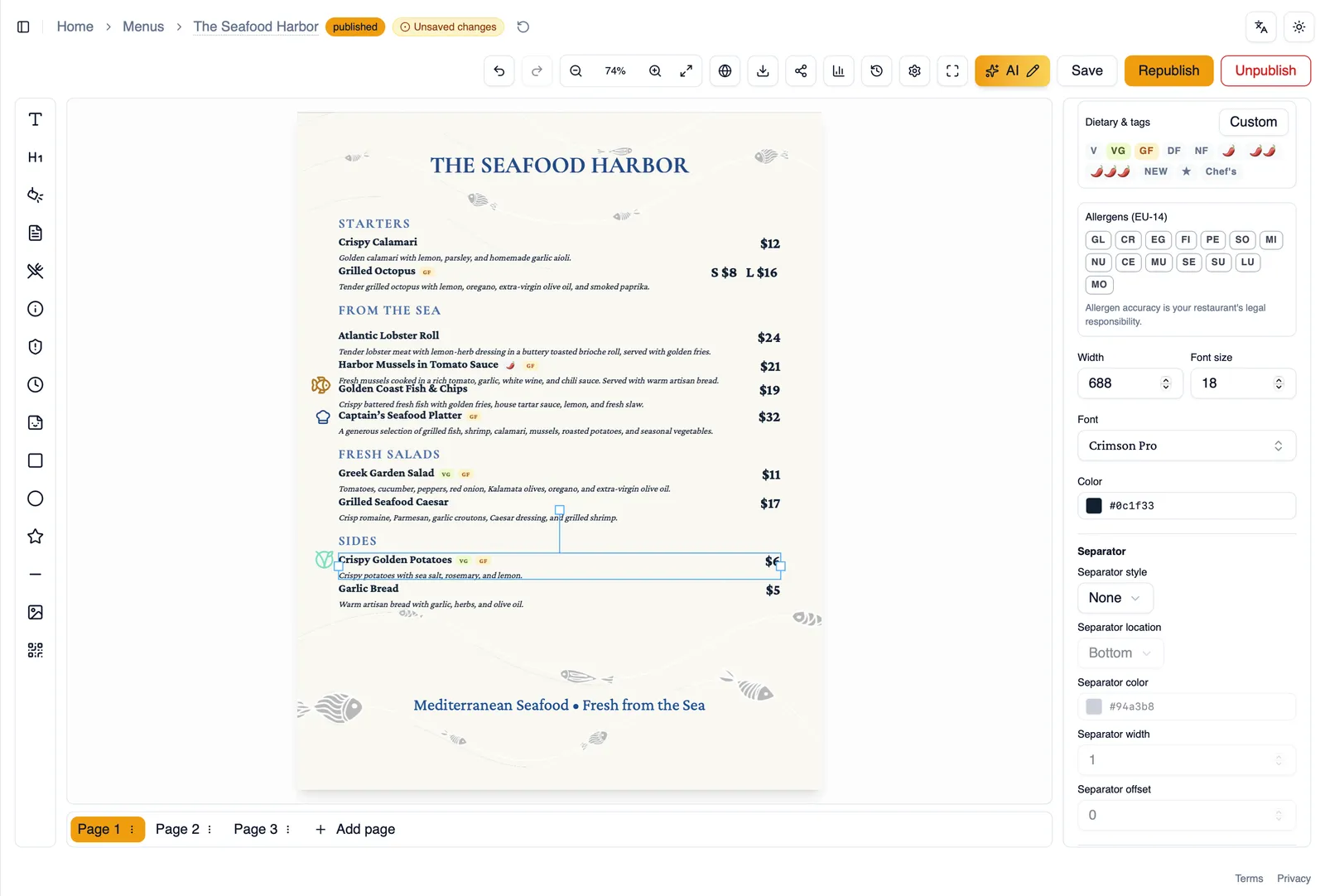
Section titled “Built-in tags”Menu Author ships with a set of built-in tags you can apply to any item: vegan, vegetarian, gluten-free, dairy-free, nut-free, three spice levels, new, popular, and chef’s pick. Apply as many as fit an item.
Custom tags
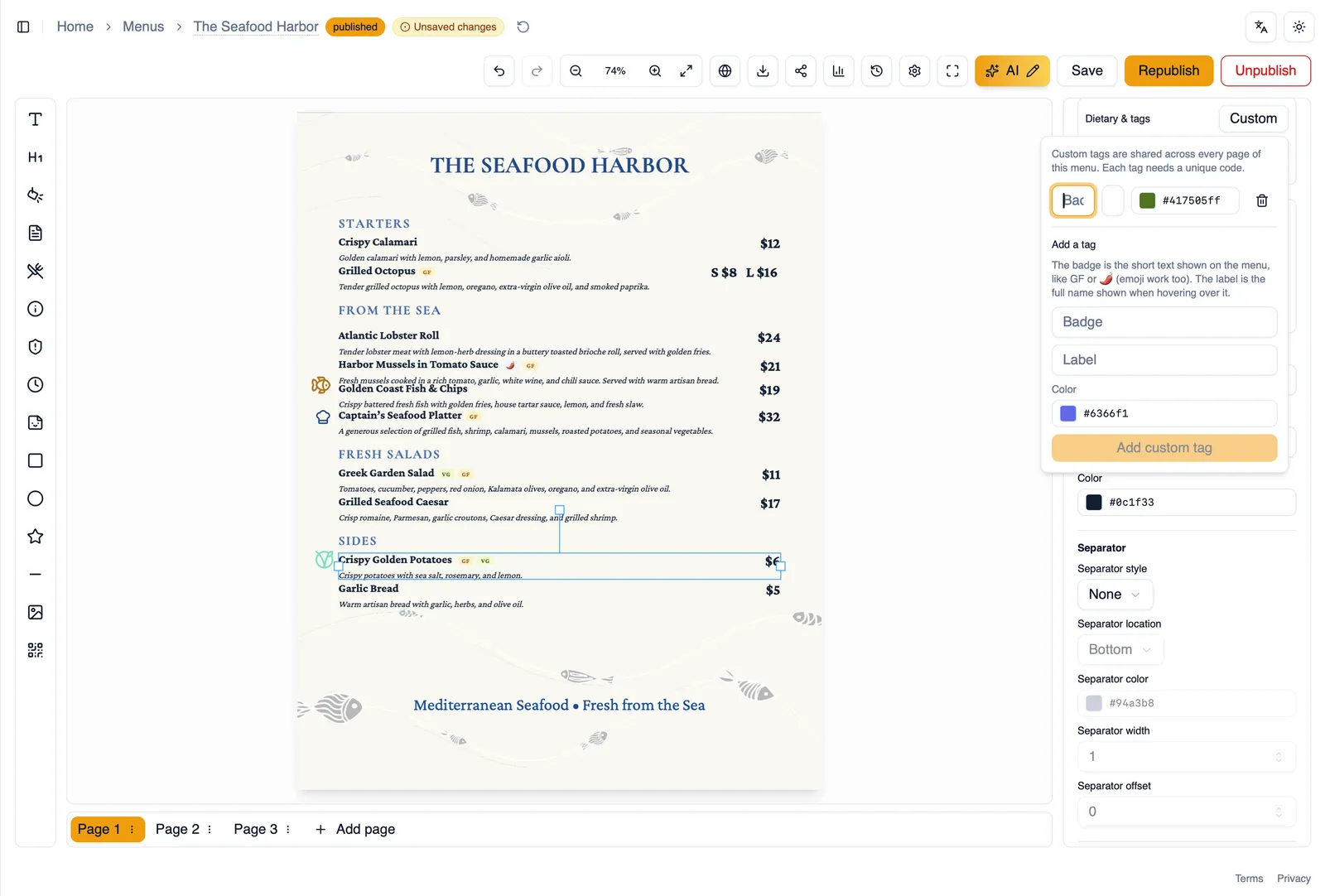
Section titled “Custom tags”If the built-in set does not cover something specific to your menu, create a custom tag. A custom tag has a badge, a label, a color, and it supports emoji, so you can build a tag that fits your restaurant exactly, a house specialty mark, a seasonal callout, or anything else.
How to create a custom tag
Section titled “How to create a custom tag”- Select a menu item and open its dietary and tags settings in the property panel.
- Choose to create a custom tag instead of using a built-in one.
- Enter a label for the tag.
- Choose a color for the badge.
- Optionally add an emoji.
- Apply the tag to the item. It is now available to reuse on any other item.
How tags look per item design
Section titled “How tags look per item design”Tags do not have one fixed look. Depending on the item design your menu is using, a tag can render as a pill, run inline with the item’s text, or show as an icon only. This keeps tags visually consistent with the rest of the item rather than looking bolted on, whichever item design you choose.
That completes the core building blocks of the editor: items, sections, restaurant information, and dietary tags. From here, the Editor tour is a good page to revisit once you are comfortable placing content and want a refresher on the toolbar and panels.