Refine with AI
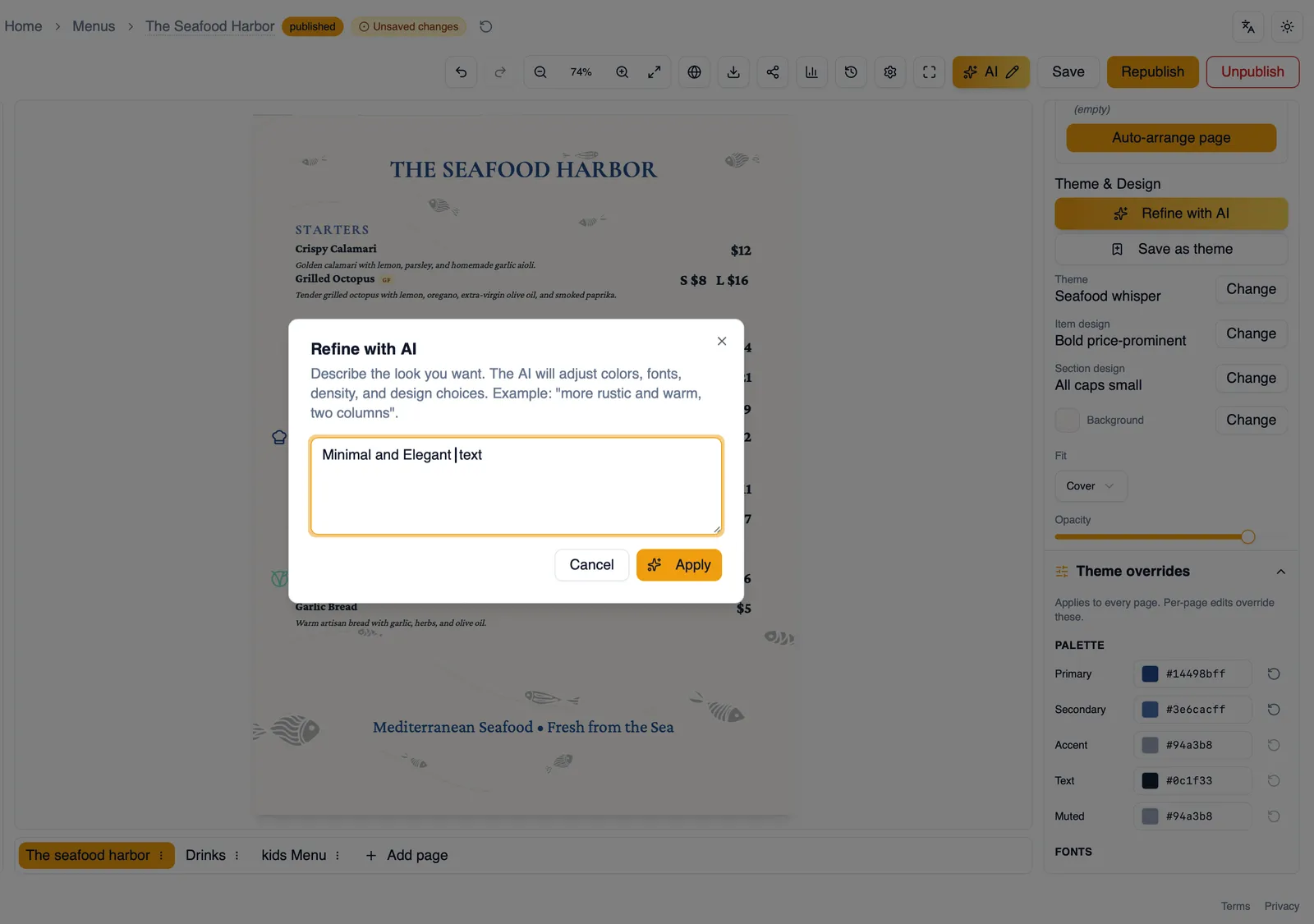
Refine with AI lets you describe the change you want in plain language instead of hunting through palette tokens, fonts, and layout controls one by one. Describe the feel you are after, and AI adjusts your theme to match.
Describing changes in plain language
Section titled “Describing changes in plain language”Type a description of the change you want, for example “make this feel warmer and more rustic” or “more formal, less colorful,” and AI turns that description into concrete changes to your theme.
What gets refined
Section titled “What gets refined”Refine with AI adjusts the same things you can change by hand elsewhere in the Theme and Design panel: your theme’s palette tokens, fonts, and layout, see Theme overrides for what each of those covers.
It can change your background as well. Depending on what you ask for, it may choose a plain color, one of the built in patterns with coordinated colors, or a background from the curated library, see Backgrounds. Your current background stays unless your request calls for a new look or it would clash with the new colors.
Colors you can always read
Section titled “Colors you can always read”Restyled colors are checked against the background before they are applied. Any text, title, or price color that would be hard to read is nudged darker or lighter until it reads clearly, so a restyle never leaves you with white text on a white page.
Refine again and Reset
Section titled “Refine again and Reset”Not quite right on the first try? Choose Refine again and describe more changes on top of the last result. If you would rather start over, Reset returns your theme to how it looked before you began refining. On a menu generated with Match the original design, that means Reset brings back the style matched from your upload, see Generate a menu with AI.
Live preview
Section titled “Live preview”Every refinement shows up on your canvas right away, so you can judge the result against your actual menu content rather than a description of what changed.
Schema-validated output
Section titled “Schema-validated output”Whatever AI produces is checked against your theme’s schema before it is applied, so a refinement can only ever result in a valid theme. You will never end up with a broken or half-applied style. If a restyle takes unusually long, it comes back asking you to try again rather than failing silently.
How to refine your theme with AI
Section titled “How to refine your theme with AI”- Open the Theme and Design panel and find Refine with AI.
- Describe the change you want in plain language.
- Review the live preview on your canvas.
- Not quite there yet? Choose Refine again and describe more.
- Want to start over? Choose Reset to return to your theme before refining.
That covers design and themes. For the styling of the elements a theme applies to, see Menu items and Sections.