QR codes
A QR code is the fastest way to get a diner from a table, a poster, or a takeout bag straight to your published menu. Every menu gets one, generated from Share & Embed.
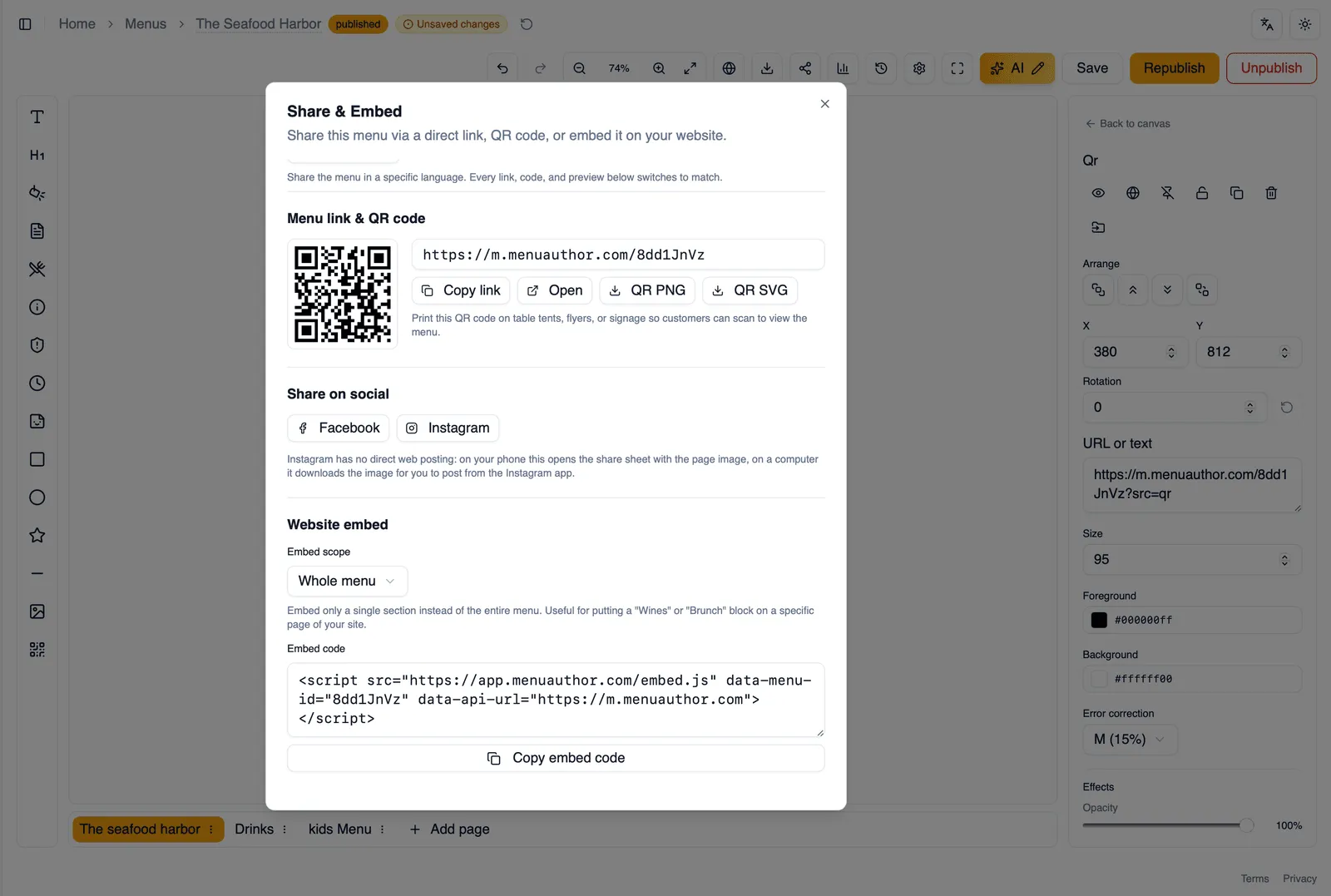
Generating your QR code
Section titled “Generating your QR code”Open Share & Embed on a published menu and it generates a QR code pointing at your menu’s public link automatically. If your menu has translations, the code follows the language you have selected, see Translate your menu for how language selection carries through share links, QR codes, and more.
Style the QR code
Section titled “Style the QR code”Open Style the QR code under the code to make it your own instead of plain black and white:
- Shape: square, rounded, or dots.
- Code color and Background: set both to match your branding. Keep strong contrast between them, a dark code on a light background scans most reliably.
- Logo: place a logo in the middle of the code. It starts with your account’s logo if you have one, and you can change or remove it. The logo is kept to about a third of the code’s size so the code stays easy to scan.
- Frame with a call to action: wrap the code in a frame with a short line of text beneath it. It reads Scan for menu unless you write your own, up to 40 characters, and the frame takes any color you choose.
Your style is saved with the menu, so a reprint months later gets exactly the same code.
PNG and SVG downloads
Section titled “PNG and SVG downloads”Download your QR code as a PNG for most everyday uses, or as an SVG when you need a crisp version at any size for large format printing. Both include your style, logo, and frame. There is nothing to set for scan reliability: the code is built to tolerate a logo in the middle and everyday print wear on its own.
QR scans in analytics
Section titled “QR scans in analytics”When a diner scans your QR code, that visit is attributed to QR code as its source in your analytics, so you can see how much of your traffic is coming from the codes you have printed versus other channels.
QR codes inside your menu design
Section titled “QR codes inside your menu design”Beyond the shareable code from Share & Embed, you can also embed a QR code directly into your menu’s own design using the QR code toolbar button, pointed at any URL or text you choose. See Hours, titles, logos, and more for how that block works.
How to download a QR code for your tables
Section titled “How to download a QR code for your tables”- Publish your menu if you have not already.
- Open Share & Embed.
- Open Style the QR code and choose a shape and colors that match your branding.
- Add your logo, and turn on the frame if you want a call to action such as Scan for menu under the code.
- Download it as PNG for everyday use, or SVG for large format printing.
Next, see TV and kiosk display for showing your menu without any scanning at all.