Hours, titles, logos, and more
Beyond items and sections, a menu also carries information about the restaurant itself: when you’re open, your logo, and small legal or informational notes. These live as their own blocks, insertable from the toolbar and styled like anything else on the canvas.
Hours block
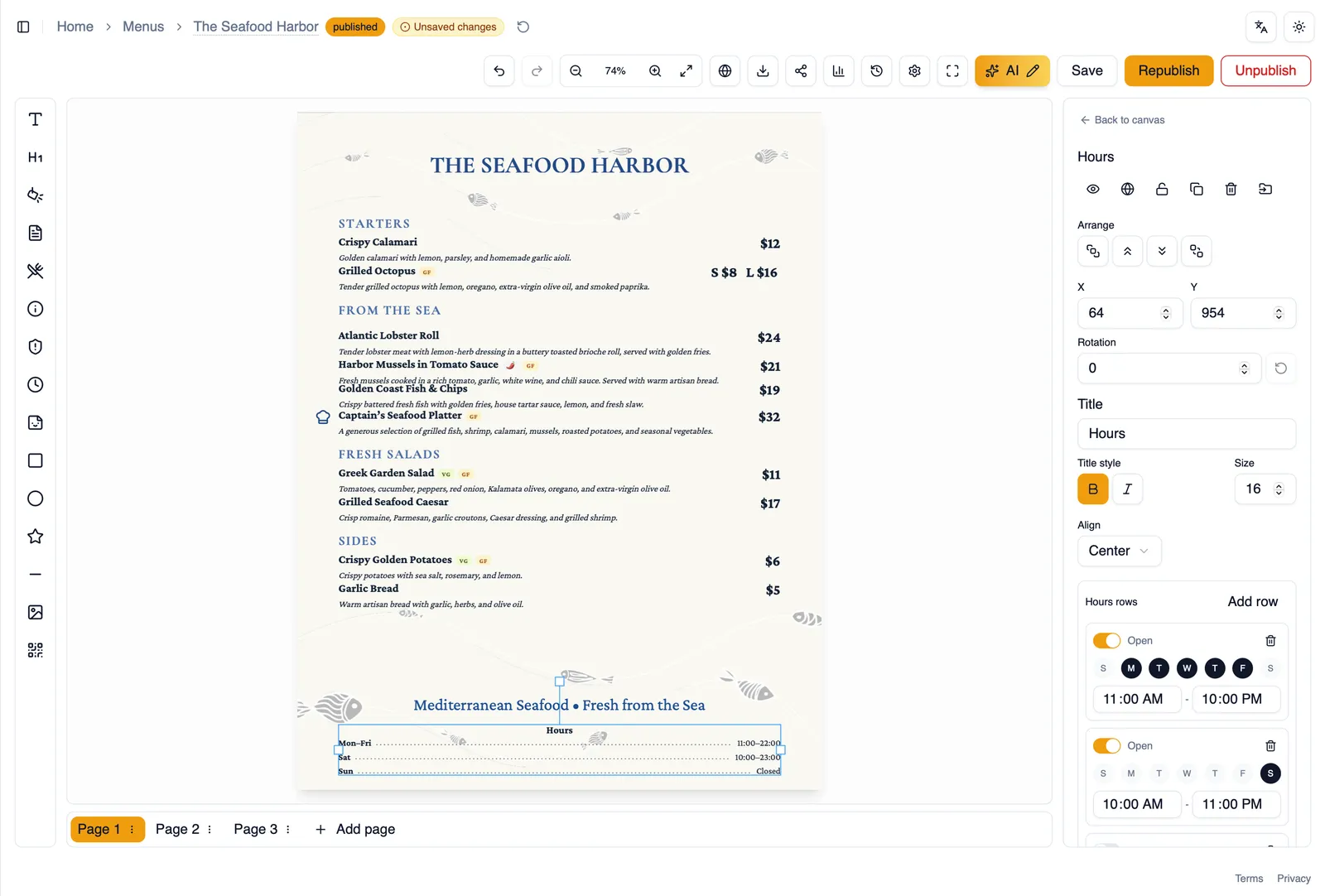
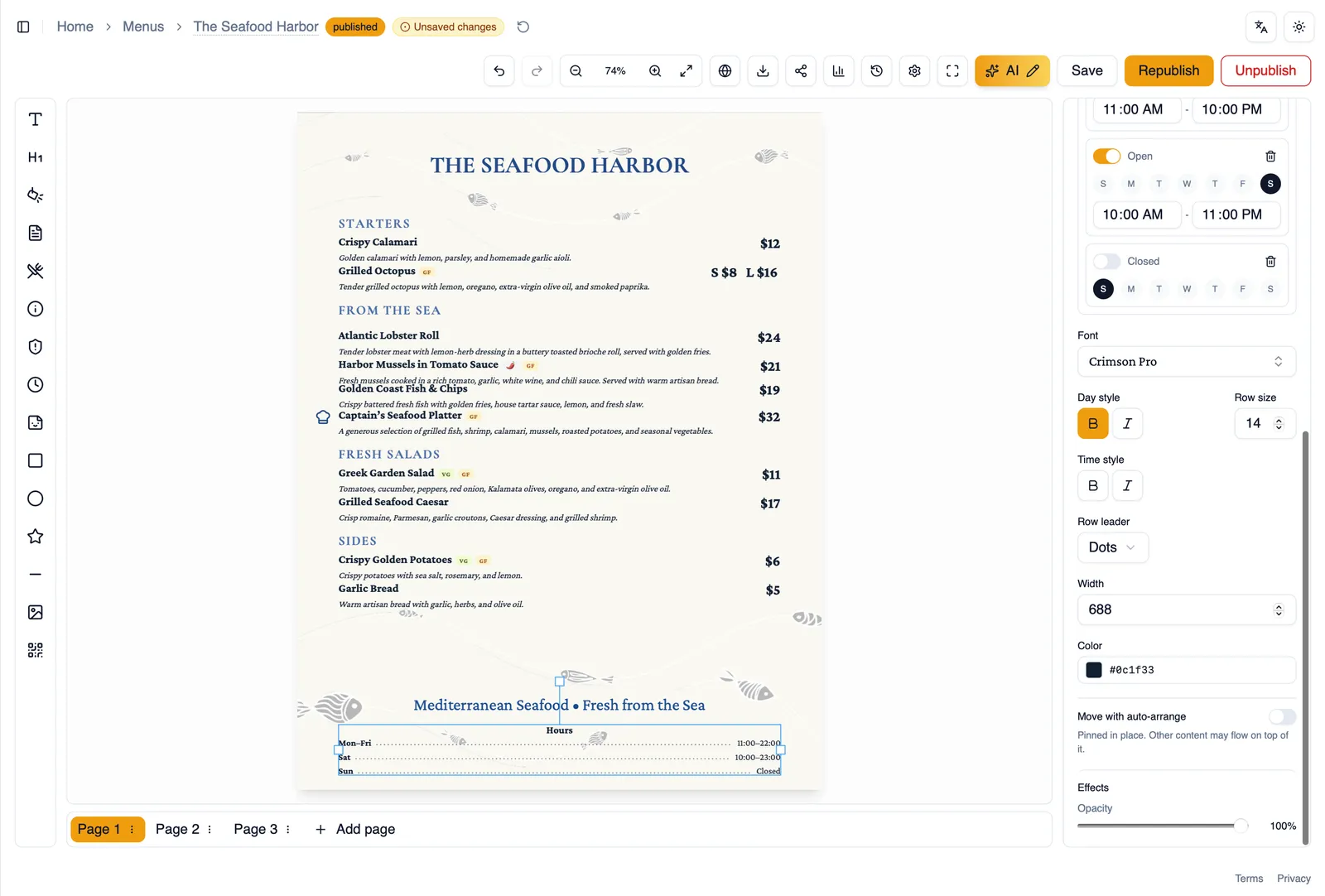
Section titled “Hours block”Insert Hours to show your opening hours directly on the menu. Set a range for each day, mark any days you are closed, and collapse consecutive days that share the same hours into a single line so the block stays compact. Style it to match the rest of your menu.
How to add your hours to the menu
Section titled “How to add your hours to the menu”- Open the toolbar and click Hours.
- Click on the canvas to place the block.
- Set the hours for each day, and mark any closed days.
- Collapse days that share the same hours if you want a shorter block.
- Style the block to match the rest of your menu.
Menu title
Section titled “Menu title”The Menu title block is the main heading (H1) for the whole menu. Most menus need exactly one, usually at the top of the first page.
Disclaimers and footnotes
Section titled “Disclaimers and footnotes”Use a Disclaimer / footnote block for text that applies to the whole menu or to one item specifically, a note about substitutions, a service charge, or anything else you want diners to see in smaller print.
Brand logo block
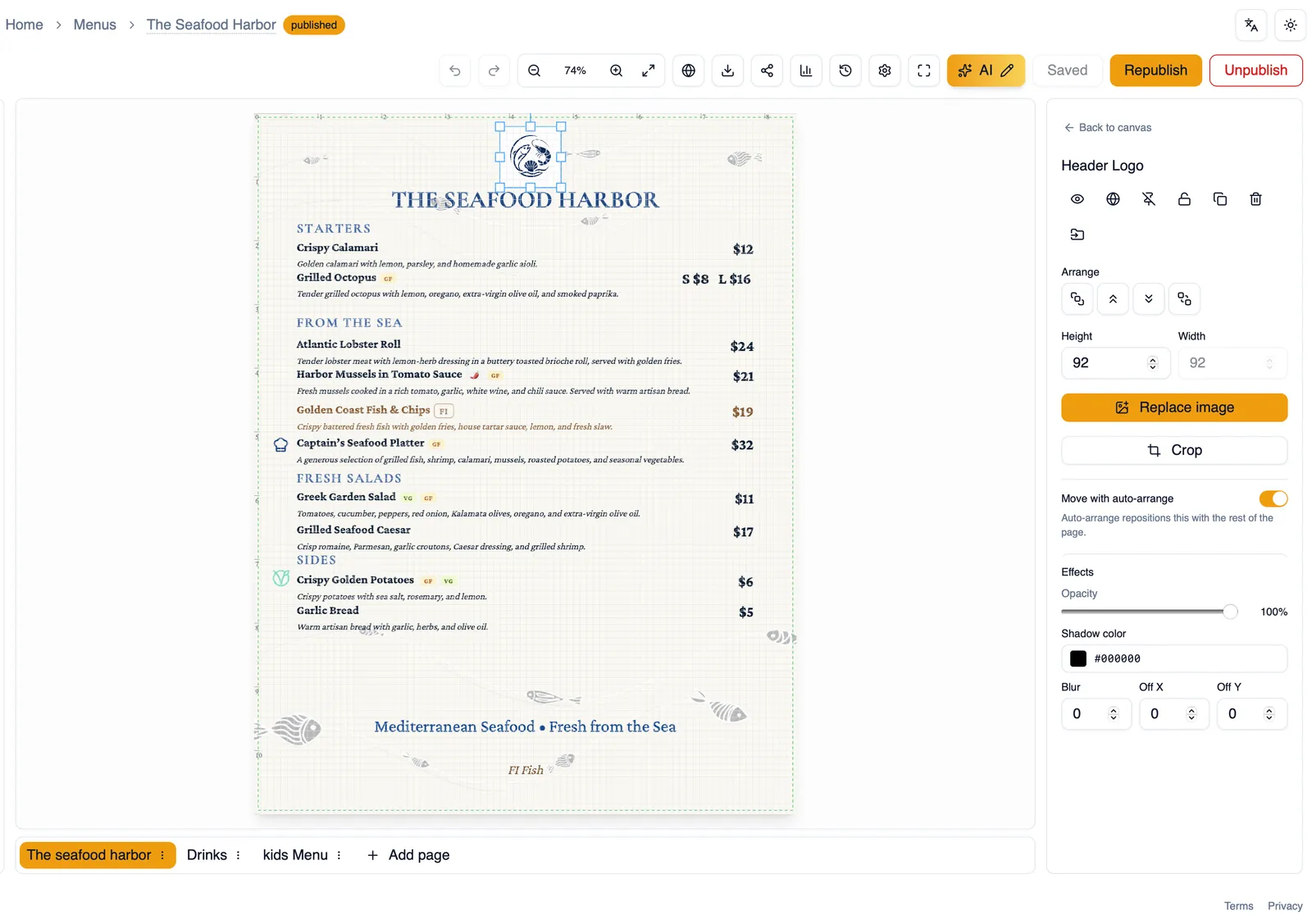
Section titled “Brand logo block”Insert Brand logo to place your restaurant’s logo on the page. Pick the image from your asset picker, size it using aspect ratio controls so it never looks stretched, and choose whether it flows with the surrounding content or stays pinned to a fixed position on the page.
QR code blocks
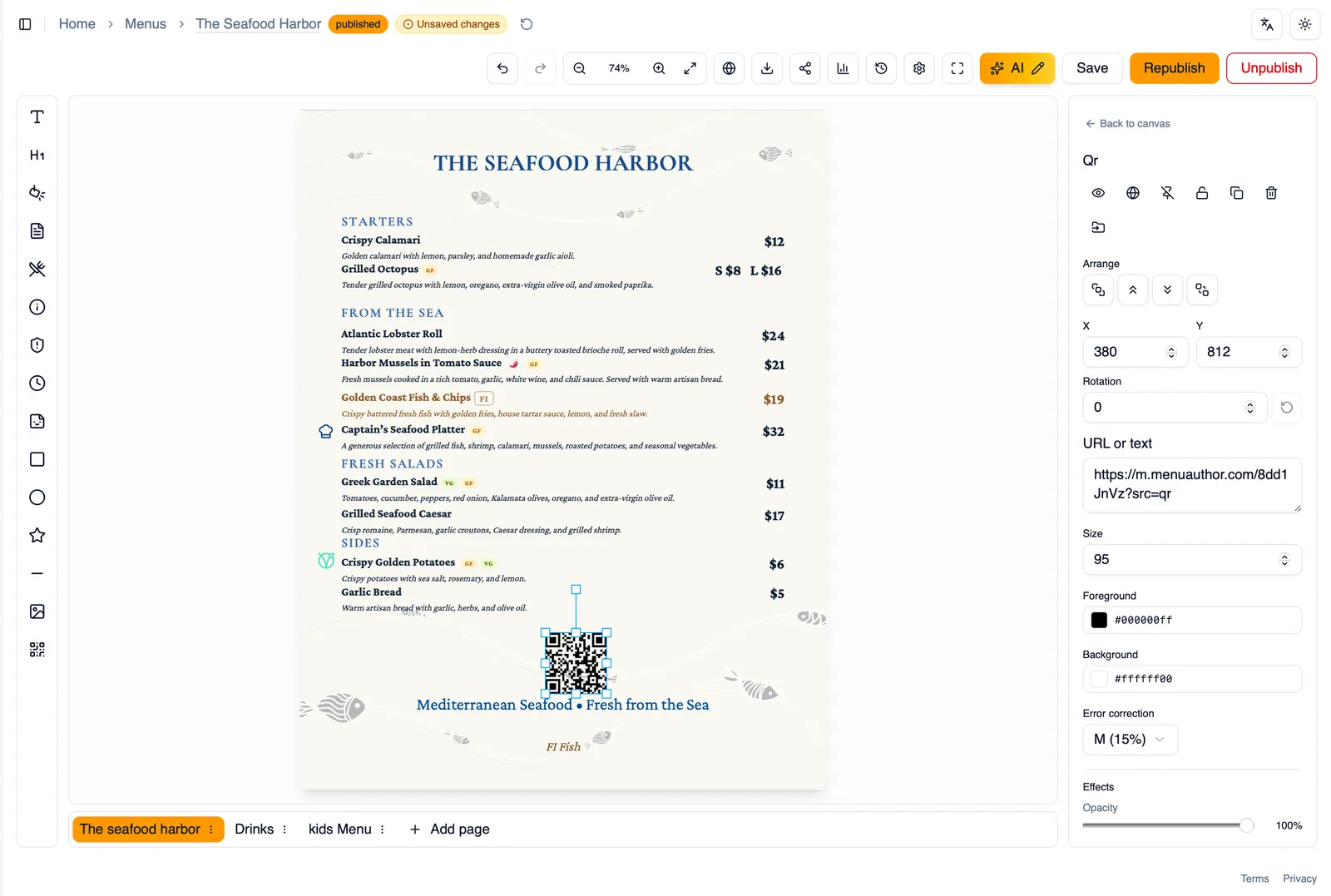
Section titled “QR code blocks”The QR code toolbar button embeds a scannable code directly into your menu’s design, separate from the shareable QR code you download from Share & Embed. Point it at a URL or plain text, set its size, choose its colors, and set the error correction level to match how it will be printed or displayed.
Menu icons
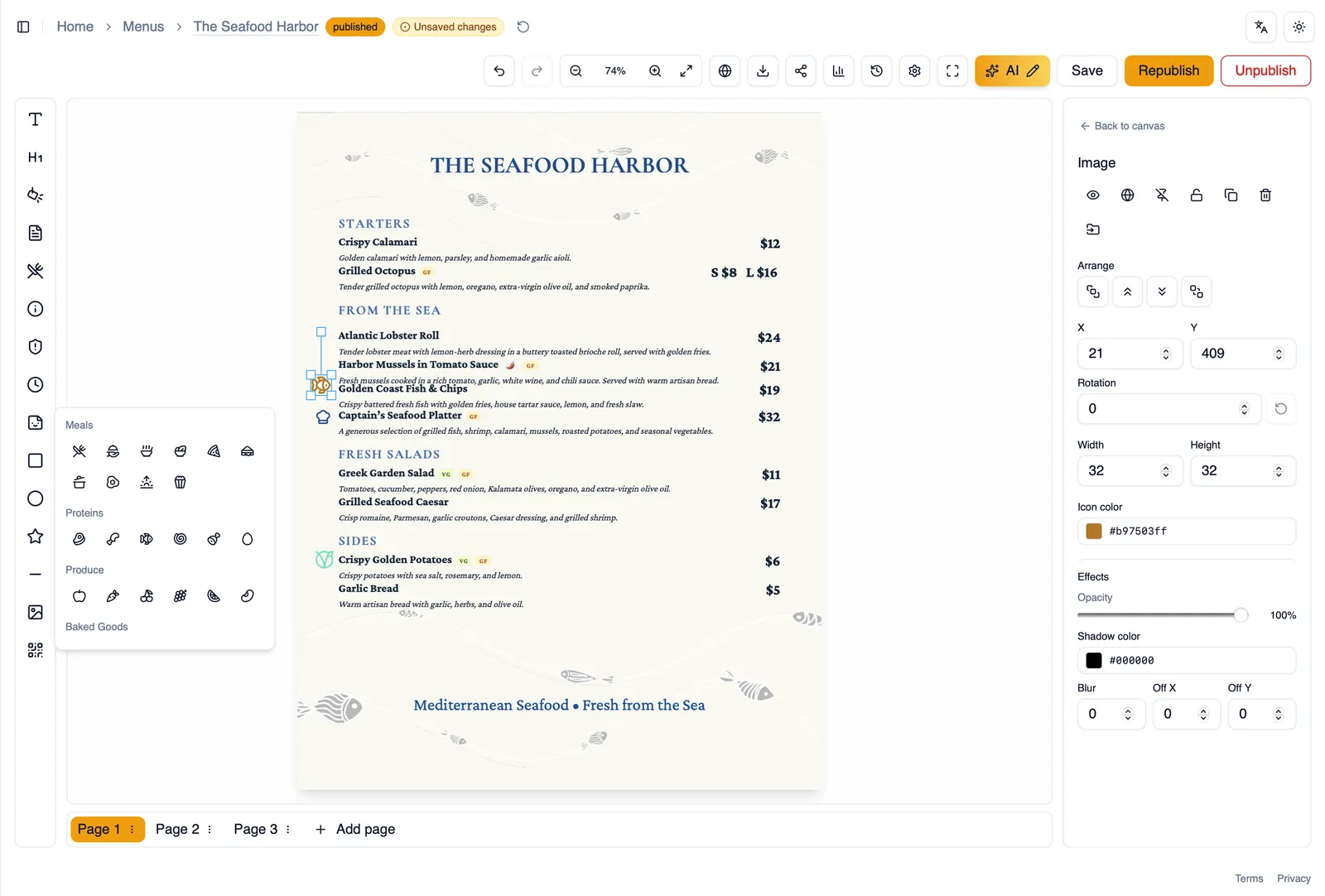
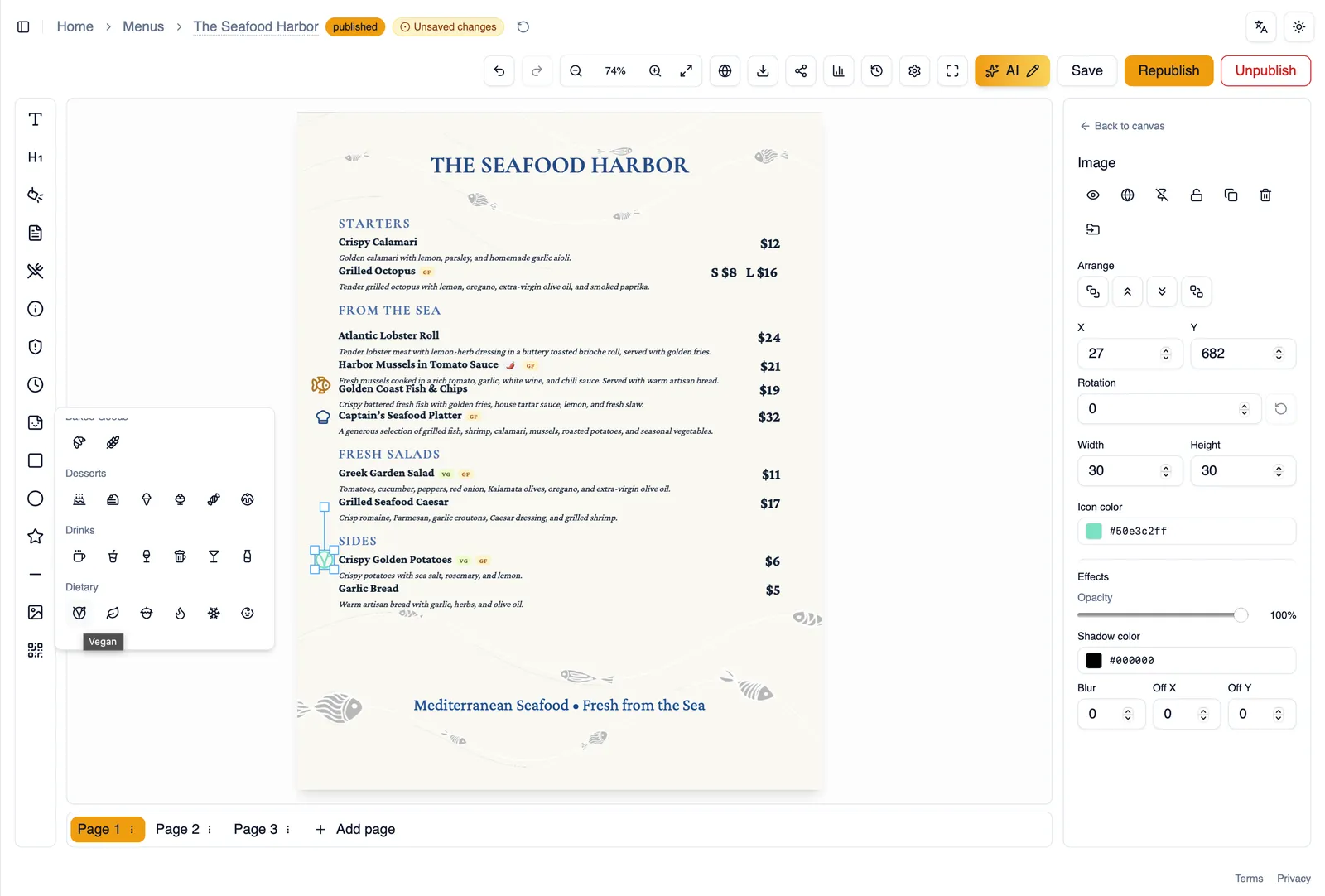
Section titled “Menu icons”Insert Menu icon to add a small icon from one of 8 categories: Meals, Proteins, Produce, Baked goods, Desserts, Drinks, Dietary, and General. Pick a color for the icon so it fits your theme.
Next, see how Dietary tags mark items as vegan, spicy, and more.