Theme overrides
A theme gives you a starting point, and overrides let you adjust it without leaving it behind. Change a color, a font, or a layout setting, and the rest of the theme stays exactly as it was, so you keep the parts you like and change only what you do not.
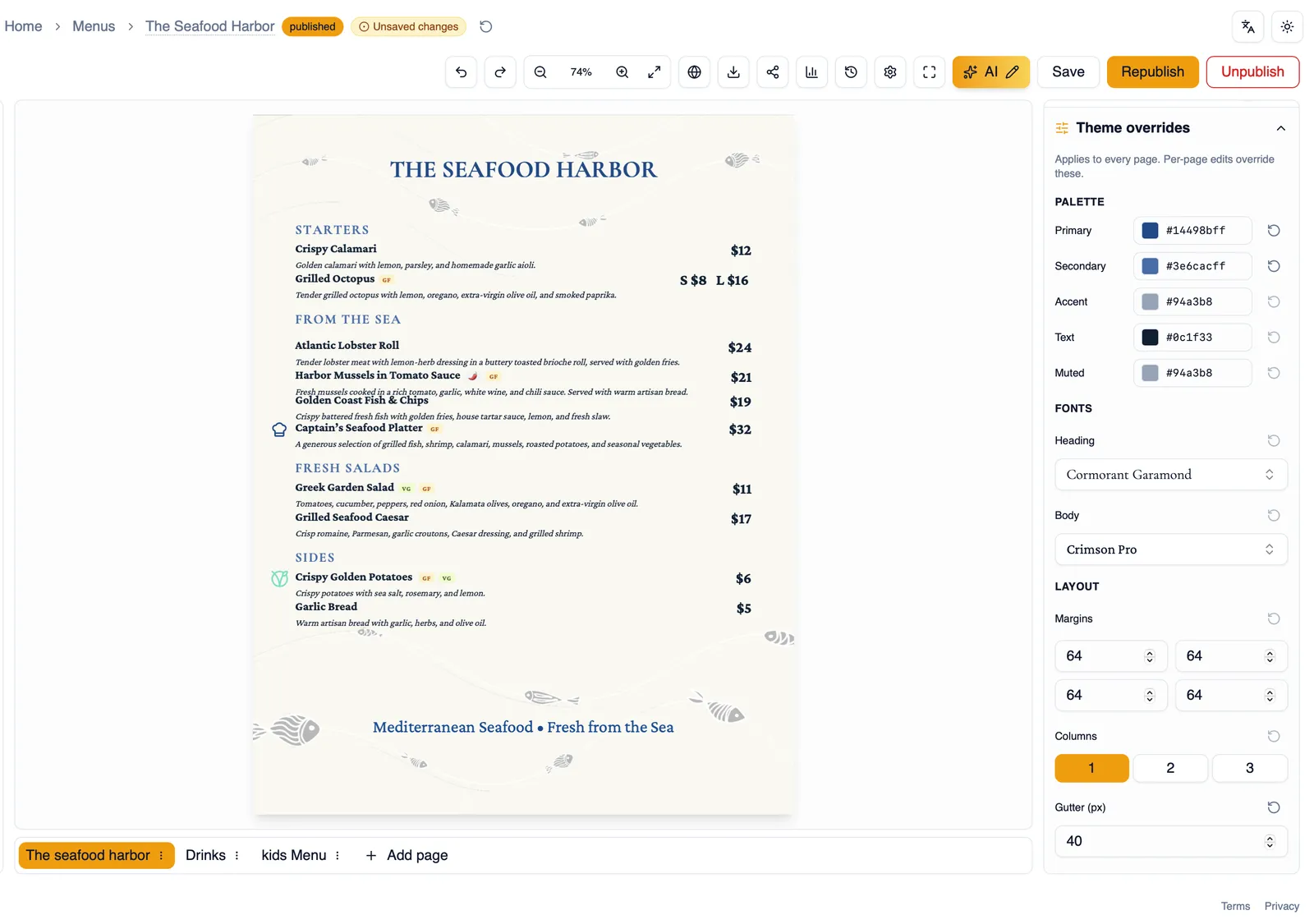
Palette tokens
Section titled “Palette tokens”A theme’s colors are broken into five tokens: Primary, Secondary, Accent, Text, and Muted. Change any one of them on its own, and reset just that token back to the theme’s original color whenever you want, without affecting the others.
Override the theme’s heading and body fonts independently. See Typography for the full font library and the rest of the text styling options available once a font is chosen.
Layout
Section titled “Layout”Layout overrides cover how content is arranged on the page:
- Margins around the edges of the page. The margins you set are a minimum: when a background has a decorated border, the clearance its artwork needs is added on top automatically, on every page size, so text never runs into the border.
- Columns, from 1 to 3.
- Gutter, the spacing between columns.
- Density: compact, normal, or loose, controlling how tightly content is packed.
- Text size range, controlling the overall scale of your text.
Reset all
Section titled “Reset all”If your overrides have drifted further than you would like, Reset all clears every override at once and returns the theme to its own defaults, palette, fonts, and layout together.
How to override a theme’s palette
Section titled “How to override a theme’s palette”- Open the Theme and Design panel and go to overrides.
- Pick a palette token: Primary, Secondary, Accent, Text, or Muted.
- Choose a new color for that token.
- Not happy with the result? Reset just that token back to the theme’s default.
- To undo every override at once instead, choose Reset all.
Continue to Backgrounds, patterns, and frames to style what sits behind your content, or My themes to save this combination for reuse.