Menu items
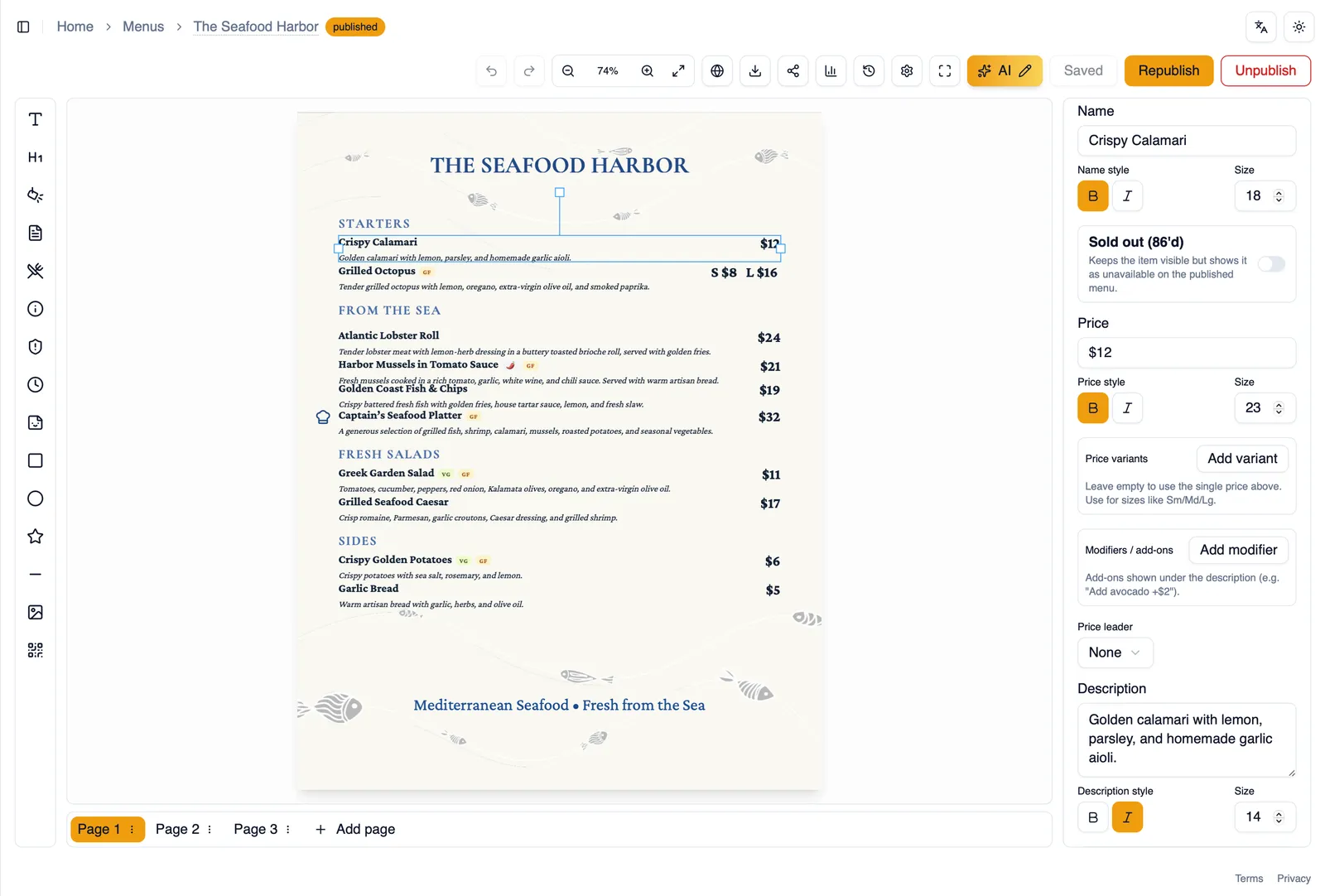
Menu items are the core building block of any menu: what you are selling, what it costs, and everything a diner needs to decide whether to order it. This page covers everything an item can hold and how to style it.
Name, description, and price
Section titled “Name, description, and price”Every item starts with a name, an optional description, and a price. Each of these three fields has its own typography, so you can give the name more weight than the description, or make the price stand out with a different size or color, all without leaving the item.
Price leaders
Section titled “Price leaders”A price leader is the connector between an item’s name and its price, useful for guiding the eye across a wide item row. Choose from dots, dashes, a solid line, or none at all.
Price variants
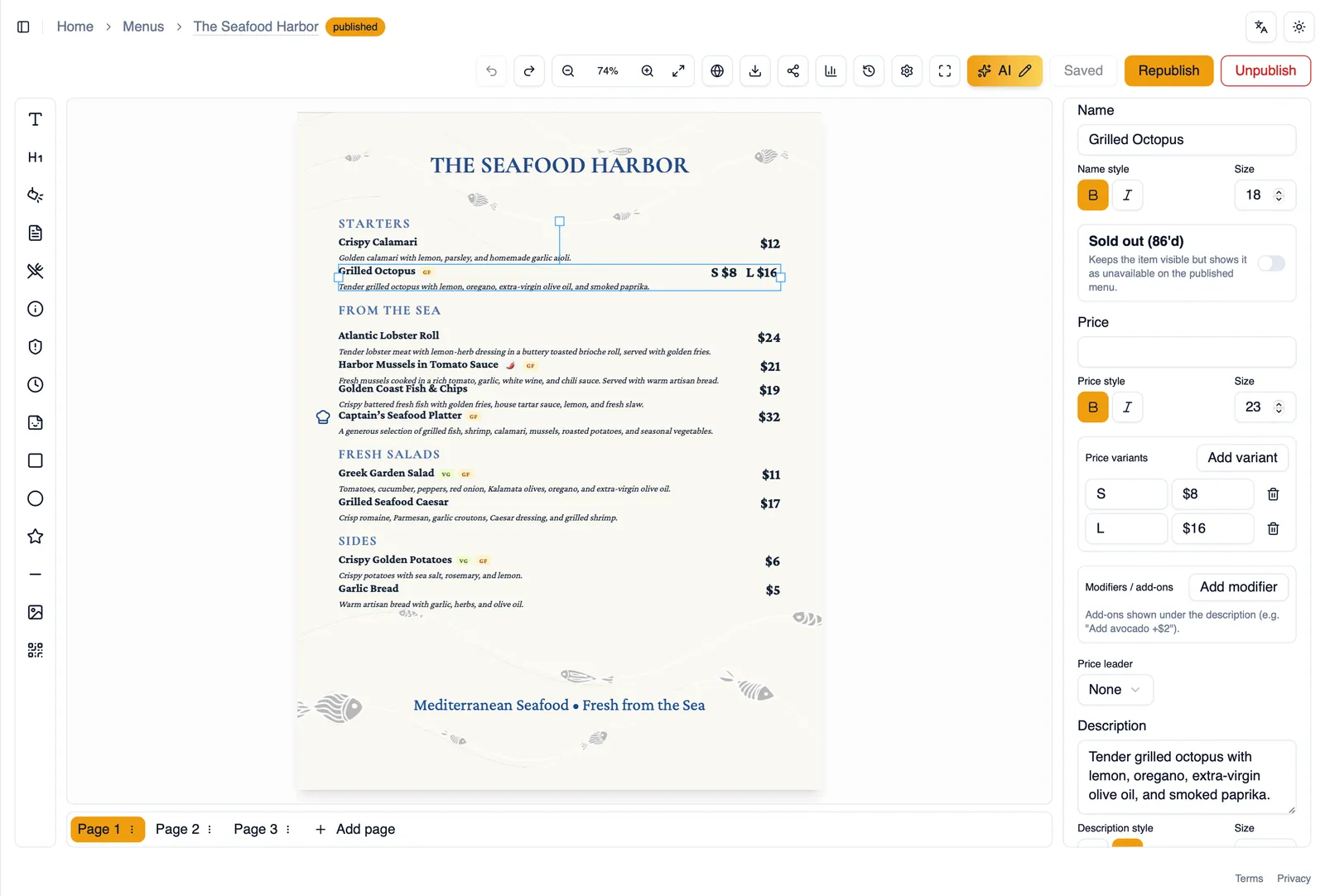
Section titled “Price variants”Some items come in more than one size or option, for example a small and a large, or a glass and a bottle. Price variants let a single item carry several labeled prices instead of forcing you to create a separate item for each size.
How to add an item with two sizes
Section titled “How to add an item with two sizes”- Insert a Menu item, or select an existing one.
- In the property panel, add a price variant.
- Label the first variant, for example “Small,” and set its price.
- Add a second variant, label it, for example “Large,” and set its price.
- Both prices now show on the item, one per size.
Modifiers and add-ons
Section titled “Modifiers and add-ons”Modifiers and add-ons are extra options tied to an item, such as toppings or sides. Display them as a list, one per line, or inline, run together and separated by a chosen separator, whichever fits the item best.
Sold out (86’d)
Section titled “Sold out (86’d)”When something runs out, mark the item sold out (also called 86’d) instead of deleting it. It stays visible with an unavailable state so diners know it exists but cannot order it right now, and you can bring it back the moment it is available again.
How to mark an item sold out
Section titled “How to mark an item sold out”- Select the item on the canvas.
- In the property panel, mark it as Sold out (86’d).
- The item now shows its sold out state to anyone viewing the published menu.
- Turn it off the same way once the item is back.
Item photos
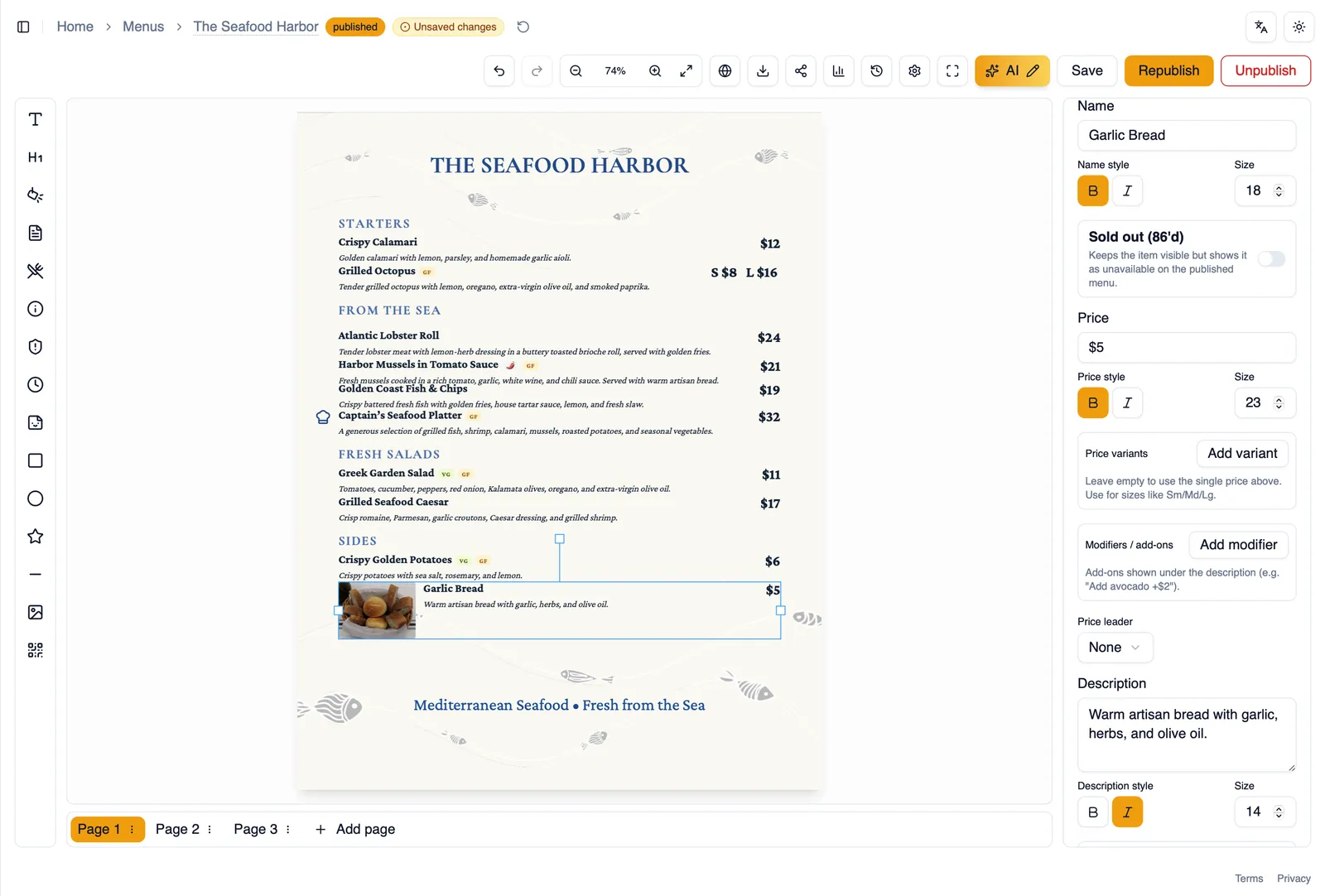
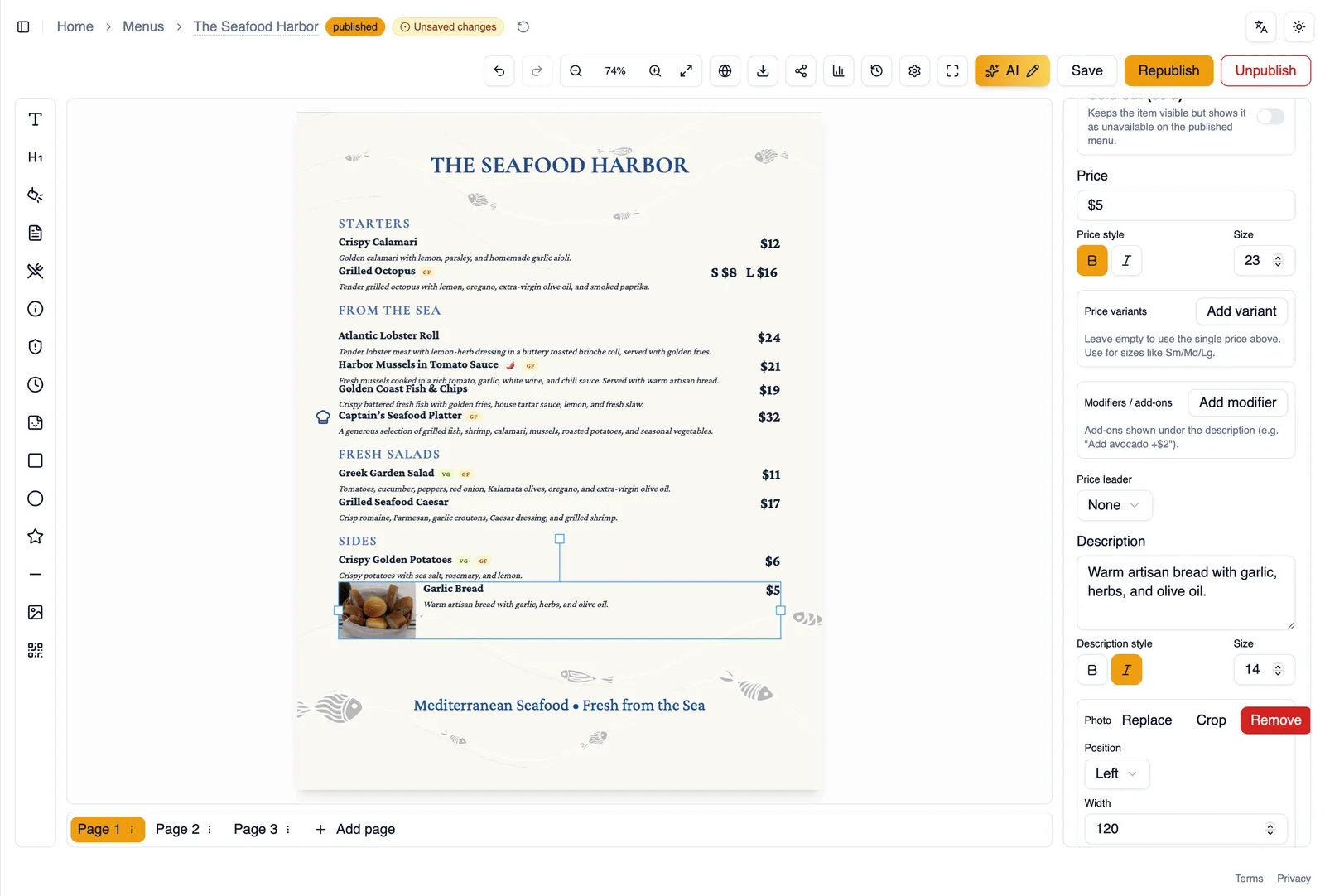
Section titled “Item photos”Add a photo to an item and position it left, right, or on top of the text. Control the photo’s width and crop it to fit the space you have chosen.
Sections and smart insertion
Section titled “Sections and smart insertion”Every item belongs to a section. When you insert a new item, smart insertion places it into the section you are currently working in, so items land where you expect instead of floating loose on the page.
Separators
Section titled “Separators”Separators are the small dividing lines that can run between items or between an item’s parts. Set their style, where they sit, their color, width, and offset from the surrounding content.
Apply styles to all items
Section titled “Apply styles to all items”Once you have an item styled the way you like it, Apply styles to all items copies that styling, typography, price leader, separator, and photo settings, to every other item on the page, so you do not have to repeat the same adjustments item by item.
Next, see how Sections organize items into groups.