Multi-page menus
Most menus outgrow a single page sooner or later, a food menu plus a drinks menu, or simply more sections than one page can hold comfortably. Menu Author menus can hold as many pages as you need, and page tabs are how you manage them.
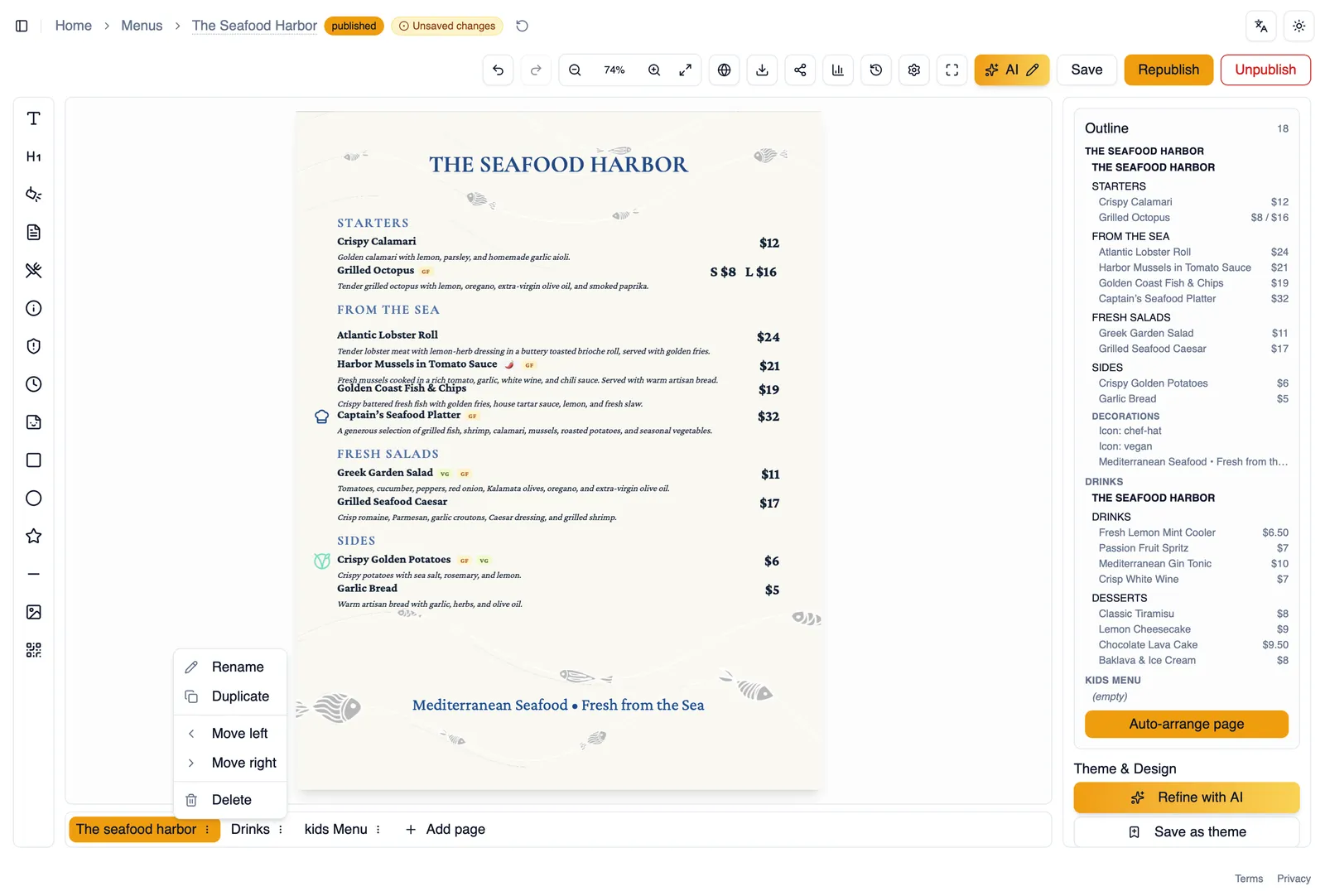
Page tabs (add, rename, duplicate, move, delete)
Section titled “Page tabs (add, rename, duplicate, move, delete)”Page tabs sit below the canvas, one per page, and give you full control over your pages:
- Add a new page to the menu. The Add page button offers a Blank page, or Generate with AI to build new pages from a file or pasted text, see Add pages with AI.
- Rename a page tab so you can tell your pages apart at a glance, for example “Food” and “Drinks.”
- Duplicate a page tab to copy its entire layout, including every element on it, onto a new page.
- Move a page tab left or right to reorder it among your other pages.
- Delete a page tab to remove that page from the menu.
Backgrounds carry over
Section titled “Backgrounds carry over”When you add a new page, it automatically carries over the background you are already using elsewhere in the menu, so a color or pattern you set once does not need to be reapplied by hand every time you add a page. A page can also carry a background of its own that overrides the menu-wide one, which is how a menu generated from an upload keeps a cover that looks different from its inner pages. See Backgrounds, patterns, and frames.
Columns per page
Section titled “Columns per page”Each page chooses how many columns its content flows into, set from the page’s panel in the editor. Different pages of the same menu can use different column counts, so a dense drinks page can run two columns while the food pages stay at one. Long sections continue across columns and pages as needed, see Sections.
Show a page on the web, or keep it print only
Section titled “Show a page on the web, or keep it print only”Every page has a Show on web setting, reachable from its page tab. Turn it off and the page still appears in the editor, in PDF and image exports, and in print, but not on your published web menu; the tab shows a Hidden from web marker so you always know. Cover pages recreated by menu generation arrive hidden from web by default, since a printed branding cover rarely makes sense as the first thing a phone shows, and you can switch any of them back on whenever you like.
Page sizes (presets and custom)
Section titled “Page sizes (presets and custom)”Choose a page size from a set of presets, or set custom dimensions if none of the presets fit what you need. This is the size the page uses both on screen and when you export or print it.
Moving items between pages
Section titled “Moving items between pages”You do not need to delete and rebuild an item to put it on a different page. As covered in Working with elements, you can move any selected element directly to a different page.
How to add a page and move an item onto it
Section titled “How to add a page and move an item onto it”- Click the add control on the row of page tabs to insert a new page.
- Rename the new tab so you can tell it apart from your other pages.
- Go back to the page holding the item you want to move, and select that item.
- Use Move to page to send it to the new page.
- Switch to the new page tab to confirm the item landed where you expected.
Next, see Saving, autosave, and version history to make sure none of this work is ever at risk of being lost.