Item and section designs
Item designs and section designs control how menu items and sections look as a set, independently of your theme’s colors and fonts. Switching either one changes appearance only, so you can try different looks without touching your content, and you can pair any item design with any section design.
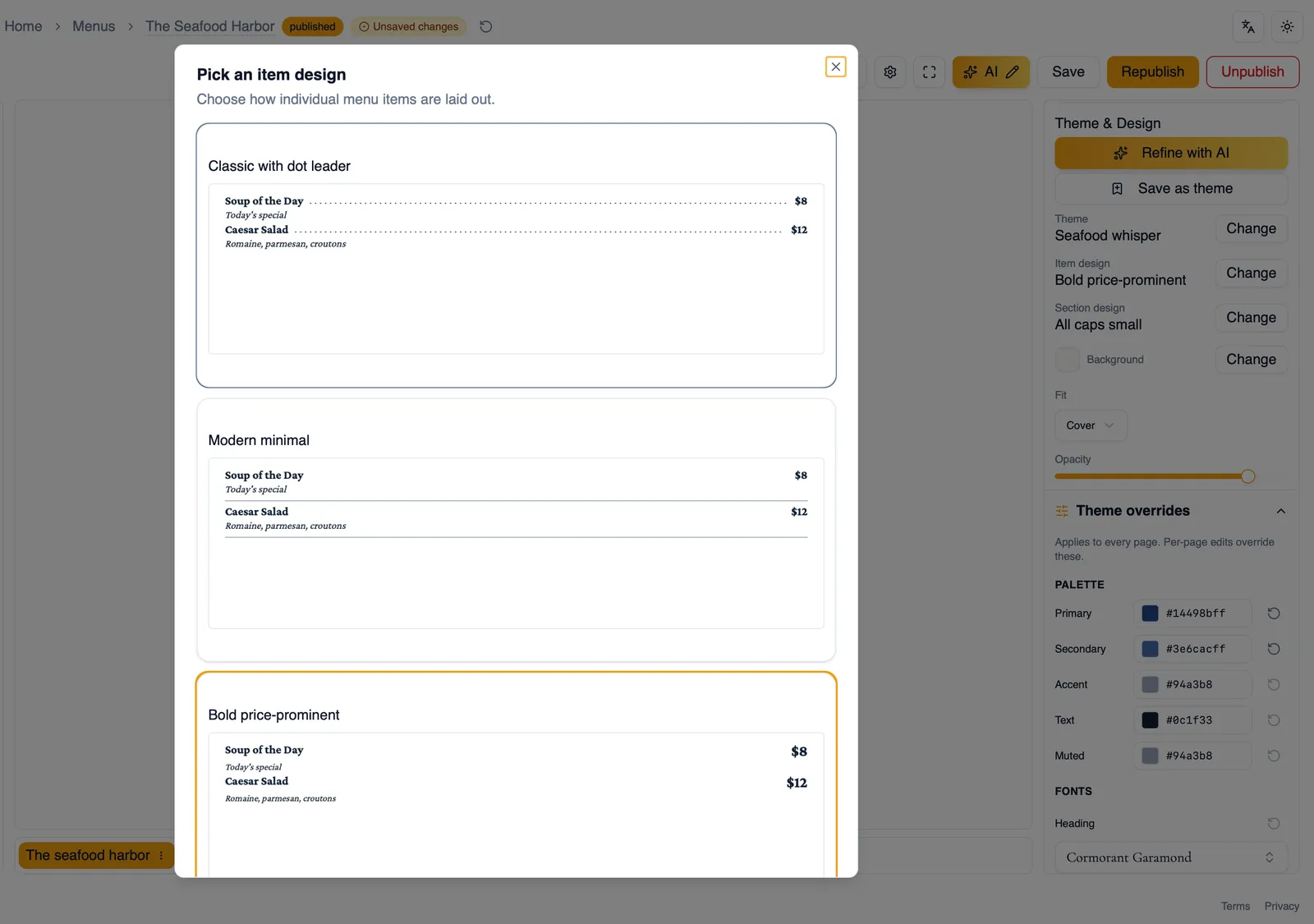
The 8 item designs
Section titled “The 8 item designs”- Classic with dot leader: a traditional layout with a dotted line leading the eye from the item’s name across to its price.
- Modern minimal: a clean, understated layout with little decoration, letting your content speak for itself.
- Bold price-prominent: gives the price extra visual weight, useful when price is something you want diners to notice quickly.
- Condensed no leader: a tighter layout with no leader line between name and price, good for menus with a lot of items to fit.
- Separator heavy: leans on visible separators to divide items clearly, useful for dense menus that need clear breaks.
- Compact rule: a compact layout with a simple rule, balancing density with a bit of structure.
- Centered elegant: centers item content for a formal, symmetrical feel.
- Casual inline price: runs the price inline with the rest of the text for a relaxed, conversational look.
The 14 section designs
Section titled “The 14 section designs”Section designs control a section header’s spacing, the treatment of its title, and its overall feel. There are 14 to choose from:
- Centered with rule: centers the title and adds a rule beneath it, for a formal, symmetrical header.
- Left aligned, no rule: aligns the title to the left with no rule line, for a quieter, understated header.
- All caps small: sets the title in small capital letters, for a compact, label-like header.
- Thick rule banner: pairs the title with a thick rule, giving the header a banner-like presence.
- Boxed card: wraps the header in a boxed card treatment, useful for making a section stand apart from the ones around it.
- Card (square corners): a card-style header like Boxed card, but with square rather than rounded corners.
- Wave flourish: centers the title with a wavy flourish line on each side, for a playful, decorative header.
- Ornament flanked: centers the title with a small ornament icon on each side, an accent that reads as hand finished.
- Dotted band: sets the centered title between dotted decorative bands, for a light, airy divider.
- Double rule classic: flanks the centered title with classic double rules, for a traditional, typeset feel.
- Solid rule flanked: runs a solid rule out from each side of the centered title, so the title interrupts the line.
- Left rail: places a tall title in your theme’s primary color in a narrow band beside the dishes instead of above them, a look you will recognize from upscale and European menus.
- Left rail wide: the same side by side layout, with the title band taking a full half of the section.
- Left rail compact: a smaller title in the side band with a thin rule beneath it.
The three left rail designs use the left rail layout. The five before them, from Wave flourish to Solid rule flanked, come with section decorations already in place, and every decoration sizes itself from the title’s font so it stays in proportion when you restyle. Preview a few against your own content in the Theme and Design panel to see which one sets the right tone for your sections, whether that is a quiet divider between groups of items or a header that stands out on its own.
How to change your item and section designs
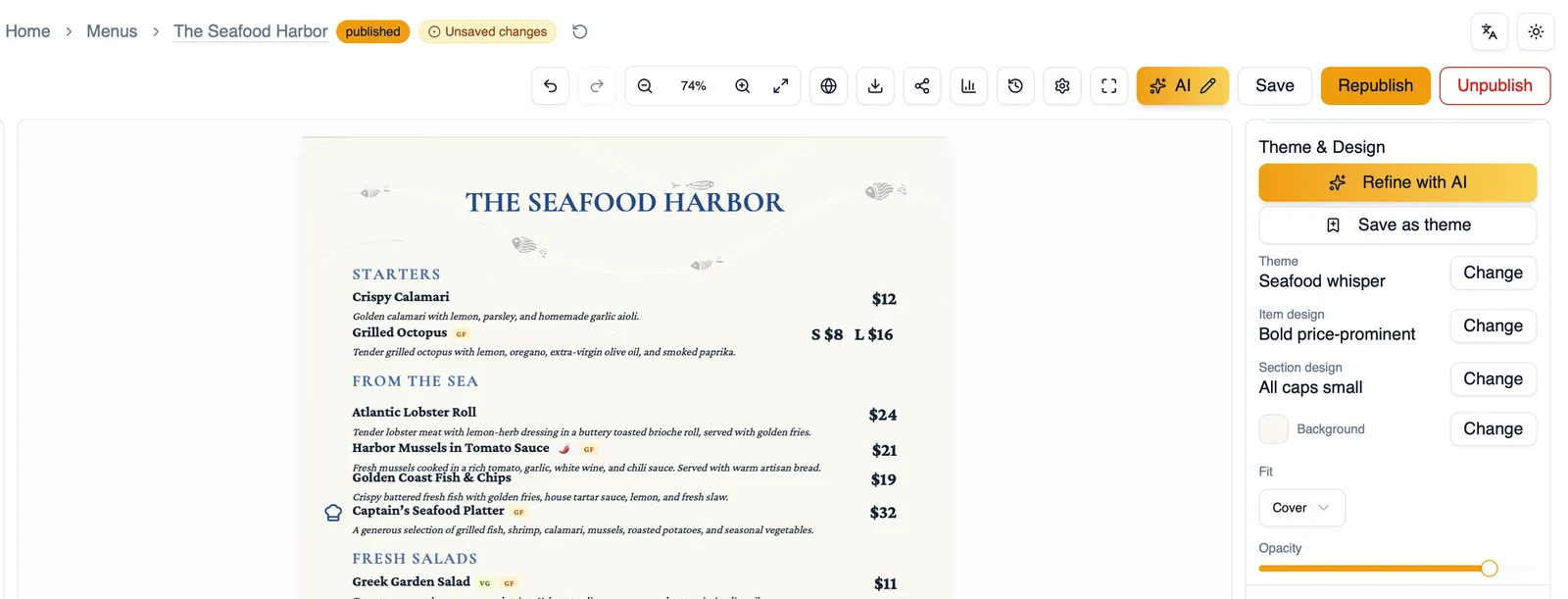
Section titled “How to change your item and section designs”- Open the Theme and Design panel.
- Find the item design picker and choose one of the 8 item designs, for example Classic with dot leader or Casual inline price.
- Find the section design picker and choose one of the 14 section designs, for example Centered with rule or Wave flourish.
- Check the canvas to see how your existing items and sections now look, and adjust until the combination feels right.
For more control over an individual item or section beyond its design, see Menu items and Sections. To adjust the theme’s palette, fonts, and layout instead, continue to Theme overrides.