Choosing a print profile
Every export from Menu Author applies a print profile. A profile sets three things together: how much bleed to add around the trim edge, whether crop marks are included, and the DPI (dots per inch) of the rendered file. Pick the profile that matches where your file is going, and Menu Author takes care of the rest.
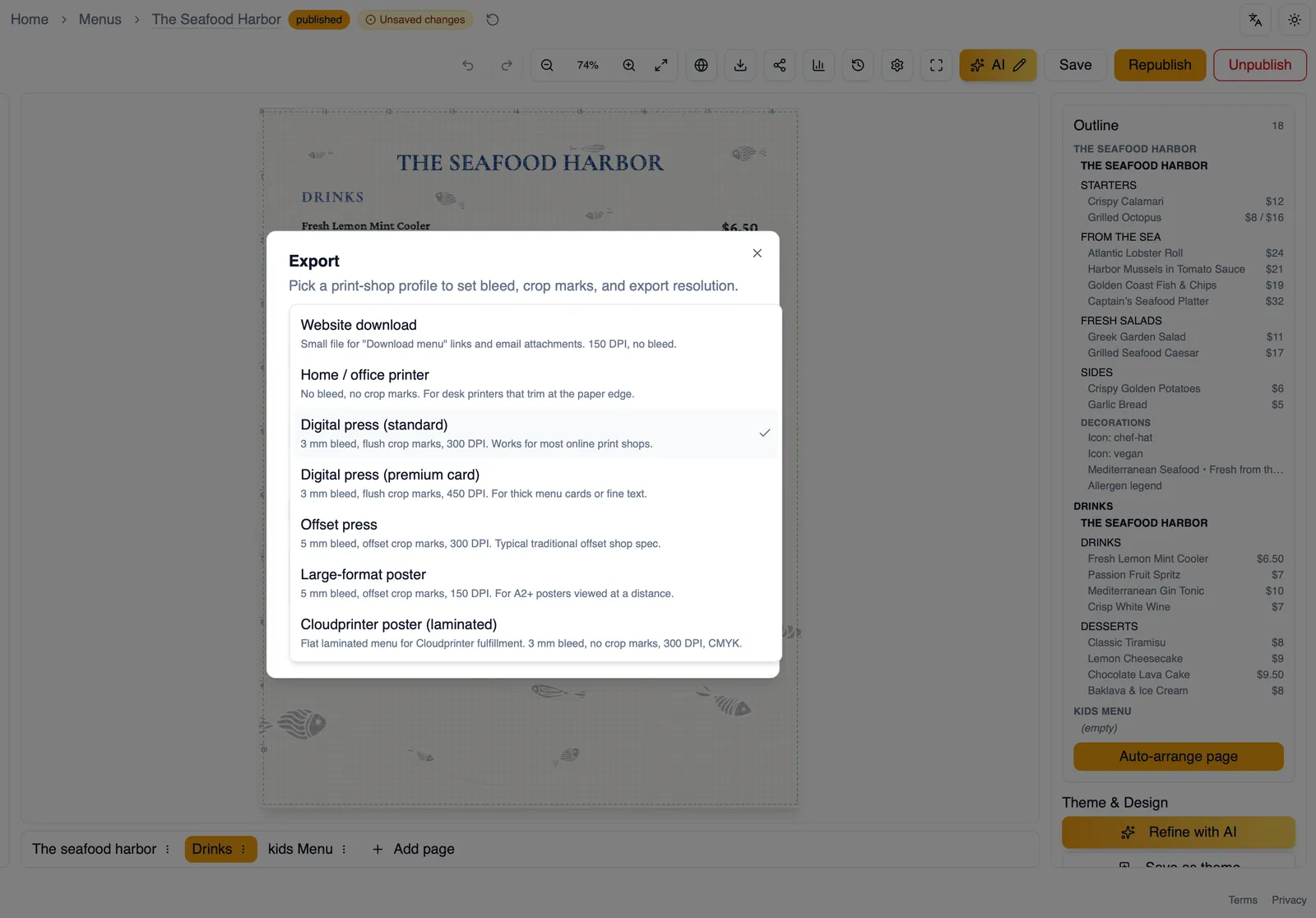
Quick reference
Section titled “Quick reference”| Profile | Bleed | Crop marks | DPI |
|---|---|---|---|
| Website download | 0 mm | None | 150 |
| Home / office printer | 0 mm | None | 300 |
| Digital press (standard) | 3 mm | Flush | 300 |
| Digital press (premium card) | 3 mm | Flush | 450 |
| Offset press | 5 mm | Offset | 300 |
| Large-format poster | 5 mm | Offset | 150 |
| Cloudprinter poster (laminated) | 3 mm | None | 300 |
Each profile explained
Section titled “Each profile explained”- Website download: 0 mm bleed, no crop marks, 150 DPI. The smallest file, meant for emailing to guests or offering as a download link on your website. Not meant for sending to a print shop.
- Home / office printer: 0 mm bleed, no crop marks, 300 DPI. For a desktop or office printer that prints right at the paper edge. Because there is no bleed, keep anything important a little clear of the page edge.
- Digital press (standard): 3 mm bleed, flush crop marks, 300 DPI. The right default for most online print shops. If you are not sure which profile to pick, start here.
- Digital press (premium card): 3 mm bleed, flush crop marks, 450 DPI. The extra DPI keeps fine type and detailed artwork crisp on thicker, premium card stock.
- Offset press: 5 mm bleed, offset crop marks, 300 DPI. Matches the spec sheet most traditional offset print shops ask for, typically for larger print runs.
- Large-format poster: 5 mm bleed, offset crop marks, 150 DPI. For posters A2 and larger. The lower DPI is intentional: a poster is viewed from further away, so printing at 300 DPI would make the file far larger with no visible benefit.
- Cloudprinter poster (laminated): 3 mm bleed, no crop marks, 300 DPI. A flat, laminated poster profile. Pick this one when you want a durable, laminated poster rather than paper stock.
Not sure which to pick?
Section titled “Not sure which to pick?”Choose Digital press (standard): 3 mm bleed, flush crop marks, 300 DPI. It works at almost every online print shop. Move up to Digital press (premium card) for thicker stock and finer type, or to Offset press if your shop specifically asks for 5 mm bleed.
Glossary
Section titled “Glossary”- Bleed: extra design that extends past the trim line, so colors run all the way to the edge after the page is cut.
- Crop marks: small marks at the corners that show a printer’s cutter where to trim. Flush marks sit at the trim line; offset marks sit a little further out.
- DPI: dots per inch in the rendered file. Lower DPI suits screens and large posters viewed from a distance; higher DPI suits print, especially fine type on premium card.
For a closer look at bleed, crop marks, and DPI with visuals for each profile, see the print guide on our website.
How to choose a print profile for your export
Section titled “How to choose a print profile for your export”- Click Export in the editor’s top bar.
- Open the Print profile dropdown.
- Match your printer or print shop to a profile: for example, choose Digital press (standard) for most online print shops, or Home / office printer for your own desk printer.
- Confirm the bleed, crop marks, and DPI shown near the bottom of the dialog match what your print shop asked for.
- Click Export.
Once you have picked a profile, see Export PDFs and images for the rest of the Export dialog, or skip printing it yourself and order printed menus directly through Menu Author.