Import from CSV or a spreadsheet
If your menu already exists in a spreadsheet, you do not need to retype every item by hand. Menu Author can import a CSV file, or a block of rows pasted straight from Excel, Numbers, or Google Sheets, and turn it into a fully built menu using your active theme.
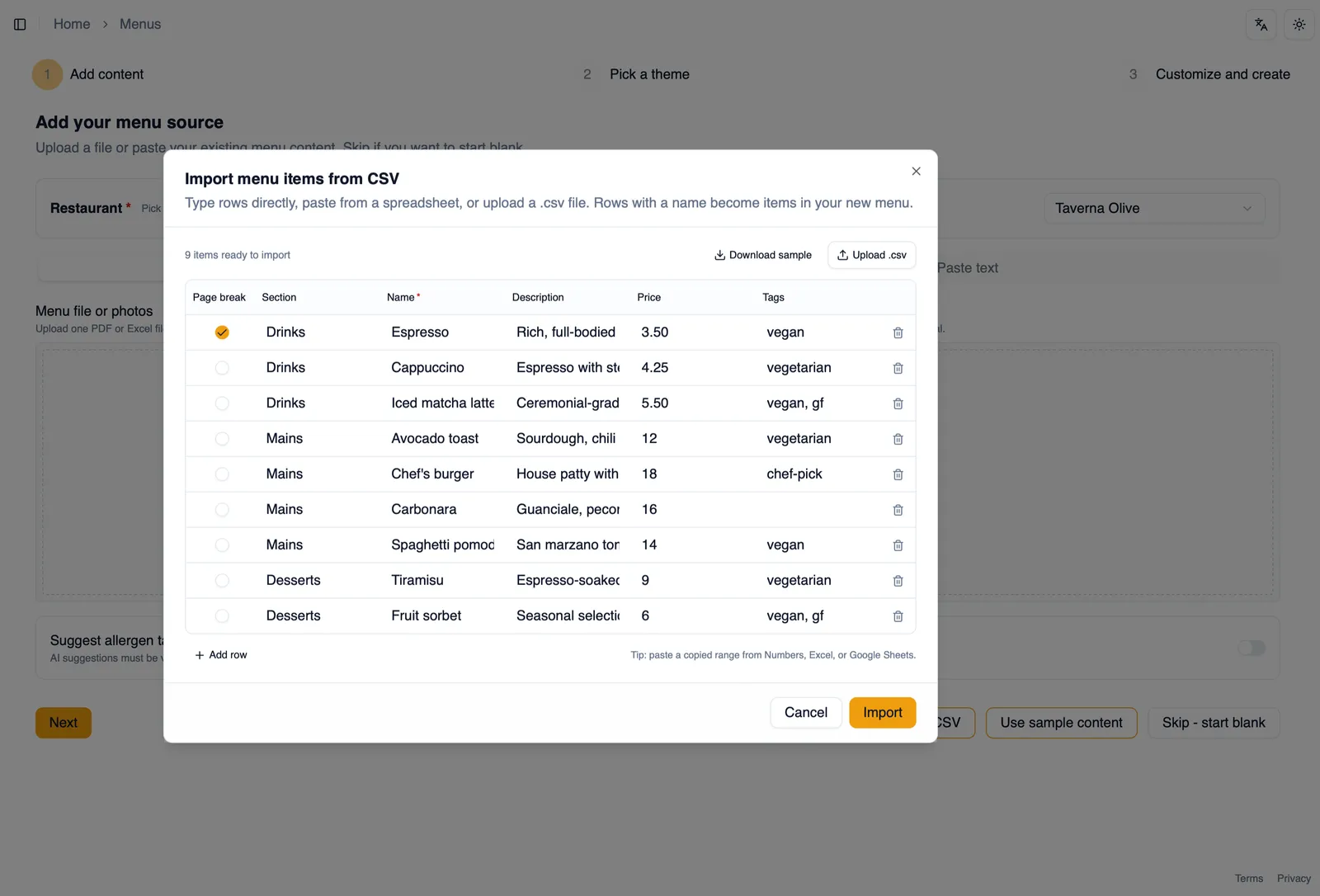
Download the sample template
Section titled “Download the sample template”Before building your own file, download the sample template. It shows the exact structure Menu Author expects, so you can fill in your own items without guessing at column names.
The columns
Section titled “The columns”Alongside the usual columns for each item, the template includes two special columns:
pagebreak: mark a row with this column to start a new menu page at that item, so one spreadsheet can produce a multi page menu.allergens: list the allergens that apply to a row. This column accepts the official EU allergen codes, their short labels, or their full English names, whichever is easiest to fill in. See Allergen declarations for the full set of codes.
Paste from Excel, Numbers, or Google Sheets
Section titled “Paste from Excel, Numbers, or Google Sheets”Instead of exporting a CSV file first, you can copy a range of cells straight from Excel, Numbers, or Google Sheets and paste it into the import dialog. Menu Author detects your header row automatically, so your column names line up with the right fields without any extra setup.
Reviewing rows before you import
Section titled “Reviewing rows before you import”Once your data is parsed, you see a preview table of every row. Add or remove rows here before committing to the import, so a stray blank line or a row you do not want does not end up on your menu.
Splitting into pages with pagebreak
Section titled “Splitting into pages with pagebreak”Any row marked in the pagebreak column starts a new page in the resulting menu, so a single spreadsheet covering food, drinks, and desserts can land as a clean, separate page for each section instead of one long page. See Multi-page menus for how page tabs work once your menu is imported.
Tag aliases
Section titled “Tag aliases”The tags column matches against your built-in and custom dietary tags using common aliases, so it does not need to match a tag’s exact label letter for letter to be recognized. See Dietary tags for the full built-in set.
Theme aware results
Section titled “Theme aware results”Imported items and sections are not dropped in as plain text. They land using whichever item design and section design your active theme is set to, so an imported menu looks consistent with the rest of your design from the moment it appears. See Item and section designs for the full set of looks.
How to import a spreadsheet as a multi page menu
Section titled “How to import a spreadsheet as a multi page menu”- In the editor, click an empty area of the canvas so nothing is selected. In the property panel’s Canvas section, open Bulk actions, then Import menu items from CSV.
- Click the sample template link to see the expected column layout, or copy a range of cells from Excel, Numbers, or Google Sheets.
- Paste your data into the dialog. Menu Author detects your header row automatically.
- Fill in the
pagebreakcolumn on any row that should start a new page. - Fill in the
allergenscolumn using codes, short labels, or full English names, and the tags column using your usual tag names. - Review the preview table, adding or removing rows as needed.
- Click Import to build the menu using your active theme’s item and section designs.
With your items imported, continue to The asset library to bring in your photos and logo.