Editor tour
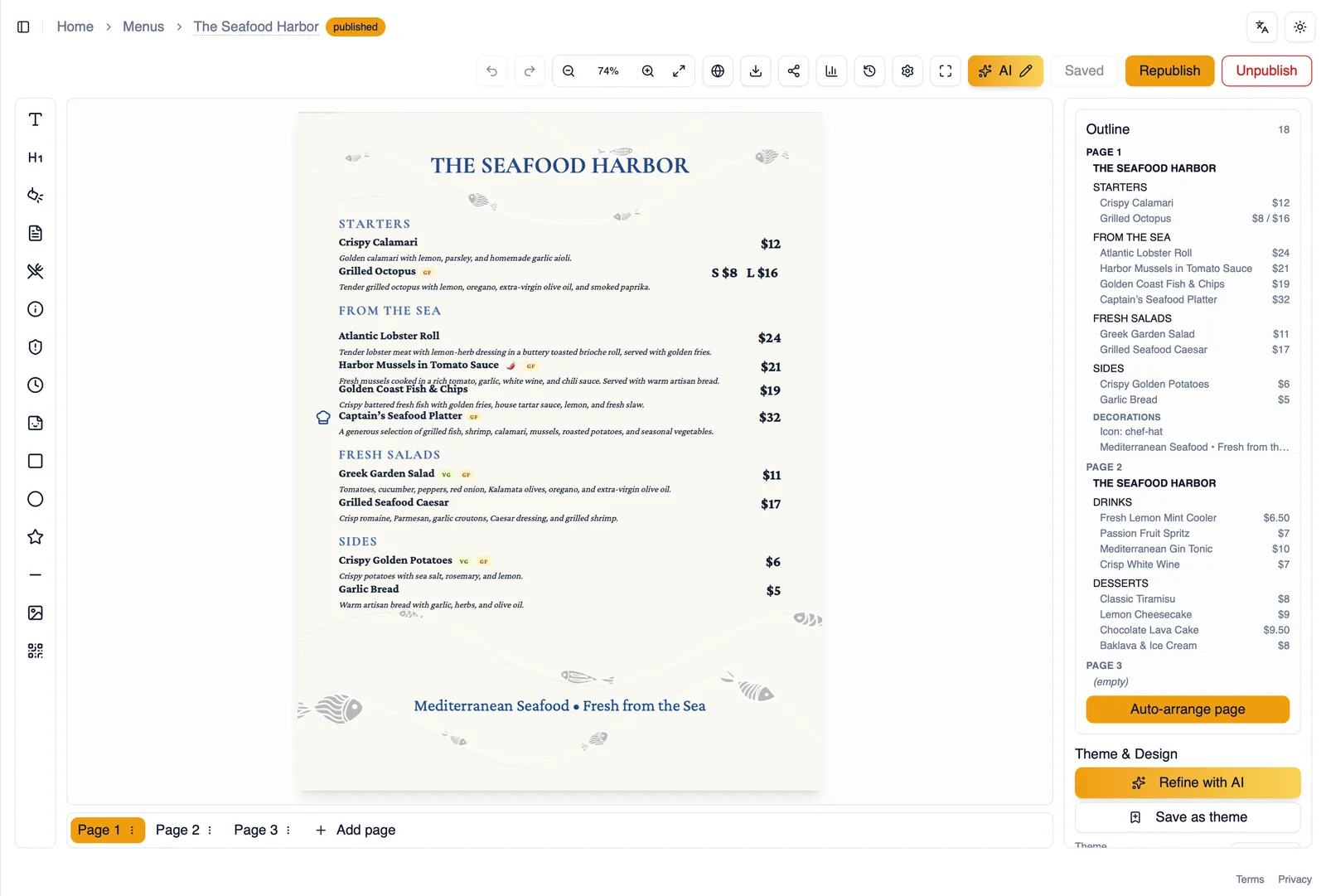
The editor is where you build and design your menu, page by page, element by element. This page is a map of the editor screen: the canvas you design on, the toolbar you insert elements from, the top bar for the actions you use most, and the panels that let you fine-tune everything you place.
The canvas
Section titled “The canvas”The canvas is the page itself, shown exactly as it will look when published or printed. You place, move, and resize elements directly on it. If your menu has more than one page, the canvas shows one page at a time, switched using the page tabs.
The toolbar
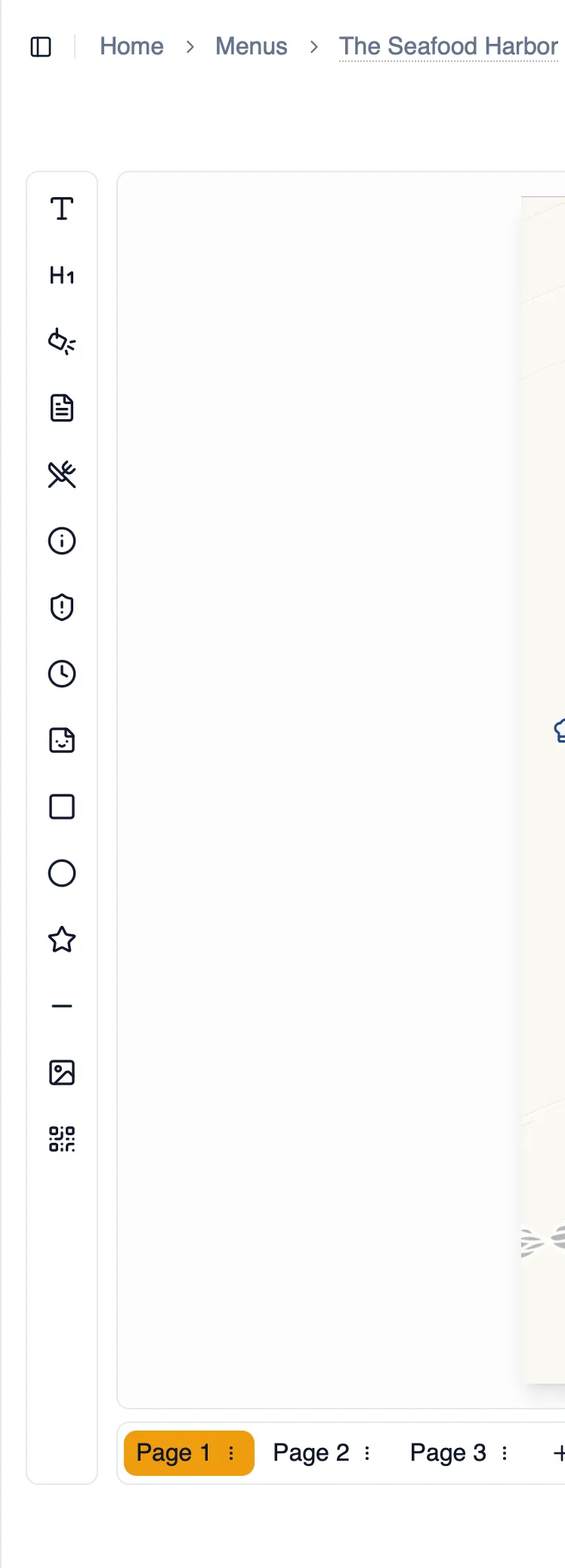
Section titled “The toolbar”The toolbar holds the insert buttons you use to add anything to a page. Click a button, then click (or drag) on the canvas to place it:
- Text: a plain text box for anything that does not fit one of the other blocks.
- Menu title: the main heading for the menu.
- Brand logo: your restaurant’s logo, pulled from your asset library.
- Section header: the title, subtitle, and description for a new section.
- Menu item: a new item, with name, description, and price.
- Disclaimer / footnote: a note that applies to the whole menu or to a specific item.
- Allergen legend: the legend that lists which allergens apply across your menu.
- Hours: your restaurant’s opening hours.
- Menu icon: a small icon, such as a dietary or category symbol.
- Rectangle: a rectangle shape.
- Circle: a circle shape.
- Star: a star shape.
- Divider: a line to separate content.
- Image: a photo or graphic from your asset library.
- QR code: a scannable QR code embedded in the page design.
The top bar
Section titled “The top bar”The top bar runs across the top of the editor and holds the controls you reach for most often:
- Share: opens Share & Embed, where you get your menu’s link, QR code, and embed code.
- Undo/Redo: step backward or forward through your recent changes.
- Zoom: change how large the canvas appears on your screen.
- Fit to screen: zoom the current page so it fits entirely in view.
- Preview web view: see how the published menu will look to diners without leaving the editor.
- Export: download the menu as a PDF or image.
- Order printed menus: start a print order for physical copies of your menu. This feature is Alpha and still rolling out.
- Analytics: jump to this menu’s view statistics.
- Version history: browse and restore earlier versions of the menu.
- Menu settings: open settings specific to this menu.
- Fullscreen: expand the editor to fill your whole screen.
- AI: open the AI tools available in the editor.
- Save states: shows whether your latest changes are stored, cycling through Save, Saving, and Saved as you work, so you always know your work is safe.
- Publish: make your current draft live on your public menu page.
The Outline panel
Section titled “The Outline panel”The Outline panel lists every section and element on the current page in order, giving you a bird’s eye view of the page’s structure. Click any row to select the matching element on the canvas, which is often faster than hunting for a small element by eye, especially on a busy page.
The property panel
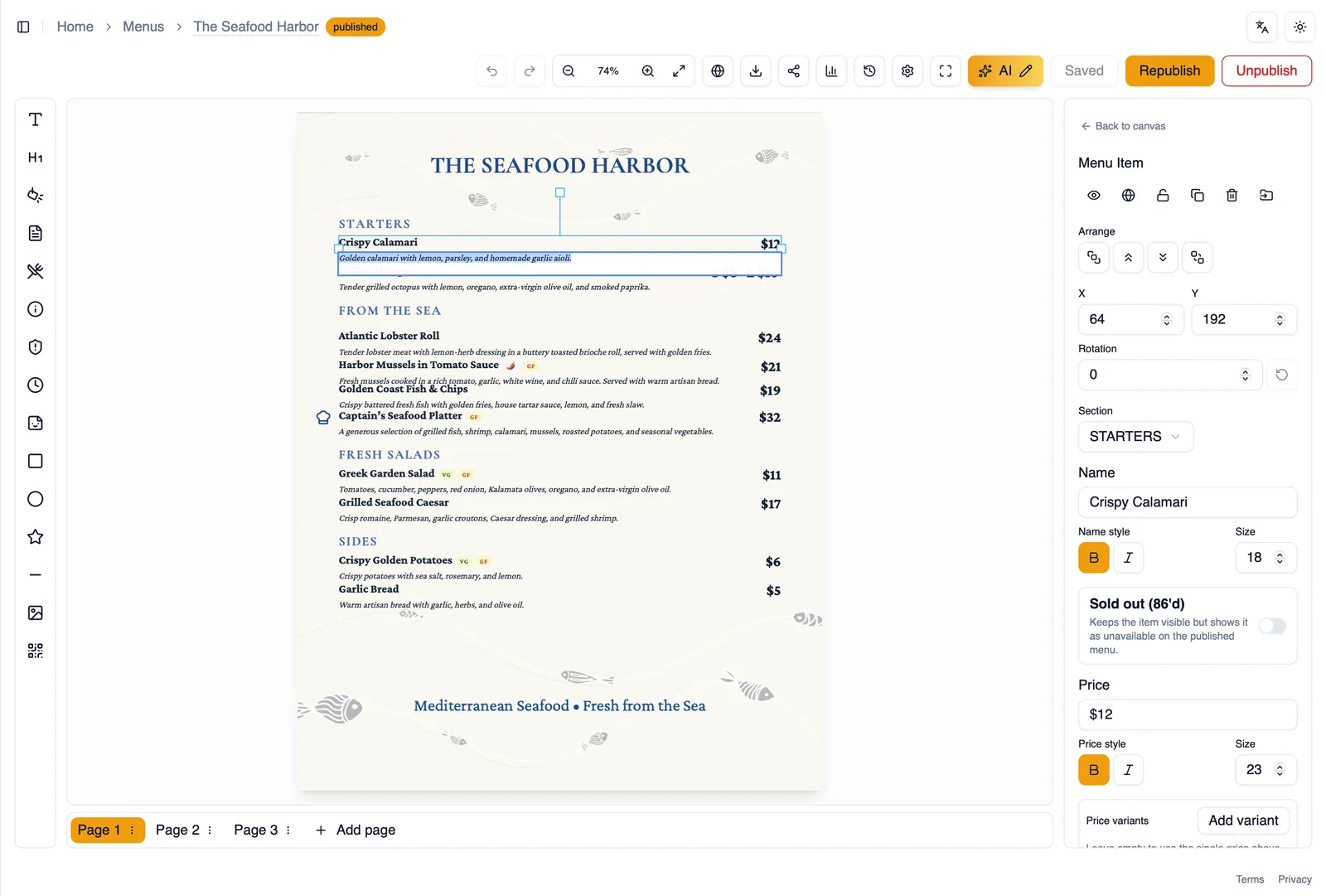
Section titled “The property panel”The property panel is contextual: it shows the settings for whatever you have selected on the canvas. Select a menu item and it shows item options like name, description, and price styling. Select a section and it shows section card options. Select a shape and it shows fill, stroke, and sizing. Next to the property panel is a separate Theme and Design panel that controls menu-wide styling, such as your color palette and fonts, rather than one element at a time.
Page tabs
Section titled “Page tabs”Every menu can have more than one page. Page tabs sit below the canvas and let you switch between pages as you work, so a multi-page menu is always just a click away.
The quick start card
Section titled “The quick start card”New menus show a quick start hints card in the editor with a short set of pointers for getting started, such as adding your first section or trying the AI tools. Dismiss it once you no longer need it.
Renaming from the breadcrumb
Section titled “Renaming from the breadcrumb”The breadcrumb at the top of the editor shows the current menu’s name. It is editable in place, so you never need to leave the editor or open a separate settings screen just to fix a typo in the title.
How to rename a menu from the breadcrumb
Section titled “How to rename a menu from the breadcrumb”- Click the menu name shown in the breadcrumb at the top of the editor.
- Type the new name.
- Press Enter, or click anywhere else, to save it.
With the layout of the editor in view, continue to Menu items to see how individual items work.