Offline and reliability
You should not have to think about the editor’s plumbing while you are trying to build a menu. This page covers what happens behind the scenes when your connection drops, when an update ships while you are working, and when two people open the same menu at once.
Offline banner and auto-retry
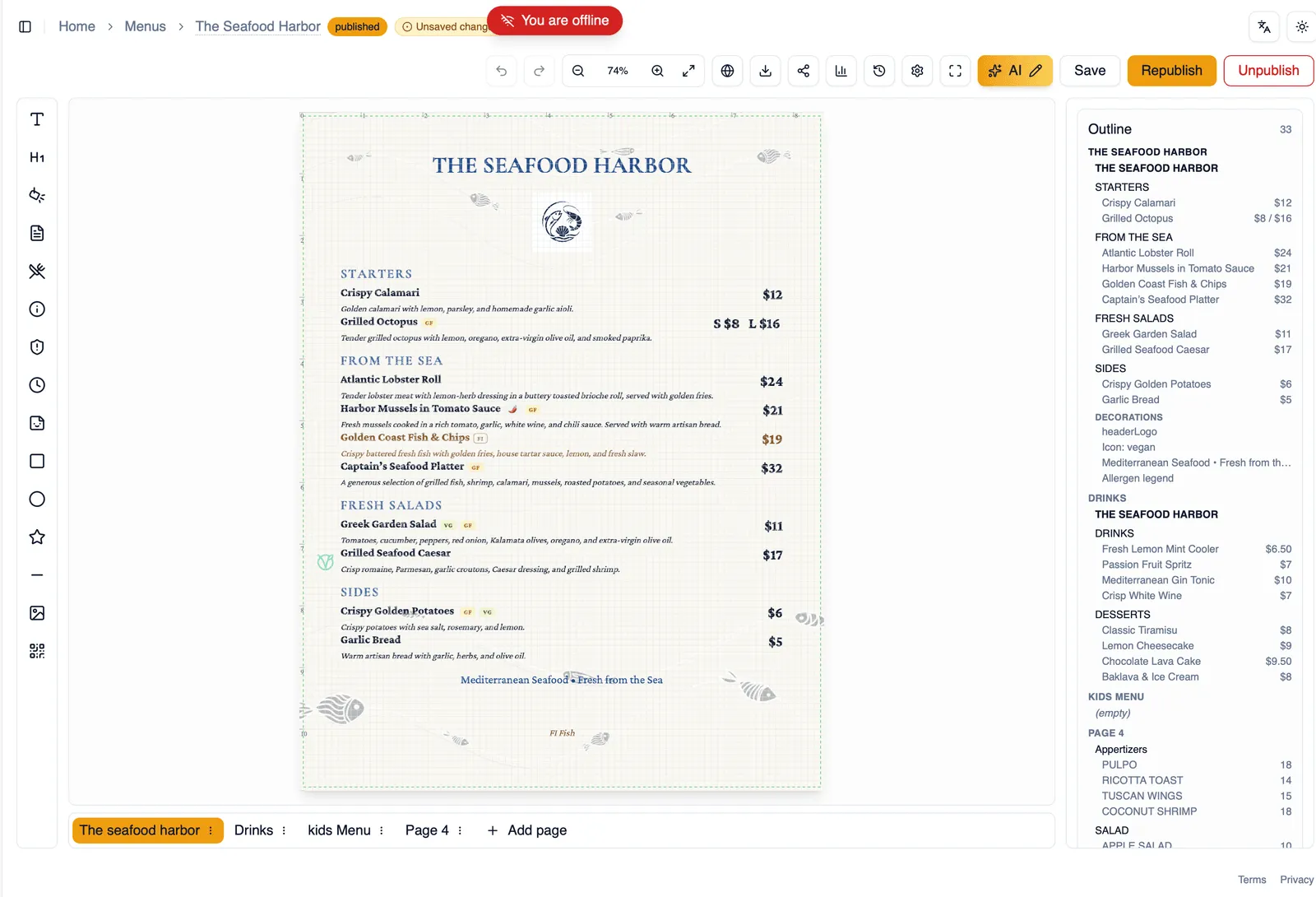
Section titled “Offline banner and auto-retry”If your connection drops while you are in the editor, an offline banner lets you know right away instead of leaving you guessing why nothing is saving. Menu Author keeps retrying the connection in the background and picks back up automatically once it returns, so you rarely need to do anything yourself beyond waiting it out.
The banner also tells apart losing your own connection from Menu Author’s servers being briefly unavailable, so what you see points you toward what is actually going on rather than always saying the same generic thing.
App update prompts
Section titled “App update prompts”Menu Author ships updates while you may still have the app open. When a new version becomes available, an update prompt lets you know, and a single click reloads you onto it, no need to hunt down a browser refresh yourself.
Edit locks and taking over
Section titled “Edit locks and taking over”Only one person can actively edit a given menu at a time. If a teammate already has it open, you land in a read-only view until you choose to take over, at which point their session drops to read-only instead. This keeps two people from overwriting each other’s changes on the same menu at the same time. See Saving, autosave, and version history for the full picture, including autosave, draft conflicts, and version history.
A resilient canvas
Section titled “A resilient canvas”The canvas the editor is built on is designed to hold up under everyday use, so an unusual hiccup, a slow network or a very large image, does not put your work at risk. Together with autosave, the offline banner, and edit locks, the goal is that you can keep working, or pick up right where you left off, without worrying about losing anything.
How to keep working through a dropped connection
Section titled “How to keep working through a dropped connection”- Keep working as normal. If your connection drops, an offline banner appears.
- Menu Author automatically retries the connection in the background.
- Watch the save state indicator in the top bar. It moves back through Saving to Saved once you are reconnected.
- If the banner points to Menu Author’s servers rather than your own connection, wait a moment and let auto-retry keep trying.
- If an app update prompt appears once you are back online, use its one-click reload to move onto the latest version.
Next, see Saving, autosave, and version history for how your work is protected once it is saved.