Generate a menu with AI
Generate a menu with AI turns a menu you already have into a working first draft, so you start close to finished instead of from a blank page. Feed it a PDF, a batch of photos, pasted text, or a spreadsheet, and it builds out your sections, items, and prices, with a starting theme already applied.
The wizard steps
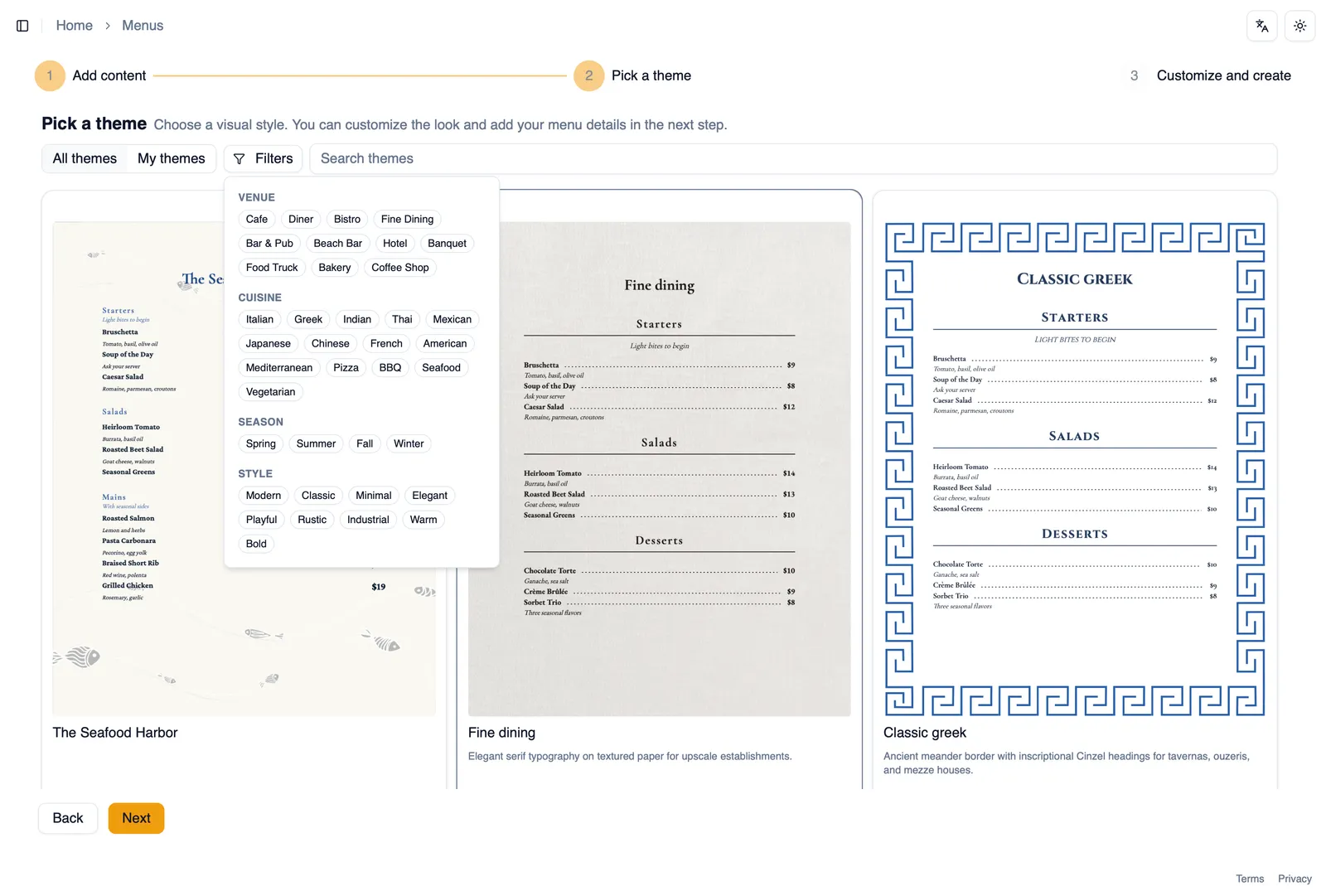
Section titled “The wizard steps”The generation wizard walks you through three steps: Add content, Pick a theme, and Customize and create. You add your source first, then choose a look before generation begins, so your new menu already has a design applied the moment it is generated. Click a completed step in the step rail to go back to it. See Themes for how the curated catalog works. The wizard also shows the limits that apply to your plan on the first step, so you know upfront how much you can generate before you upload anything.
Sources
Section titled “Sources”On Add content, choose how to feed in your existing menu:
- Paste text directly.
- Upload a PDF. Its page size carries over to your new menu.
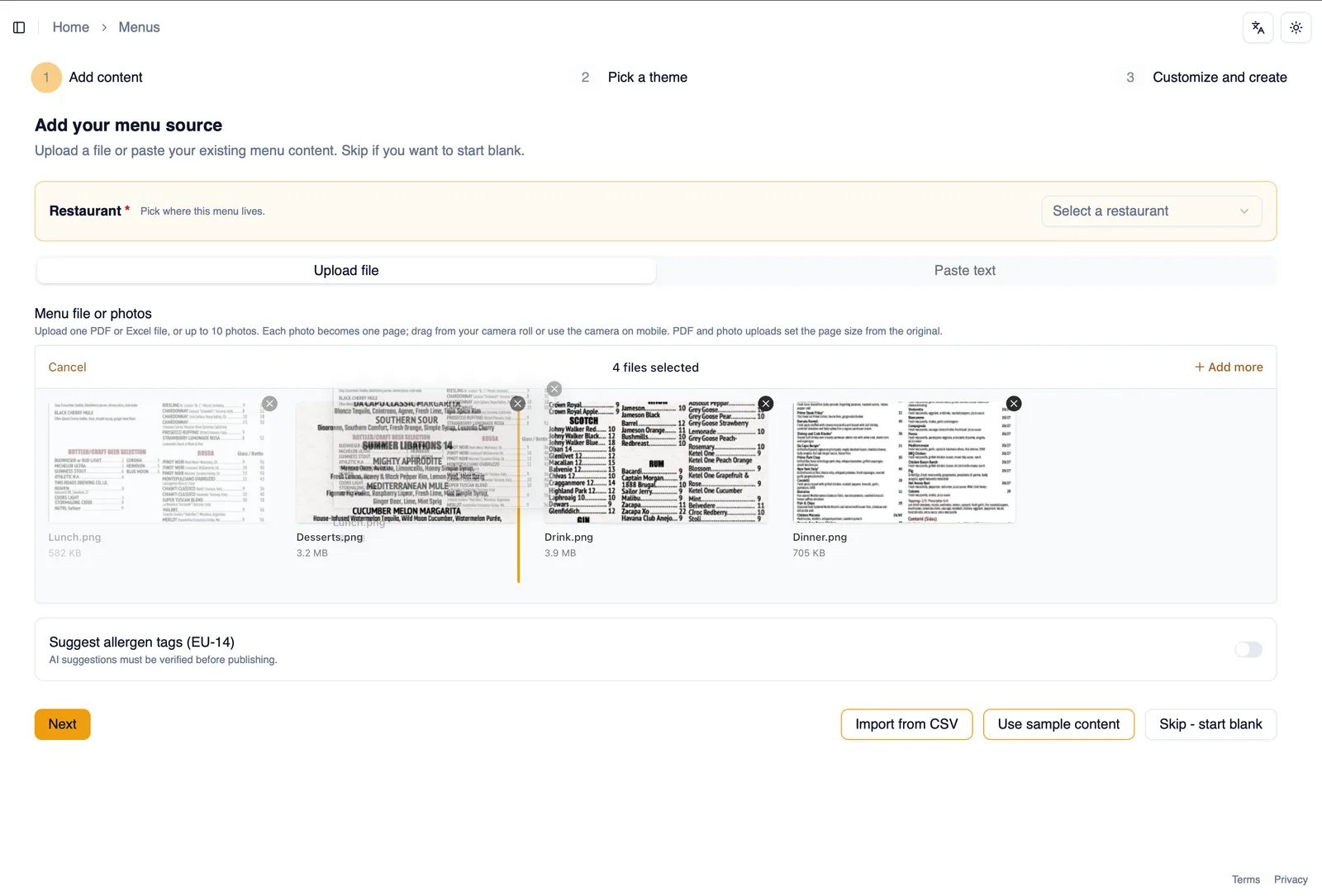
- Upload up to 10 photos of a printed menu, one page per photo. Drag to reorder them, capture them straight from your camera, and upload HEIC files alongside standard formats. Each photo can be up to 10 MB.
- Upload an XLSX spreadsheet.
- Import a CSV file.
- Start from sample content to explore the editor without any menu of your own.
- Start blank and build from scratch.
Whichever source you use, Menu Author parses prices across whatever currencies appear in it, and recognizes common dietary tag names, for example “veg” or “GF”, mapping them onto your built-in dietary tags automatically.
Match the original design
Section titled “Match the original design”When your source is an uploaded PDF or photos, the Match the original design switch on the content step (on by default) reads the colors, fonts, and layout of your upload and proposes a matching style. While it prepares you can keep browsing themes; when it is ready, it appears on the Pick a theme step as a Matched from your upload card, already selected. You can still choose any other theme instead.
The proposal always reflects what you actually uploaded: change your source files, or switch the option off, and it is discarded and made fresh on the next run. If you generated with the matched style and later restyle the theme with Refine with AI, resetting the refinement brings your matched design back.
Your logo and artwork come along
Section titled “Your logo and artwork come along”Generating from a PDF also makes a best effort to lift out the actual artwork inside it. High quality backgrounds and logos are extracted and placed in the generated menu instead of being imitated with stock patterns, and professionally designed menus built from vector artwork are captured at full quality, so an extracted logo or background stays crisp at any size, on screen and in print.
Everything extracted lands in My assets, ready to rename, delete, or reuse on any menu, see The asset library. Each page can take its own background, so an upload whose cover looks different from its inner pages comes out that way too. Extracted artwork is applied when the Matched from your upload style is selected; pick a different theme and the menu uses that theme’s look instead, with the extracted images still waiting in My assets.
Extraction is strictly best effort: crisp digital PDFs extract well, while photos and low resolution scans generally have nothing usable to extract, and generation simply continues without it.
Cover pages
Section titled “Cover pages”If your upload opens with a branding cover page, Menu Author recognizes it and rebuilds it as a real, editable page: your logo is placed as a proper brand logo element you can swap or resize, over the original cover background. Covers always print with the menu but stay off your published web menu by default; a Show on web option on each page tab lets you decide for any page. See Multi-page menus.
Page structure
Section titled “Page structure”Generating from a multi page source keeps your original page count, and new pages are named from their content, “Starters” or “Desserts” rather than “Page 1”. The generator also chooses how many columns each page uses, so a dense drinks page can run two columns while the food menu stays at one, and you can change any page’s column count in the editor afterwards.
Your menu’s language
Section titled “Your menu’s language”Generation detects the language your menu is written in and sets it as the menu’s base language for translations. If the detection was off, or you want a different base, you can change it yourself right up until the first translation is added. See Translate your menu.
Allergen suggestions
Section titled “Allergen suggestions”The Suggest allergen tags (EU-14) toggle asks AI to suggest allergen tags for your items as part of generation. It is off by default. Turn it on and treat the results as a starting point: always verify the suggested tags against your actual ingredients before publishing.
Customize before you create
Section titled “Customize before you create”On Customize and create you can adjust the design before anything is generated. Describe a look in plain language and AI restyles the theme, including its background: it may choose a plain color, a built in pattern with coordinated colors, or a background from the curated library, and any field it changed carries an AI badge. Pick something yourself and the badge clears, or reset the AI changes to get your previous choices back. If your background is a frame, a Frame thickness slider lets you size it here, starting from a sensible size for your page. See Refine with AI and Backgrounds.
What to expect while it runs
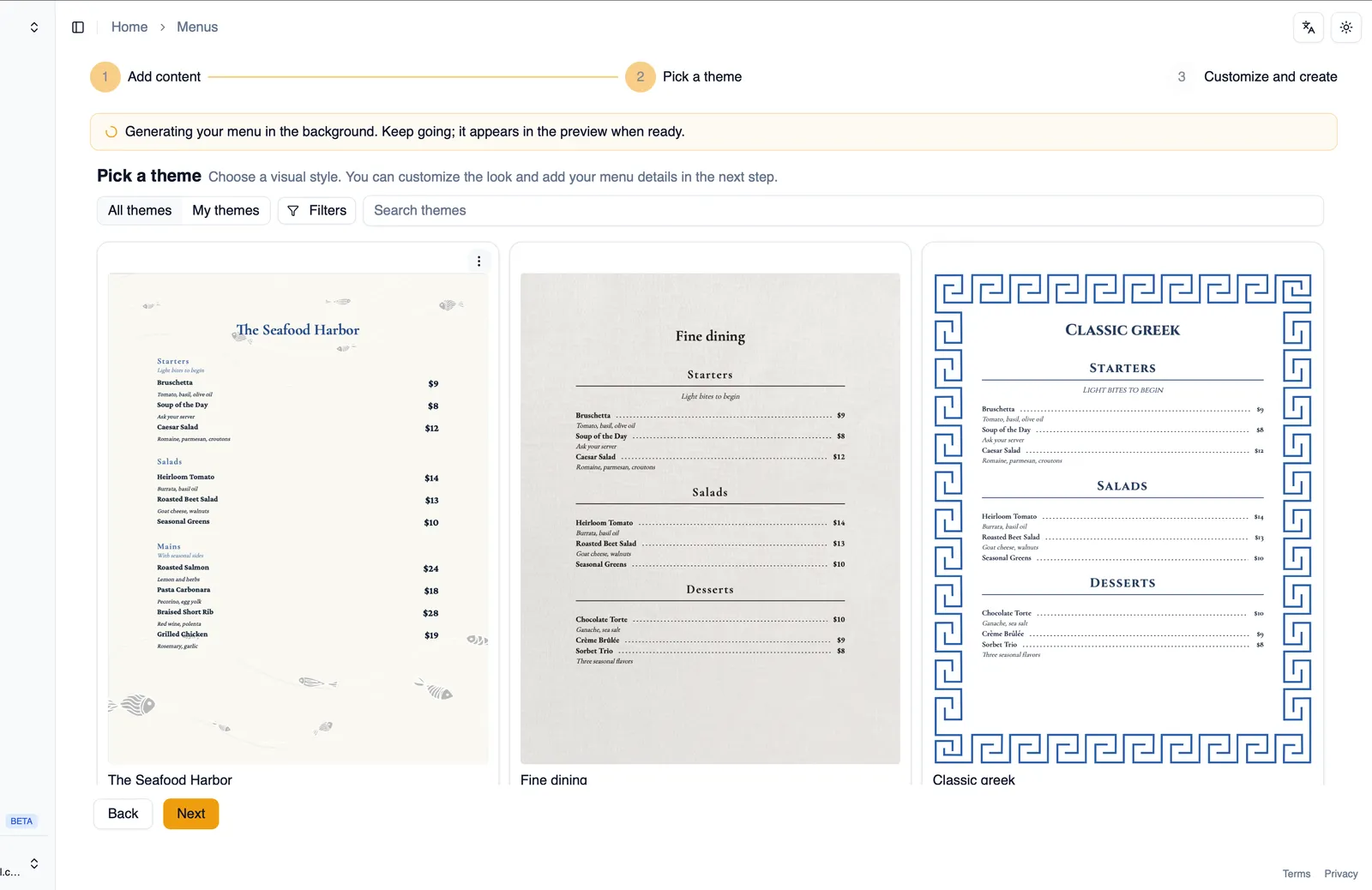
Section titled “What to expect while it runs”Most menus are ready in under 30 seconds. Once generation starts, you see elapsed time so you know it is still working. Large sources can take longer, and generation always works to a firm time budget, so you end up with a menu or clear next steps, never an endless spinner. A run that stalls is noticed and retried for you within that same budget. If something goes wrong, the message says exactly why and what to do next, and when a plan limit is the reason it quotes your plan’s actual numbers. Retry in place rather than starting the wizard over, and choose a longer timeout if your source is large. You can also leave the wizard and come back later, generation keeps going, and a navigation guard warns you before you close or navigate away while it is still running.
Fixing the result
Section titled “Fixing the result”When generation finishes, you land in the editor with your new menu already laid out. Review every section and item: check prices, fix typos, and confirm nothing was missed or misread from your source. If the theme is close but not quite right, refine it with AI instead of starting over, see Refine with AI.
How to generate a menu from a PDF
Section titled “How to generate a menu from a PDF”- Start a new menu and choose to generate it with AI.
- On Add content, choose the PDF option and upload your file. Its page size carries over to your new menu. Leave Match the original design on if you want the look and artwork of your upload carried over.
- On Pick a theme, keep the Matched from your upload card selected, or choose any other theme.
- On Customize and create, adjust the design if you like, then start generation.
- Wait for it to finish, or leave and come back later.
- Review the result in the editor and fix anything that needs adjusting.
How to generate a menu from photos
Section titled “How to generate a menu from photos”- Start a new menu and choose to generate it with AI.
- On Add content, choose the photo option.
- Add up to 10 photos, one per page, either from your device or by capturing them with your camera. Drag to reorder them if they land out of order. Leave Match the original design on if you want the look of your menu matched.
- On Pick a theme, keep the Matched from your upload card selected, or choose any other theme.
- On Customize and create, adjust the design if you like, then start generation.
- Wait for it to finish, or leave and come back later.
- Review the result in the editor and fix anything that needs adjusting.
For the fastest single walkthrough from a photo or PDF straight through to a published menu, see Quick start: your first menu.
That covers generating a first draft. To grow an existing menu with more AI-generated pages later, without rerunning the wizard, see Add pages with AI. To refine the wording once your content is in place, see Polish with AI.