Allergen declarations
Diners with allergies need to know exactly what is in a dish before they order. Menu Author lets you tag every item with the official EU allergen codes, and keeps a legend on your menu in sync with those tags automatically.
The 14 EU allergens
Section titled “The 14 EU allergens”Menu Author uses the 14 official EU allergen codes, each with its own statutory name. Gluten, milk, nuts, and celery are a few examples. The full table of all 14 codes and their statutory names lives in Allergen codes.
Tagging a dish
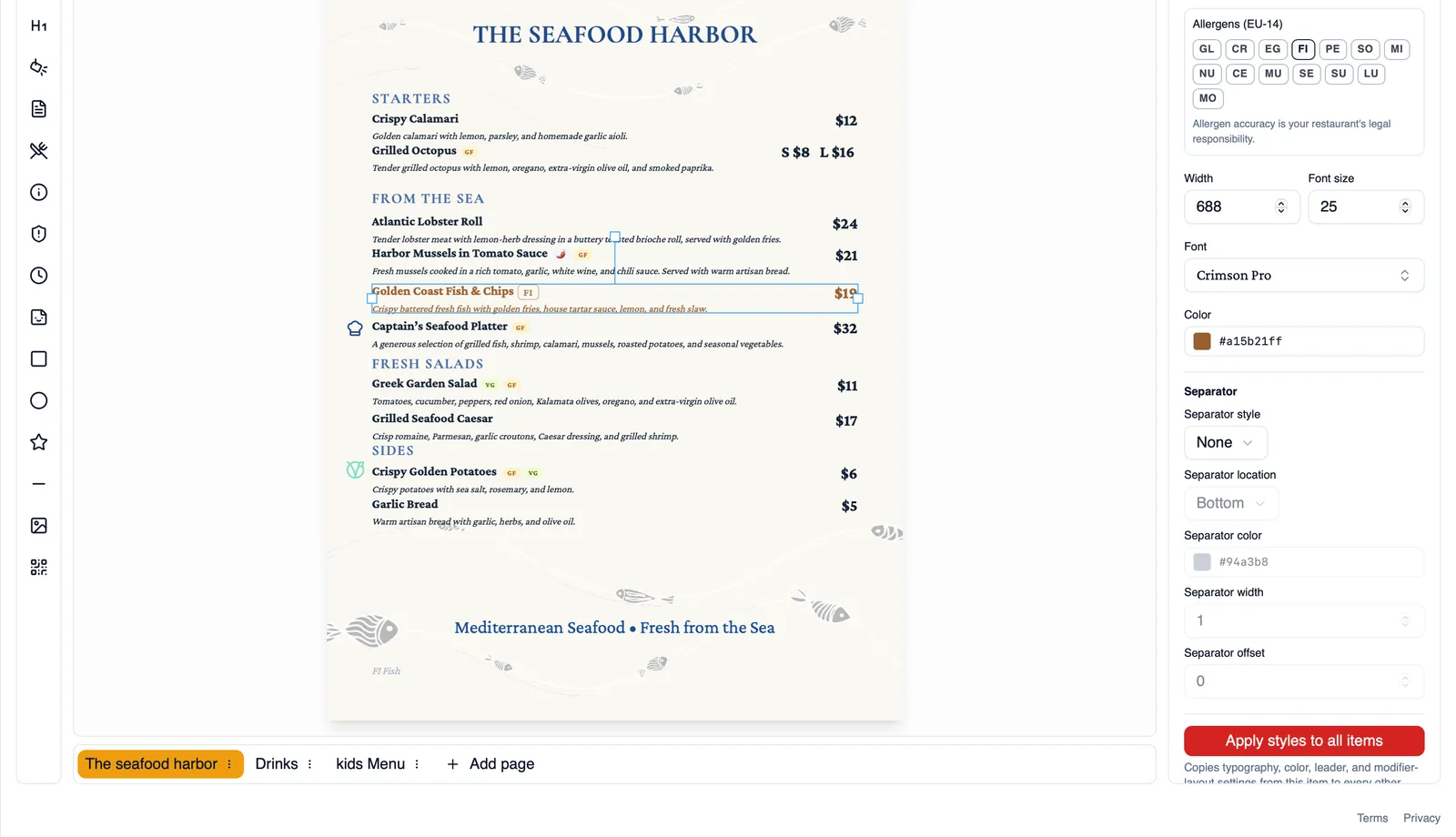
Section titled “Tagging a dish”Select an item and open its dietary and tags settings in the property panel. Inside, use Allergens (EU-14) to tag it with any of the 14 official codes that apply, checking each dish’s ingredients carefully as you go.
How chips look
Section titled “How chips look”Allergen chips are neutral and outlined, deliberately different from your colored dietary tags. This keeps safety information visually distinct from marketing information, so guests can tell at a glance which markers mean “contains an allergen” and which mean something like “vegan” or “spicy.”
The allergen legend
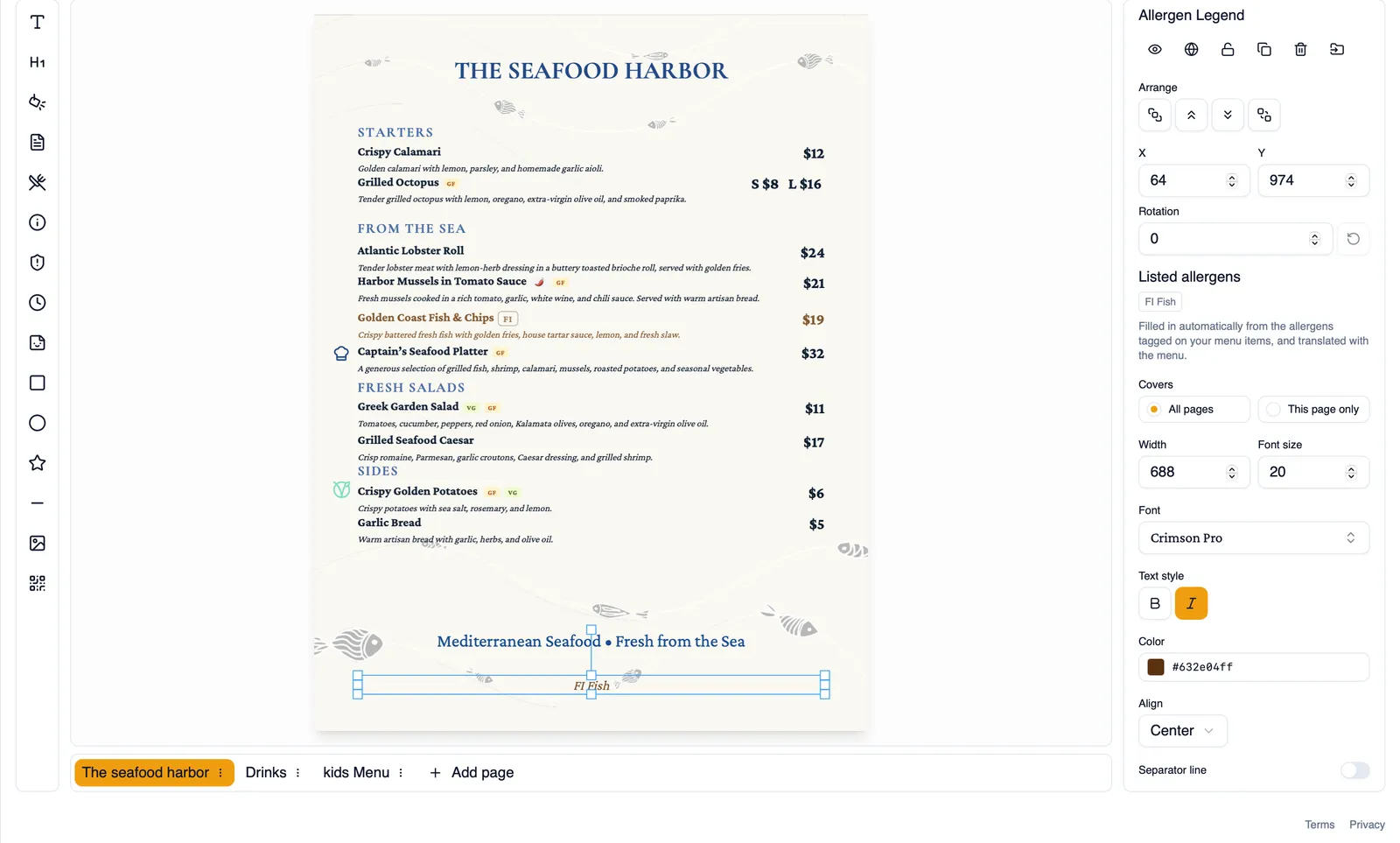
Section titled “The allergen legend”The first time you tag an item with an allergen, Menu Author automatically inserts an allergen legend onto your menu, but only if one does not already exist. Choose whether the legend covers All pages or This page only, and style it to match the rest of your menu. Once it is there, it stays in sync automatically: add or remove allergen tags anywhere on the menu and the legend updates itself.
If you delete the legend, it stays deleted. Menu Author will not insert another one automatically. Add it back yourself at any time using the Allergen legend button in the toolbar.
Legends in other languages
Section titled “Legends in other languages”The allergen legend translates along with the rest of your menu, so guests reading in another active language see the legend in that language too. See Translate your menu for how translations work.
Importing allergens by CSV
Section titled “Importing allergens by CSV”When you import a menu from CSV, the allergens column accepts the official codes, the short labels, or the full English names, whichever is easiest for you to fill in, and Menu Author maps them onto the correct tags.
AI suggestions in the wizard
Section titled “AI suggestions in the wizard”The menu generation wizard has a Suggest allergen tags (EU-14) toggle. Turn it on and AI proposes allergen tags for your items as part of generation. It is off by default. See Generate a menu with AI for the rest of the wizard.
Your legal responsibility
Section titled “Your legal responsibility”Allergen accuracy is your legal responsibility as the restaurant, not Menu Author’s. Tags and AI suggestions are tools to help you communicate clearly with guests. Always verify every allergen tag against your actual ingredients and recipes before you publish, and keep them updated whenever a recipe changes.
How to tag a dish with allergens
Section titled “How to tag a dish with allergens”- Select the item you want to tag and open its dietary and tags settings in the property panel.
- Open Allergens (EU-14) and select every allergen that applies to the dish.
- If this is the first allergen tag on the menu, Menu Author inserts an allergen legend for you automatically.
- Choose whether the legend covers All pages or This page only.
- Repeat for every item that contains an allergen.
That covers labeling ingredients accurately for every guest. To offer the same menu in another language, see Translate your menu.