Sections
Sections group related items together, an appetizers section, a drinks section, a desserts section, and give each group its own heading and styling. A well organized menu is usually a well sectioned one.
Section headers
Section titled “Section headers”A section header holds a title, an optional subtitle, and an optional description, insert one from the toolbar with Section header. Use the description for anything that applies to the whole section, such as a note about a shared preparation style.
The 14 section designs
Section titled “The 14 section designs”Section designs control how a section’s header and card look as a set: spacing, treatment of the title, and overall feel. There are 14 to choose from, from the quiet Left aligned, no rule to decorated designs such as Wave flourish and Ornament flanked and the side by side Left rail designs, and switching between them changes appearance only, so you can try different looks without touching your content. See Item and section designs for what each one looks like and when to pick it.
Left rail sections
Section titled “Left rail sections”The left rail layout places the section title in a band beside the dishes instead of above them. Pick one of the three left rail section designs to use it, then set Rail width % in the section’s properties panel to make the band as narrow or as wide as you like, up to half the section. Your chosen width sticks through restyles and layout changes.
Left rail sections look the same in the editor, in print, and in PDF and image exports. On a phone, your published menu folds the title back above the dishes so nothing gets cramped.
Section decorations
Section titled “Section decorations”A section title can carry a decoration: an ornamental line or an icon on either side of the title, or both sides at once. Line decorations come in several styles, thin, thick, double, dotted, wave, zigzag, dots, and diamonds, and icon decorations use any icon from the icon library. Set the decoration, its color, and its size from the section’s properties panel; by default a decoration sizes itself from the title’s font, so it stays in proportion when you restyle.
Decorations look the same everywhere: in the editor, on your published menu, in PDF and image exports, and in print. Several of the ready-made section designs come with decorations already in place.
Section cards
Section titled “Section cards”Beyond the section design, you can style a section’s card directly: its background, its border color, width, and style, its corner radius, and its padding. This lets you make one section stand out, for example a “Chef’s picks” section with its own background, without changing the design of the whole menu.
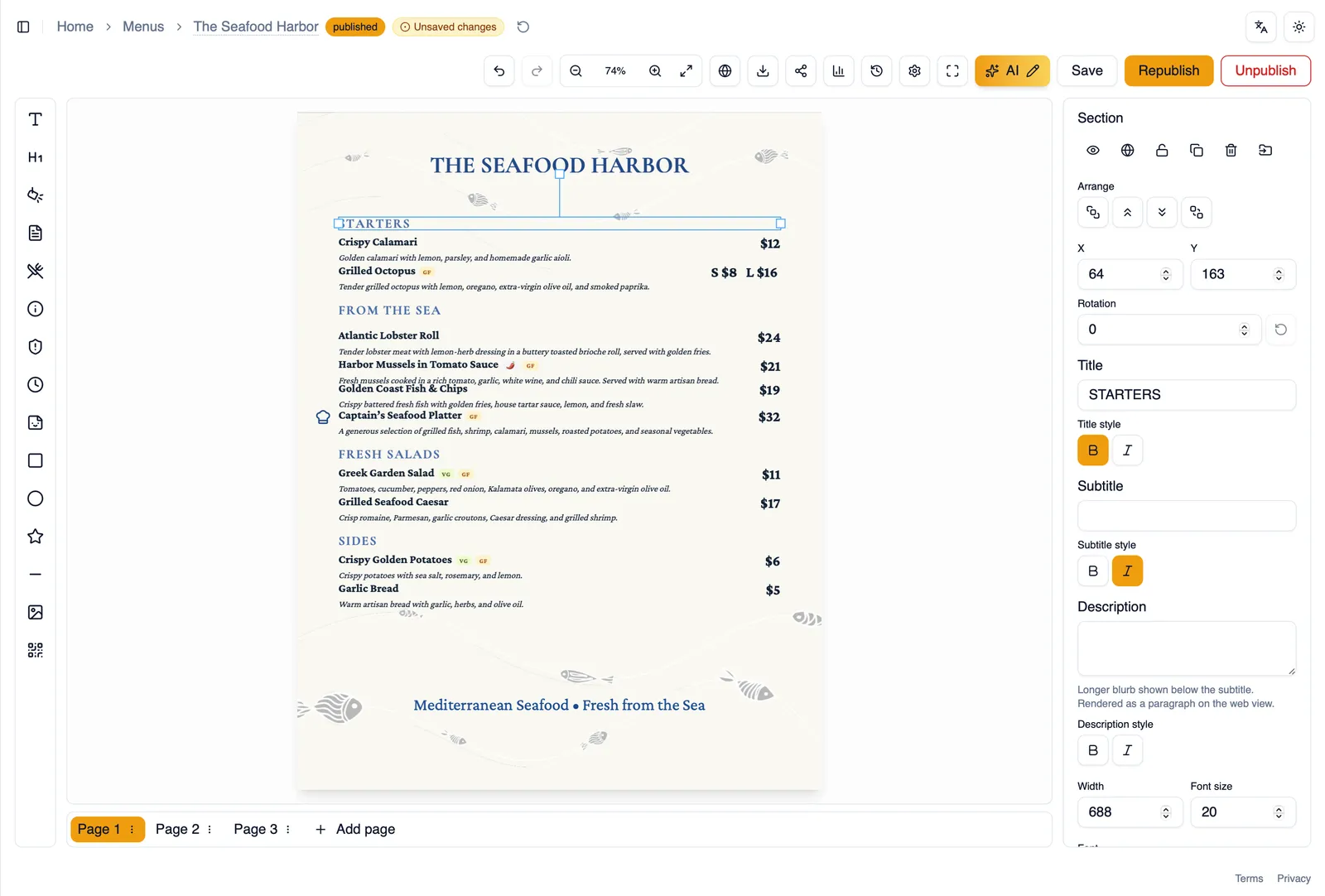
Long sections flow across columns and pages
Section titled “Long sections flow across columns and pages”A long section does not have to fit in a single column. When a page uses multiple columns, a section the columns cannot seat whole continues into the next column, and onto the next page when it needs to, with its section card drawn neatly around each part. Columns fill in balance as sections flow, so a two column page comes out even instead of lopsided. Published web menus split sections across columns exactly the way the editor shows them.
Rules and alignment
Section titled “Rules and alignment”A rule is the line that can run under a section’s title. Choose none, thin, thick, or double, whatever fits the weight of your design. You can also set how the header text aligns within the section.
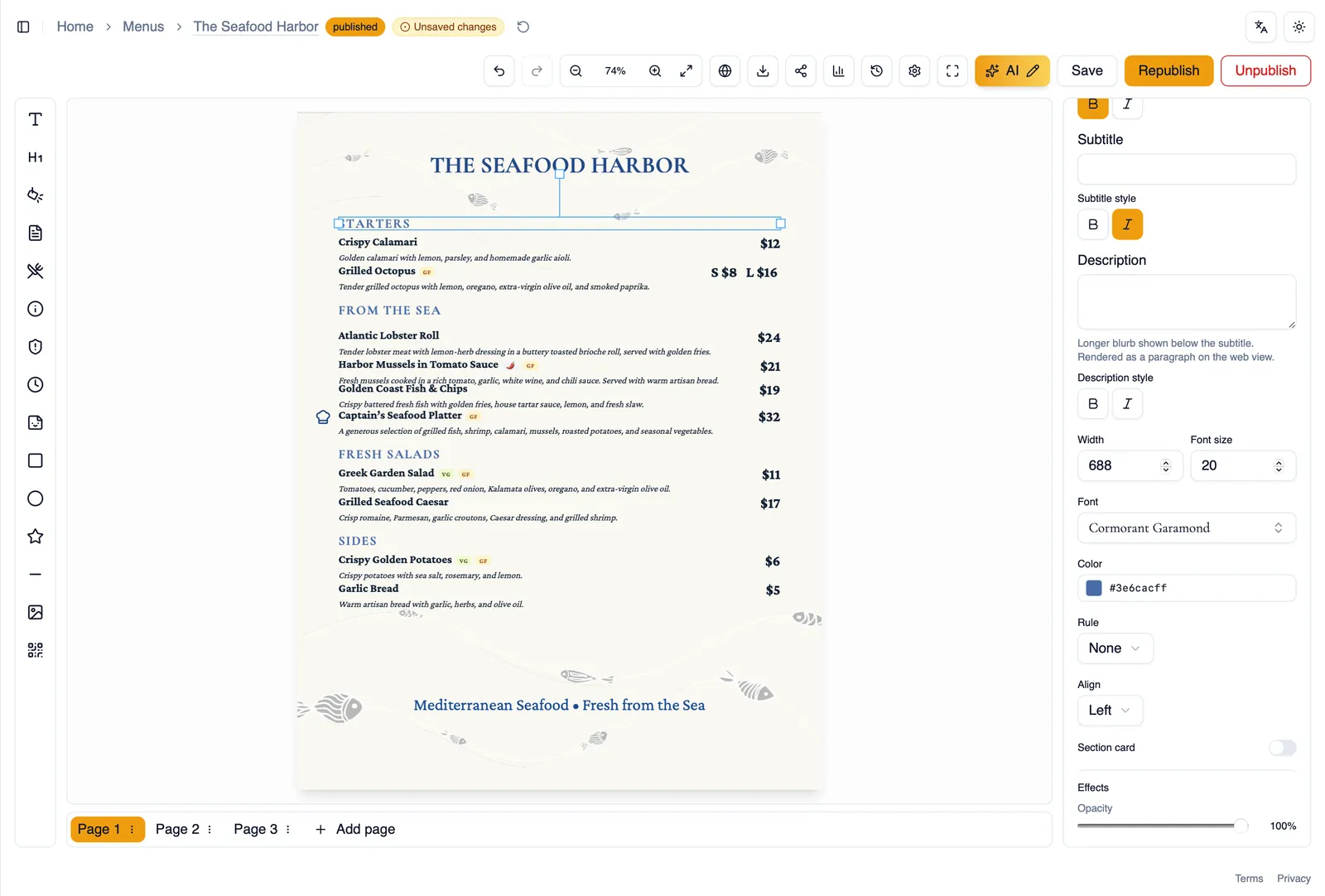
How to style a section card
Section titled “How to style a section card”- Select a section on the canvas, or select it from the Outline panel.
- In the property panel, open the section’s card settings.
- Set a background color, adjust the border, corner radius, and padding to taste.
- Choose a rule style for the line under the title, if you want one.
- Set the alignment of the header text.
Continue to Restaurant blocks for hours, logos, and the other elements that describe your restaurant.