The dashboard
The dashboard is the first thing you see after signing in. It is a snapshot of your account: how your menus are doing, what is left to set up, and how much of your plan you are using.
Stat cards
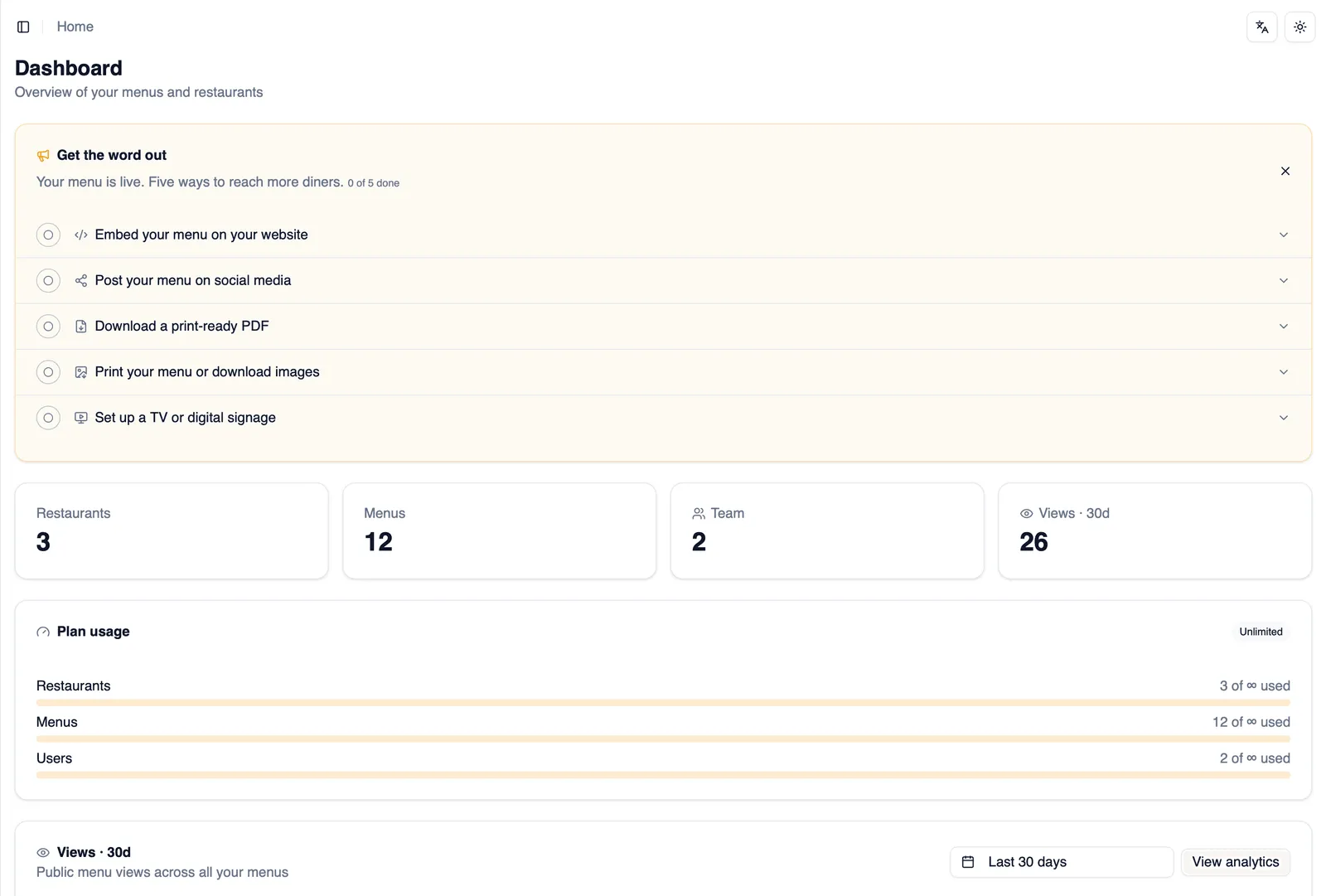
Section titled “Stat cards”Across the top of the dashboard sit a row of stat cards: quick numbers that summarize your account at a glance, so you can see how things stand without opening individual pages.
Getting started checklist
Section titled “Getting started checklist”New accounts see a getting started checklist that walks through the first few steps of setting up a restaurant and a menu. As you complete each step elsewhere in the app, for example creating a restaurant or publishing a menu, the checklist updates itself, so it works as both a guide and a progress tracker.
The “Get the word out” walkthrough
Section titled “The “Get the word out” walkthrough”Once you have a menu published, the dashboard shows the “Get the word out” walkthrough: five steps for getting your menu in front of customers. Steps you have already completed tick off automatically. For anything the dashboard cannot detect on its own, check it off yourself with Mark done. If you would rather not see it, dismiss the walkthrough and it will not come back.
How to work through the walkthrough
Section titled “How to work through the walkthrough”- Find the “Get the word out” walkthrough on your dashboard.
- Steps you have already finished are ticked automatically, no action needed.
- For a step you completed somewhere the dashboard cannot see, click Mark done to check it off yourself.
- Not interested in the walkthrough? Dismiss it at any time.
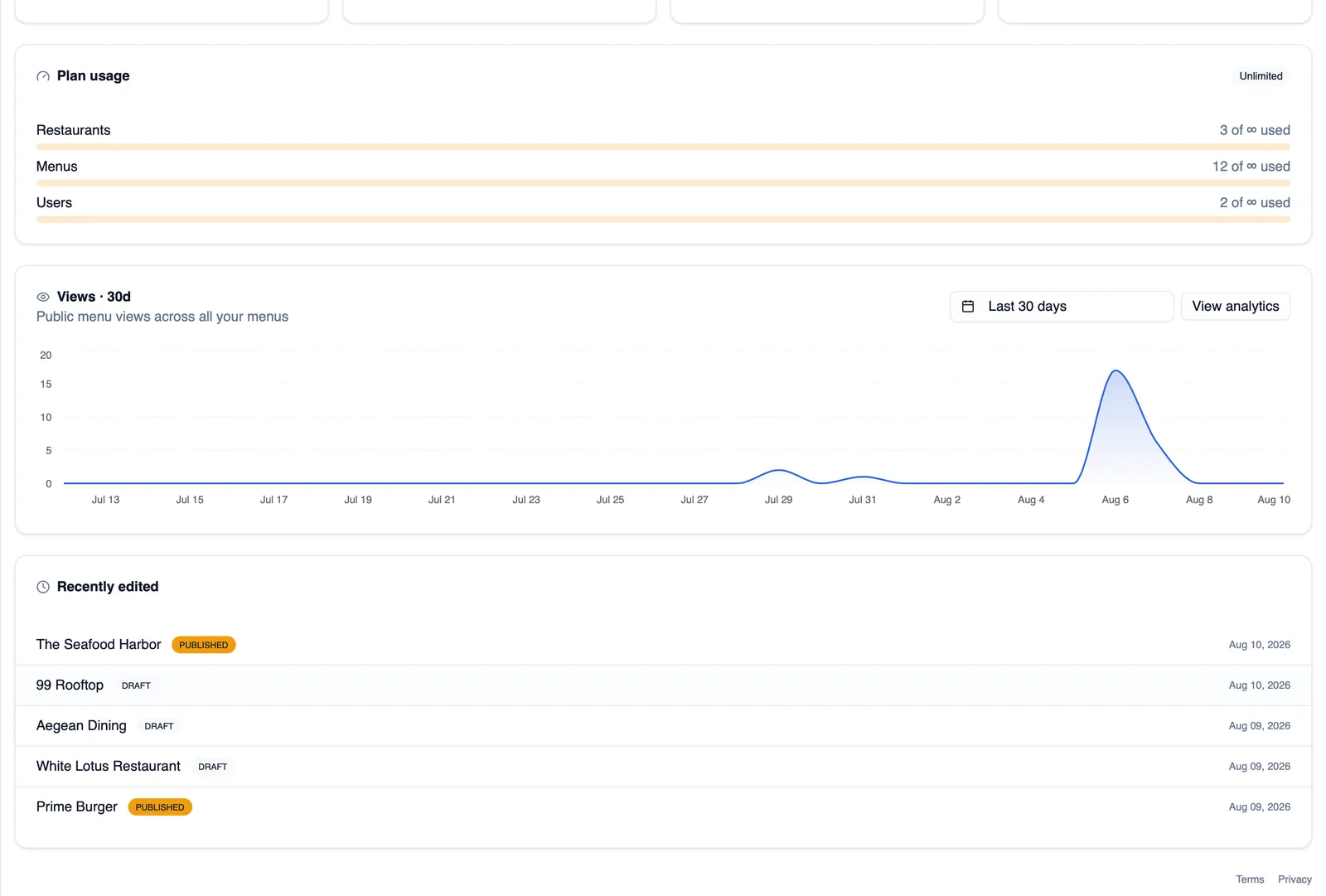
Plan usage
Section titled “Plan usage”Below the checklist, plan usage meters show how much of your plan you are currently using, so you always know where you stand before you bump into a limit.
Analytics widget
Section titled “Analytics widget”At the bottom of the dashboard, an analytics widget gives you a quick read on recent views without leaving the page. For the full picture, open Analytics in the sidebar, covered in A tour of the app.