Precision layout
Beyond selecting and moving elements by hand, the editor gives you guides and layout tools for placing things with precision, so a menu that looks aligned on screen is actually aligned, down to the pixel.
Rulers, grid, and snap
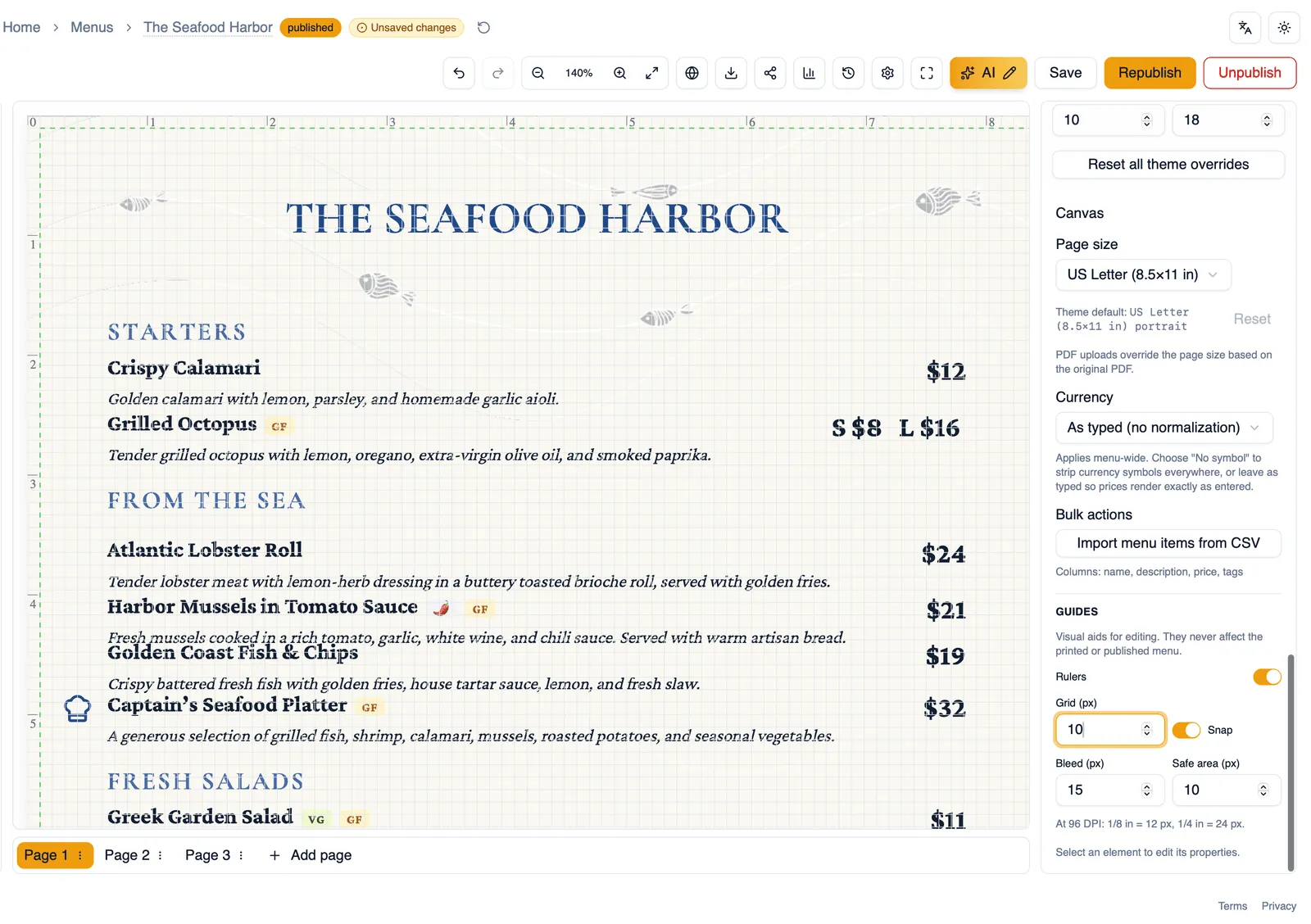
Section titled “Rulers, grid, and snap”Rulers run along the top and left edges of the canvas so you always know where you are on the page, and they stay the same size at every zoom level. Every menu opens with a grid of evenly spaced lines across the page, 25 px apart by default; change the spacing in the Guides panel, or set it to 0 to hide the grid. Turn on snap so elements click into place against the grid, the rulers, and other elements as you drag them, keeping your layout aligned without you having to eyeball it. Elements snap by their visible edges while dragging, and a dish’s photo never snaps against its own dish. On a dark, richly colored, or photo background the grid and rulers switch to a contrasting palette so they stay visible.
Bleed and safe area
Section titled “Bleed and safe area”Bleed and safe area guides show up as lines near the edge of the page. The bleed guide marks how far a background or an image that runs to the edge needs to extend past the trim edge so nothing prints with an unwanted white sliver after trimming. The safe area guide marks the inner boundary you should keep important content inside, so nothing meaningful gets cut off during trimming.
Column guides
Section titled “Column guides”Column guides lay vertical guide lines across the page to help you align content into columns. Set how many columns you want and the gutter, the space between them, and the guides update to match. The guides sit on the page margins, exactly where your columns are laid out.
Flow into columns
Section titled “Flow into columns”Once you have column guides set up, Flow into columns takes content and lays it out across those columns automatically, instead of you placing each piece by hand.
Auto-arrange page
Section titled “Auto-arrange page”Auto-arrange page reflows the elements on the current page into a tidy layout automatically. Each element also has its own move with auto-arrange toggle, which controls whether moving that element by hand keeps it participating in auto-arrange or breaks it out to sit at a fixed position instead.
Locked elements and reflow
Section titled “Locked elements and reflow”If an element is locked, it keeps its exact position through any reflow, whether that reflow comes from Auto-arrange page, a change to your column guides, or anything else that rearranges the page. Locking is the way to guarantee something, a logo pinned in a corner, for example, never moves even while everything around it does.
How to set up columns and flow content into them
Section titled “How to set up columns and flow content into them”- Open the column guides and set the count and gutter you want.
- Select the content you want laid out across those columns.
- Click Flow into columns to lay it out evenly across the columns you just set up.
How to auto-arrange a page without moving a locked element
Section titled “How to auto-arrange a page without moving a locked element”- Select the element you want to keep exactly where it is and lock it (see Working with elements).
- Click Auto-arrange page.
- Every unlocked element reflows into a tidy layout, while the locked element stays exactly where you placed it.
Next, see Multi-page menus for working across more than one page.