The asset library
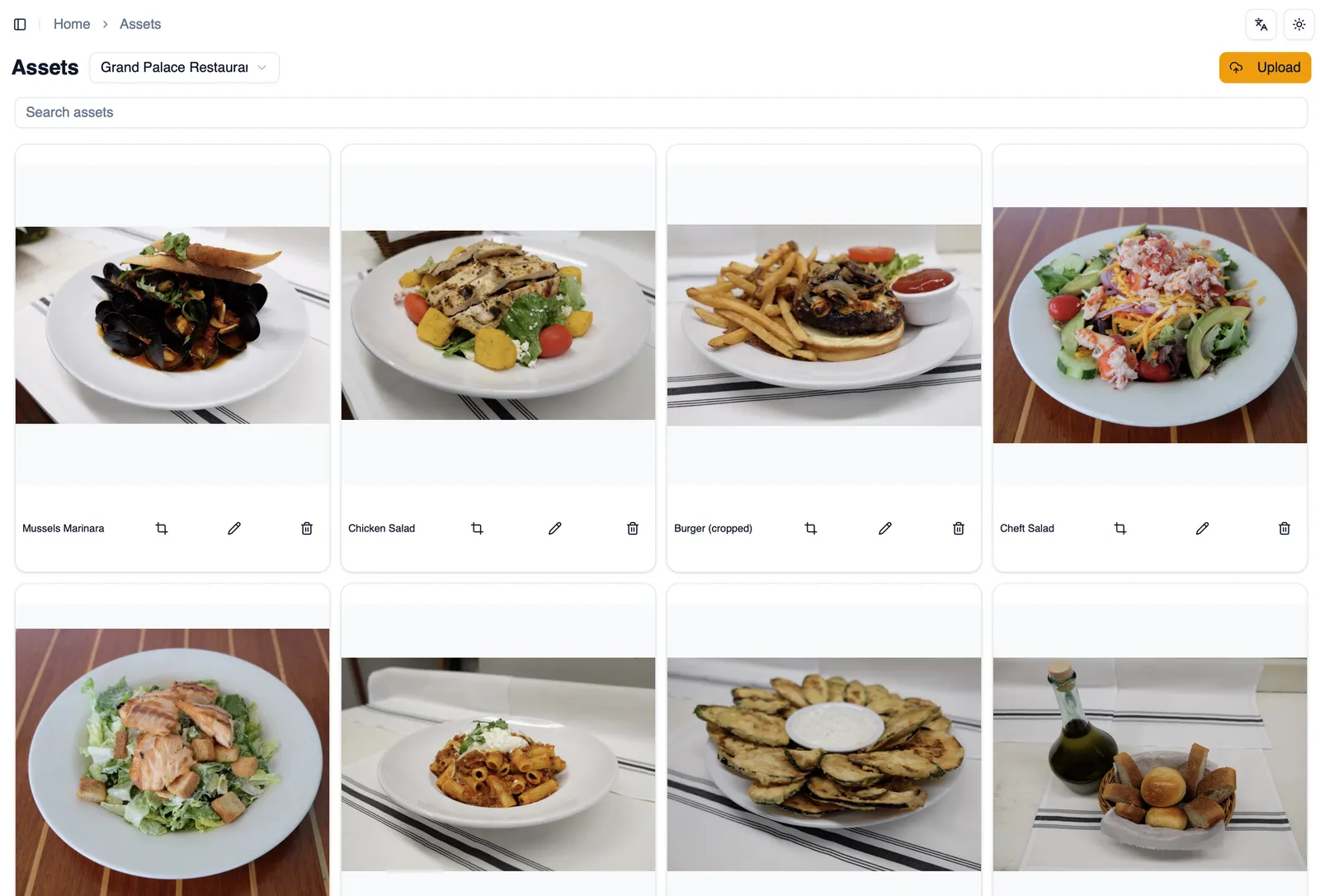
Every photo, logo, and graphic you place on a menu comes from your asset library. It holds every image you upload for a restaurant, ready to drop onto the canvas, into a background, or into a brand logo block.
Uploading images
Section titled “Uploading images”Drag and drop an image straight into the asset library to upload it. Each image can be up to 2 MB. HEIC and HEIF files, the format many phone cameras save photos in, are converted automatically so they work everywhere your menu is viewed.
Artwork extracted during generation
Section titled “Artwork extracted during generation”When you generate a menu from a PDF, Menu Author makes a best effort to extract high quality backgrounds and logos found inside it, and everything extracted lands here in your asset library automatically, alongside your own uploads. Extracted assets behave like any other: rename them, delete them, or reuse them on any menu. See Generate a menu with AI.
SVG files are sanitized
Section titled “SVG files are sanitized”If you upload an SVG file, Menu Author sanitizes it on the server before it is added to your library, keeping vector graphics safe to use.
Automatic optimization
Section titled “Automatic optimization”Every upload is optimized automatically, so your menu stays fast to load without you having to compress or resize images yourself before uploading.
Renaming an asset
Section titled “Renaming an asset”Rename any asset after uploading it, so your library stays easy to search as it grows.
Crop, rotate, flip, and zoom
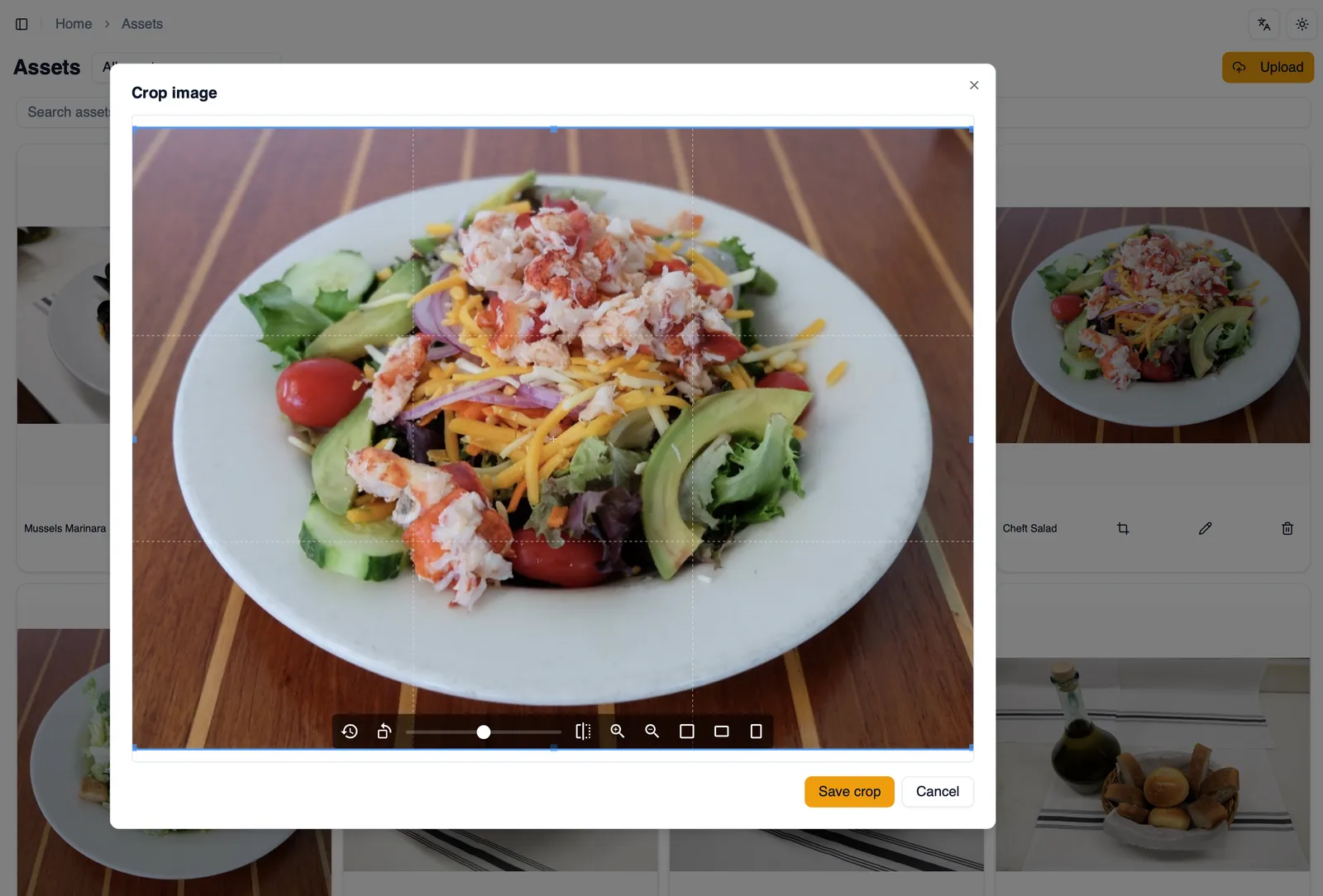
Section titled “Crop, rotate, flip, and zoom”Open an image in the built-in image editor to Crop, Rotate, Flip, or Zoom. Saving your changes does not touch the original: it creates a new asset with “(cropped)” added to its name, and leaves the original image exactly as it was. This means you can always start over from the untouched original if a crop does not work out.
Full-size preview
Section titled “Full-size preview”Click an asset to open it in a full-size lightbox preview, useful for checking image quality before you commit to using it on a menu.
Organized per restaurant
Section titled “Organized per restaurant”Assets are organized per restaurant. Switching restaurants shows only that restaurant’s own images, so libraries for different locations or brands never mix together.
Deleting an asset
Section titled “Deleting an asset”Delete any asset you no longer need directly from the asset library.
How to crop an image without losing the original
Section titled “How to crop an image without losing the original”- Open the asset library and select the image you want to edit.
- Open it in the image editor and choose Crop.
- Adjust the crop area to frame the image the way you want.
- Use Rotate, Flip, or Zoom as needed alongside the crop.
- Save your changes. Menu Author creates a new asset named with “(cropped)” added, and your original image stays untouched in the library.
That covers bringing your own images into Menu Author. From here, revisit Import from CSV or a spreadsheet any time you need to bring in another batch of items alongside your photos.