My themes
Once you have a theme customized the way you like it, save it as your own so you can reuse it on other menus instead of rebuilding the same combination from scratch each time.
Saving your customizations
Section titled “Saving your customizations”After adjusting a theme’s palette, fonts, or layout, choose Save as theme to store that exact combination as a theme of your own.
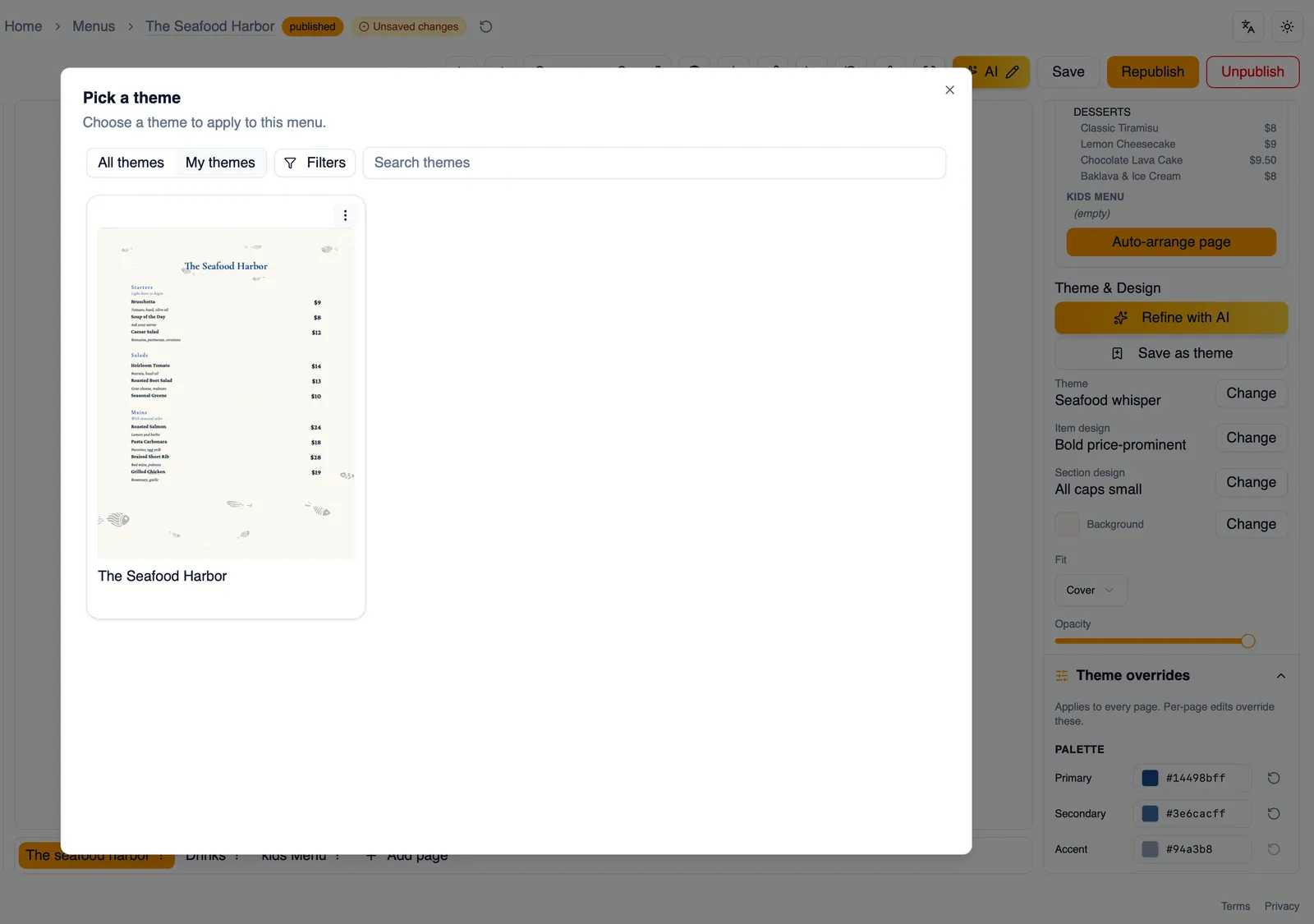
The My themes tab
Section titled “The My themes tab”Saved themes appear in their own My themes tab, alongside the curated catalog, so you can apply one to any menu the same way you would apply a catalog theme.
Renaming and deleting
Section titled “Renaming and deleting”From the My themes tab, rename a saved theme to keep your list organized, or delete one you no longer need.
Deletion is safe
Section titled “Deletion is safe”Deleting a saved theme does not affect any menu that is already using it. The menu keeps its current look; only the entry in your My themes tab is removed, so you will not see it there to apply again.
How to save your own theme
Section titled “How to save your own theme”- Customize a theme’s palette, fonts, or layout the way you want it. See Theme overrides for the full set of controls.
- In the Theme and Design panel, choose Save as theme.
- Give it a name so you can find it later.
- Find it anytime under the My themes tab, ready to apply to this menu or any other.
How to rename or delete a saved theme
Section titled “How to rename or delete a saved theme”- Open the My themes tab.
- Select the saved theme you want to change.
- Rename it, or delete it if you no longer need it.
- Deleting only removes it from My themes; menus already using it keep their current look.