Publish your menu
Every menu starts life as a draft that only you and your team can see. Publishing is the step that turns it into a live, public web page diners can actually open.
Draft and publish
Section titled “Draft and publish”While you work in the editor, your menu stays a draft. Nothing you do there is visible to diners until you click Publish in the top bar. Publishing takes your current draft and makes it live at your menu’s public URL.
Publish confirmation
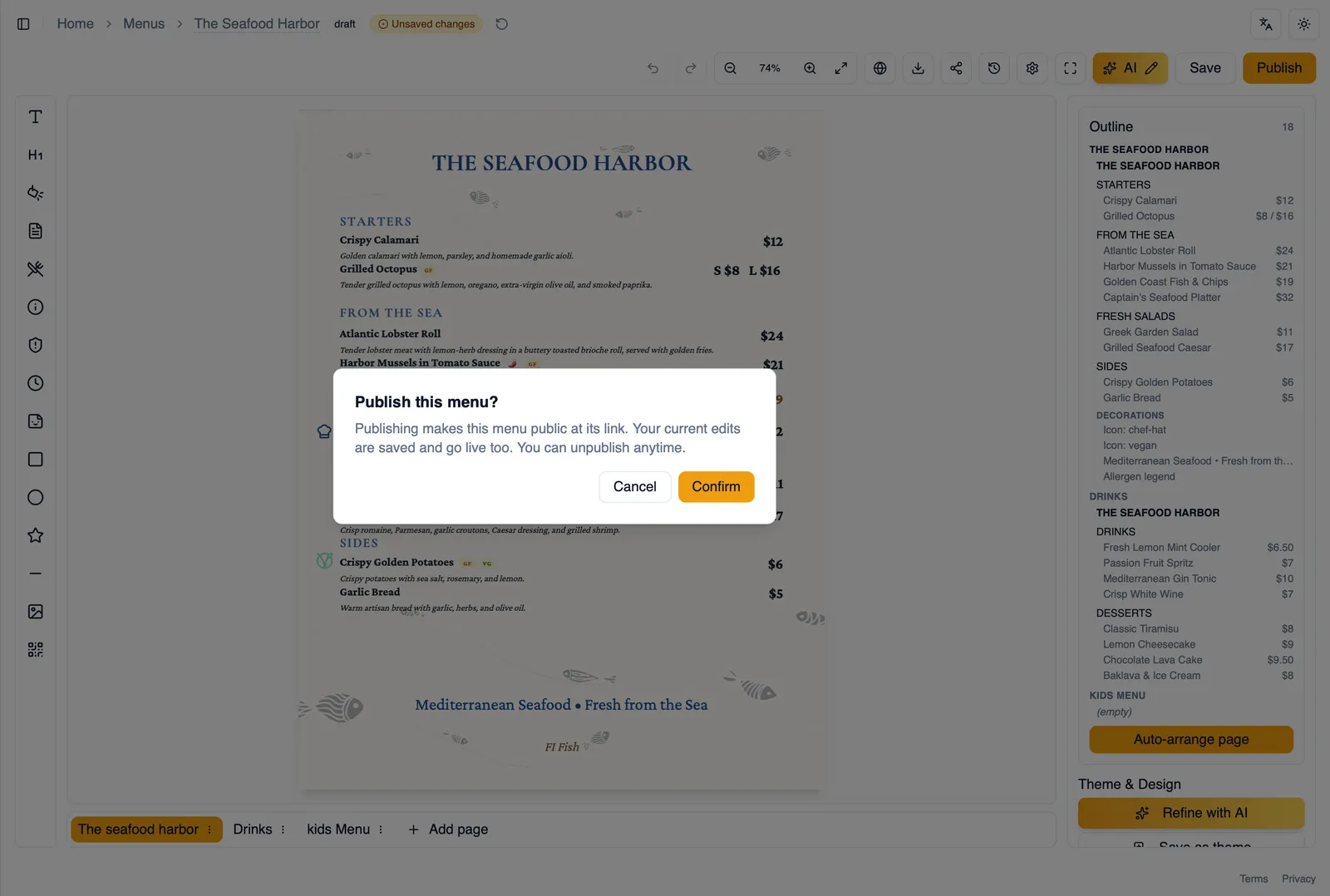
Section titled “Publish confirmation”Clicking Publish shows a confirmation before your menu goes live, so you get one last checkpoint rather than publishing by accident.
Preview before you publish
Section titled “Preview before you publish”If you want to see how your menu will look to diners before committing to it, use Preview web view in the top bar. It shows the public rendering without leaving the editor and without publishing anything. See the Editor tour for where to find it alongside the rest of the top bar.
Republishing after changes
Section titled “Republishing after changes”Once a menu is published, you can keep editing it as a draft without affecting what diners currently see. Your changes only reach the live public page once you republish, so you can take your time getting something right before it goes out.
Unpublishing
Section titled “Unpublishing”Unpublishing takes a live menu back down. Before you confirm, Menu Author warns you that any embeds and QR codes pointing at that menu will stop working once it is unpublished, so you can decide with the full picture before you go through with it.
The share nudge after publishing
Section titled “The share nudge after publishing”Right after you publish, Menu Author nudges you to share your new menu straight away rather than letting that step slip. Once a menu is published, your dashboard also picks up the “Get the word out” walkthrough to help you get it in front of customers.
Publishing from the Menus table
Section titled “Publishing from the Menus table”You do not have to be in the editor to publish. From the Menus list for your restaurant, you can publish a menu directly from the table, without opening it first.
Staff accounts and publishing
Section titled “Staff accounts and publishing”Publishing is not limited to Admins. Staff accounts can publish and unpublish menus too.
How to publish a menu for the first time
Section titled “How to publish a menu for the first time”- Open your menu in the editor and finish your draft.
- Use Preview web view to check how it will look to diners.
- Click Publish in the top bar.
- Confirm in the publish dialog.
- Follow the share nudge to get your new menu out to customers right away.
With your menu live, continue to Your public menu page to see what diners find when they open it.